The two sides of this change are more than 400 edits apart, too far apart to line up, so this is the differ's own diff of it and the words inside a line are not marked.
from line 1
11---
2title: Configure AWS KMS for CMEK
2title: Set up CMEK with AWS KMS
33url: https://platform.claude.com/docs/en/manage-claude/cmek-aws-kms
4description: Use AWS KMS to provide an encryption key for your organization.
4description: Create an AWS KMS key, give Anthropic access to it, and put it to use in Claude Platform or Claude Enterprise.
55---
66
77Let Claude Code set up this feature for you
from line 10
1010/claude-api help me configure a customer-managed encryption key with AWS KMS
1111```
1212
13This guide shows how to use an [AWS KMS](https://aws.amazon.com/kms/) key as a [customer-managed encryption key (CMEK)](https://platform.claude.com/docs/en/manage-claude/cmek) for your Anthropic organization.
14
15<Warning>
16 Enabling CMEK is permanent. If your key is deleted or disabled, Anthropic cannot recover the data encrypted under it. Review the [warnings and limitations](https://platform.claude.com/docs/en/manage-claude/cmek) before you start.
17</Warning>
18
19<Note>
20 **Claude Platform on AWS:** If your Claude Console sidebar shows **Account managed by AWS**, your organization is on Claude Platform on AWS. Follow [Set up CMEK on Claude Platform on AWS](https://platform.claude.com/docs/en/manage-claude/cmek-claude-platform-on-aws) instead.
21</Note>
22
23## Prerequisites
24
25* An AWS account with permissions to create KMS keys and set key policies (`kms:CreateKey` and `kms:PutKeyPolicy`).
26* To create the key from the command line, the [AWS CLI](https://aws.amazon.com/cli/) installed and authenticated.
27* To register the key through the API, an Anthropic Admin API key for your organization.
28
29## Amazon Resource Name (ARN) for Anthropic
30
31The key policy in this guide gives the following Anthropic IAM role access to your key:
32
33```text wrap
34arn:aws:iam::915198916910:role/anthropic-cmek-client-us
35```
36
37<Warning>
38 Use only this published ARN. Never trust an identifier provided over email, chat, or any onboarding channel.
39</Warning>
40
41## Encryption key setup
42
43### Prepare the key policy
44
45Copy this policy into a text editor:
13If your Claude Console sidebar shows **Account managed by AWS**, follow [Set up CMEK on Claude Platform on AWS](https://platform.claude.com/docs/en/manage-claude/cmek-claude-platform-on-aws) instead.
14
15## Before you start
16
17In Claude:
18
19* Customer-managed encryption keys (CMEK) are [turned on for your organization](https://platform.claude.com/docs/en/manage-claude/cmek#availability).
20* You have your Anthropic organization ID, the UUID without the `org_` prefix. Copy it from [Organization](https://platform.claude.com/settings/organization) in the Claude Console, or from **Organization settings > Organization and access** on claude.ai. Whoever creates the key needs it.
21* You're an Organization Admin on Claude Platform, or an Owner or Primary Owner on Claude Enterprise.
22* On Claude Platform, you have a workspace that [retains data](https://platform.claude.com/docs/en/manage-claude/cmek-data-retention#data-retention), ideally a new one, because [existing data stays under Anthropic's key](https://platform.claude.com/docs/en/manage-claude/cmek-how-it-works#when-your-key-takes-effect).
23* On Claude Enterprise, you know [which features turn off or change](https://platform.claude.com/docs/en/manage-claude/cmek-coverage-claude-enterprise#turned-off-or-changed).
24
25In AWS:
26
27* You can create AWS KMS keys and set their key policies (`kms:CreateKey` and `kms:PutKeyPolicy`).
28* Any IP restriction on AWS KMS access allows [Anthropic's outbound IP addresses](https://platform.claude.com/docs/en/api/ip-addresses#outbound-ip-addresses).
29
30## In AWS: create the key
31
32After a failed **Verify** or **Add**, see the [fixes for AWS KMS](https://platform.claude.com/docs/en/manage-claude/cmek-troubleshooting#aws-kms).
33
34### Write the key policy
35
36This policy gives Anthropic's IAM role access to your key. Use only the role ARN published on this page, never one sent by email or chat. Copy the policy into a text editor:
4637
4738```json key-policy.json
4839{
from line 75
8475}
8576```
8677
87Replace the two placeholders:
88
89* **`<AWS_ACCOUNT_ID>`:** your [AWS account ID](https://docs.aws.amazon.com/IAM/latest/UserGuide/console-account-id.html). To print it with the AWS CLI, run `aws sts get-caller-identity --query Account --output text`.
90* **`<ORGANIZATION_UUID>`:** your Anthropic organization ID
91
92<Note>
93 **Finding your organization ID:** Use the bare UUID, not the `org_`-prefixed ID. Copy it from one of these places:
94
95 * **Claude Console:** the **Organization ID** field on the [Organization](https://platform.claude.com/settings/organization) page (`platform.claude.com/settings/organization`)
96 * **claude.ai:** the **Organization ID** field under **Organization settings > Organization**
97 * **Admin API:** the `id` field from the [Organization Info](https://platform.claude.com/docs/en/api/organization/retrieve) endpoint
98</Note>
99
100Don't remove the `kms:EncryptionContext:anthropic:org_uuid` condition, or validation fails. To share one key among several Anthropic organizations, list each organization ID in it. To limit the key to specific workspaces, see the [optional workspace condition](https://platform.claude.com/docs/en/manage-claude/cmek-aws-kms#workspace-condition).
101
102<Warning>
103 **Keys that already protect data:** If the key is already configured for CMEK, add this fourth statement so that Anthropic can still decrypt the existing data. In its condition, list the [compartment ID](https://platform.claude.com/docs/en/manage-claude/cmek-aws-kms#compartment-id) of every workspace the key is or was attached to.
104
105 ```json
106 {
107 "Sid": "AllowAnthropicCMEKDecryptExistingData",
108 "Effect": "Allow",
109 "Principal": {
110 "AWS": "arn:aws:iam::915198916910:role/anthropic-cmek-client-us"
111 },
112 "Action": "kms:Decrypt",
113 "Resource": "*",
114 "Condition": {
115 "StringEquals": {
116 "kms:EncryptionContext:anthropic:compartment_uuid": ["<COMPARTMENT_UUID>"]
117 }
118 }
119 }
120 ```
121</Warning>
122
123<Note>
124 **Optional:** To limit the key to specific workspaces, replace the `AllowAnthropicCMEKCrypto` statement in the key policy with this one. List one compartment ID for each workspace.
125
126 ```json
127 {
128 "Sid": "AllowAnthropicCMEKCrypto",
129 "Effect": "Allow",
130 "Principal": {
131 "AWS": "arn:aws:iam::915198916910:role/anthropic-cmek-client-us"
132 },
133 "Action": ["kms:Encrypt", "kms:Decrypt"],
134 "Resource": "*",
135 "Condition": {
136 "StringEquals": {
137 "kms:EncryptionContext:anthropic:org_uuid": ["<ORGANIZATION_UUID>"]
138 },
139 "StringEqualsIfExists": {
140 "kms:EncryptionContext:anthropic:compartment_uuid": ["<COMPARTMENT_UUID>"]
141 }
142 }
143 }
144 ```
145
146 Add each workspace's compartment ID before you attach the key to it. For a new workspace:
147
148 1. Create the workspace without the key.
149 2. Add its compartment ID to the policy.
150 3. Attach the key.
151
152 **Finding your compartment ID:** In the Claude Console, go to the [Data retention](https://platform.claude.com/settings/privacy) page (`platform.claude.com/settings/privacy`). Select the workspace from the dropdown menu at the top of the page. The ID is under **Encryption key**, in the **Compartment ID** field. You can also read the `compartment_id` field returned by the [Get Workspace](https://platform.claude.com/docs/en/api/organization/workspaces/retrieve) endpoint.
153
154 On Claude Enterprise, the organization has one compartment ID. Copy it from your key under **Encryption keys** in [claude.ai > Organization settings > Data and privacy](https://claude.ai/admin-settings/data-privacy-controls).
155</Note>
78Replace `<AWS_ACCOUNT_ID>` with your [AWS account ID](https://docs.aws.amazon.com/IAM/latest/UserGuide/console-account-id.html) and `<ORGANIZATION_UUID>` with your [Anthropic organization ID](https://platform.claude.com/docs/en/manage-claude/cmek-aws-kms#prerequisites). Keep the `kms:EncryptionContext:anthropic:org_uuid` condition, or verification fails.
79
80You can also [limit the key to specific workspaces](https://platform.claude.com/docs/en/manage-claude/cmek-aws-kms-workspaces) by listing their compartment IDs. If you're replacing the policy on a key that already protects Claude data, [add one more statement](https://platform.claude.com/docs/en/manage-claude/cmek-troubleshooting#existing-data).
15681
15782### Create the key
15883
159Create the key in a [US region](https://platform.claude.com/docs/en/manage-claude/cmek#availability-and-regions). For the lowest latency, use `us-east-2`.
84Create the key in a US region. For the lowest latency, use `us-east-2`.
85
86To use a key you already have in AWS KMS, [replace its key policy](https://platform.claude.com/docs/en/manage-claude/cmek-aws-kms-workspaces#replace-the-key-policy).
16087
16188<Tabs>
16289 <Tab title="AWS Console">
from line 103
176103 Click **Next**.
177104
178105 <Frame caption="Symmetric, encrypt and decrypt, single-Region key.">
179 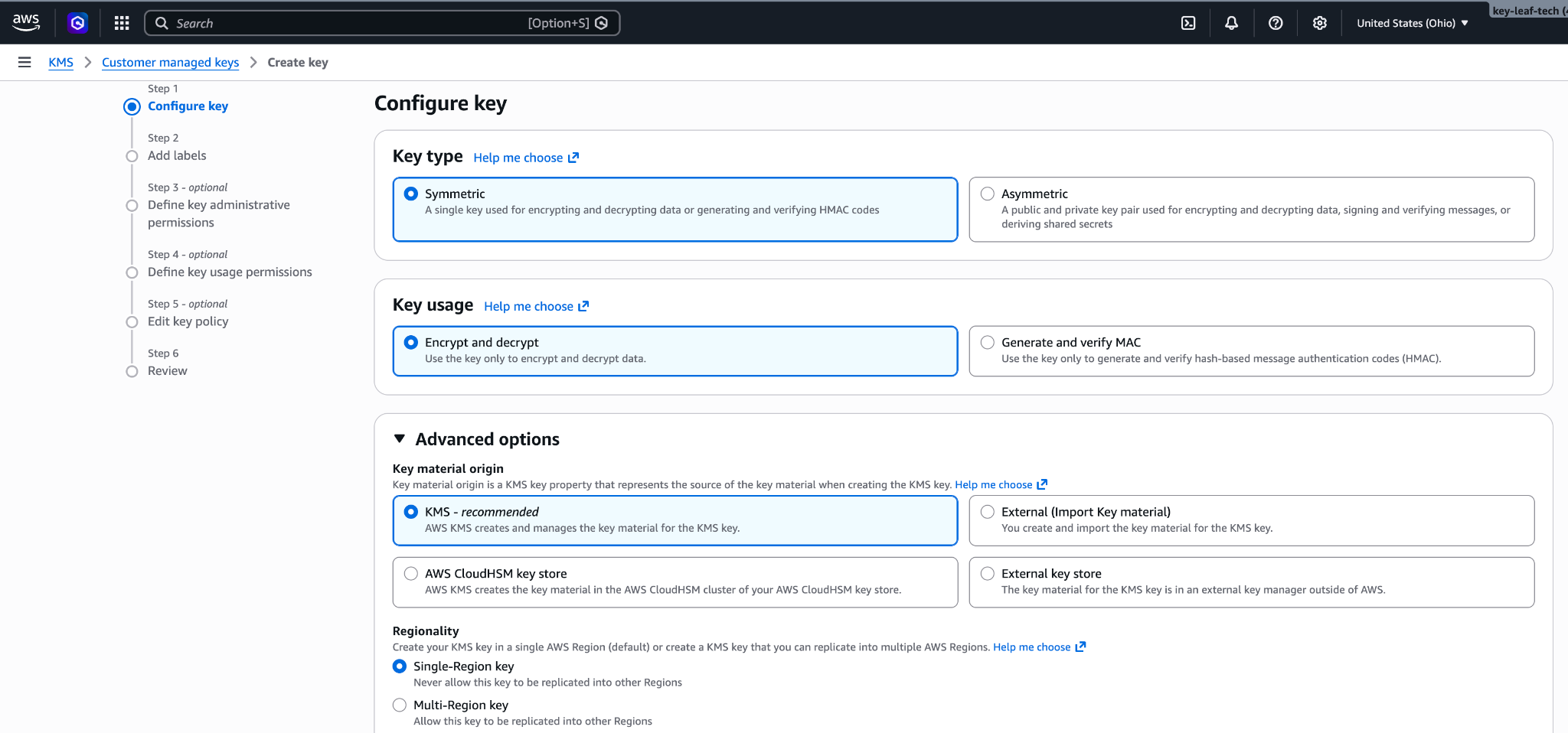
106 
180107 </Frame>
181108 </Step>
182109
from line 136
209136 </Step>
210137
211138 <Step title="Copy the key ARN">
212 In **Customer managed keys**, open the new key and copy its ARN. You need the ARN to register the key.
139 In **Customer managed keys**, open the new key and copy its ARN. Whoever adds the key in Claude needs it.
213140 </Step>
214141 </Steps>
215
216 To replace the key policy on a key that already exists:
217
218 1. Open the key and click the **Key policy** tab.
219 2. If you see **Switch to policy view**, click it.
220 3. Click **Edit**.
221 4. Replace the JSON with your key policy.
222 5. Click **Save changes**.
223142 </Tab>
224143
225144 <Tab title="AWS CLI">
from line 152
233152 --policy file://key-policy.json
234153 ```
235154
236 Copy `KeyMetadata.Arn` from the output. You need it to register the key.
155 Copy `KeyMetadata.Arn` from the output. Whoever adds the key in Claude needs the ARN.
237156 </Tab>
238157</Tabs>
239158
240## Register the key with Anthropic
241
242Validating the key adds expected access-denied errors to CloudTrail. If you alert on these errors, see [Expected errors in CloudTrail](https://platform.claude.com/docs/en/manage-claude/cmek-aws-kms#expected-errors-in-cloud-trail) first.
159Each check of the key in Claude adds four expected access-denied errors to CloudTrail. You can [filter them out](https://platform.claude.com/docs/en/manage-claude/cmek-troubleshooting#cloudtrail).
160
161## In Claude: add and attach the key
162
163To script this part on Claude Platform, [use the Admin API](https://platform.claude.com/docs/en/manage-claude/cmek-admin-api) instead.
243164
244165<Tabs>
245166 <Tab title="Claude Platform">
246 <Tabs>
247 <Tab title="Claude Console">
248 <Steps>
249 <Step title="Open the encryption key settings">
250 In the Claude Console, go to the [Data retention](https://platform.claude.com/settings/privacy#encryption-keys) page (`platform.claude.com/settings/privacy`). If you don't see **Encryption keys**, select **Organization** from the dropdown menu at the top of the page.
251 </Step>
252
253 <Step title="Add the key">
254 Under **Encryption keys**, click **Add key**. Enter a **Display name** and select **AWS KMS**. Click **Continue**.
255 </Step>
256
257 <Step title="Enter the key ARN">
258 The dialog box shows the **Organization ID for the key policy**. Check that your [key policy](https://platform.claude.com/docs/en/manage-claude/cmek-aws-kms#key-policy) contains this ID. Paste the key ARN into **KMS key ARN** and click **Add**.
259 </Step>
260
261 <Step title="Validate the key">
262 In the **Encryption keys** list, click **Verify** next to the key. **Connected** appears when the check passes. If it fails, see [Troubleshoot validation](https://platform.claude.com/docs/en/manage-claude/cmek-aws-kms#troubleshoot-validation) for common causes.
263 </Step>
264
265 <Step title="Attach the key to a workspace">
266 Attaching a key can't be undone. If you can, attach it to a new workspace before that workspace receives any requests. In a workspace that already receives requests, the key can take [up to a day to take effect](https://platform.claude.com/docs/en/manage-claude/cmek#how-it-works).
267
268 On the Data retention page, select the workspace from the dropdown menu at the top of the page. Under **Encryption key**, select the key and click **Save**.
269 </Step>
270
271 <Step title="Confirm the change">
272 Select the checkbox to confirm that you have read the CMEK documentation, then click **Confirm**.
273 </Step>
274 </Steps>
275 </Tab>
276
277 <Tab title="API">
278 <Steps>
279 <Step title="Create the external key">
280 Replace `<friendly-name>` with a display name and `<key-arn-from-create-key-step>` with the key ARN.
281
282 <CodeGroup>
283 ```bash cURL
284 curl -sS "https://api.anthropic.com/v1/organizations/external_keys" \
285 -H "x-api-key: $ANTHROPIC_API_KEY" \
286 -H "anthropic-version: 2023-06-01" \
287 -H "content-type: application/json" \
288 -d '{
289 "display_name": "<friendly-name>",
290 "geo": "us",
291 "provider_config": {
292 "type": "aws",
293 "kms_arn": "<key-arn-from-create-key-step>"
294 }
295 }'
296 ```
297
298 ```bash CLI
299 ant organization:external-keys create <<'YAML'
300 display_name: "<friendly-name>"
301 geo: us
302 provider_config:
303 type: aws
304 kms_arn: "<key-arn-from-create-key-step>"
305 YAML
306 ```
307
308 ```python Python
309 client = anthropic.Anthropic()
310
311 external_key = client.organization.external_keys.create(
312 display_name="<friendly-name>",
313 geo="us",
314 provider_config={"type": "aws", "kms_arn": "<key-arn-from-create-key-step>"},
315 )
316
317 print(f"id: {external_key.id}")
318 print(f"display_name: {external_key.display_name}")
319 ```
320
321 ```typescript TypeScript
322 const client = new Anthropic();
323
324 const externalKey = await client.organization.externalKeys.create({
325 display_name: "<friendly-name>",
326 geo: "us",
327 provider_config: {
328 type: "aws",
329 kms_arn: "<key-arn-from-create-key-step>"
330 }
331 });
332
333 console.log(`id: ${externalKey.id}`);
334 console.log(`display_name: ${externalKey.display_name}`);
335 ```
336
337 ```csharp C#
338 using Anthropic.Models.Organization.ExternalKeys;
339
340 AnthropicClient client = new();
341
342 var externalKey = await client.Organization.ExternalKeys.Create(new()
343 {
344 DisplayName = "<friendly-name>",
345 Geo = Geo.Us,
346 ProviderConfig = new AwsExternalKeyConfig
347 {
348 KmsArn = "<key-arn-from-create-key-step>"
349 }
350 });
351
352 Console.WriteLine($"id: {externalKey.ID}");
353 Console.WriteLine($"display_name: {externalKey.DisplayName}");
354 ```
355
356 ```go Go
357 client := anthropic.NewClient()
358
359 externalKey, err := client.Organization.ExternalKeys.New(context.Background(), anthropic.OrganizationExternalKeyNewParams{
360 DisplayName: anthropic.String("<friendly-name>"),
361 Geo: anthropic.OrganizationExternalKeyNewParamsGeoUs,
362 ProviderConfig: anthropic.OrganizationExternalKeyNewParamsProviderConfigUnion{
363 OfAWS: &anthropic.AWSExternalKeyConfigParam{
364 KMSARN: "<key-arn-from-create-key-step>",
365 },
366 },
367 })
368 if err != nil {
369 log.Fatal(err)
370 }
371
372 fmt.Printf("id: %s\n", externalKey.ID)
373 fmt.Printf("display_name: %s\n", externalKey.DisplayName)
374 ```
375
376 ```java Java
377 import com.anthropic.models.organization.externalkeys.AwsExternalKeyConfig;
378 import com.anthropic.models.organization.externalkeys.ExternalKeyCreateParams;
379
380 void main() {
381 AnthropicClient client = AnthropicOkHttpClient.fromEnv();
382
383 var params = ExternalKeyCreateParams.builder()
384 .displayName("<friendly-name>")
385 .geo(ExternalKeyCreateParams.Geo.US)
386 .providerConfig(AwsExternalKeyConfig.builder()
387 .kmsArn("<key-arn-from-create-key-step>")
388 .build())
389 .build();
390 var externalKey = client.organization().externalKeys().create(params);
391
392 IO.println("id: " + externalKey.id());
393 IO.println("display_name: " + externalKey.displayName().orElseThrow());
394 }
395 ```
396
397 ```php PHP
398 use Anthropic\Organization\ExternalKeys\ExternalKeyCreateParams\Geo;
399 // ...
400
401 $client = new Client();
402
403 $externalKey = $client->organization->externalKeys->create(
404 displayName: '<friendly-name>',
405 geo: Geo::US,
406 providerConfig: [
407 'type' => 'aws',
408 'kmsARN' => '<key-arn-from-create-key-step>',
409 ],
410 );
411
412 echo "id: {$externalKey->id}\n";
413 echo "display_name: {$externalKey->displayName}\n";
414 ```
415
416 ```ruby Ruby
417 client = Anthropic::Client.new
418
419 external_key = client.organization.external_keys.create(
420 display_name: "<friendly-name>",
421 geo: :us,
422 provider_config: {
423 type: :aws,
424 kms_arn: "<key-arn-from-create-key-step>"
425 }
426 )
427
428 puts "id: #{external_key.id}"
429 puts "display_name: #{external_key.display_name}"
430 ```
431 </CodeGroup>
432
433 The `id` field of the response contains the external key ID. Copy it for the next two steps:
434
435 ```json
436 {
437 "type": "external_key",
438 "id": "ekey_<id>",
439 "display_name": "<friendly-name>"
440 }
441 ```
442 </Step>
443
444 <Step title="Validate the key">
445 Replace `ekey_<id>` with the external key ID.
446
447 <CodeGroup>
448 ```bash cURL
449 curl -sS -X POST "https://api.anthropic.com/v1/organizations/external_keys/ekey_<id>/validate" \
450 -H "x-api-key: $ANTHROPIC_API_KEY" \
451 -H "anthropic-version: 2023-06-01"
452 ```
453
454 ```bash CLI
455 ant organization:external-keys validate --external-key-id "ekey_<id>"
456 ```
457
458 ```python Python
459 client = anthropic.Anthropic()
460
461 validation = client.organization.external_keys.validate("ekey_<id>")
462
463 print(f"status: {validation.status}")
464 print(f"error: {validation.error}")
465 ```
466
467 ```typescript TypeScript
468 const client = new Anthropic();
469
470 const validation = await client.organization.externalKeys.validate("ekey_<id>");
471
472 console.log(`status: ${validation.status}`);
473 console.log(`error: ${validation.error}`);
474 ```
475
476 ```csharp C#
477 AnthropicClient client = new();
478
479 var validation = await client.Organization.ExternalKeys.Validate("ekey_<id>");
480
481 Console.WriteLine($"status: {validation.Status.Raw()}");
482 Console.WriteLine($"error: {validation.Error}");
483 ```
484
485 ```go Go
486 client := anthropic.NewClient()
487
488 validation, err := client.Organization.ExternalKeys.Validate(context.Background(), "ekey_<id>")
489 if err != nil {
490 log.Fatal(err)
491 }
492
493 fmt.Printf("status: %s\n", validation.Status)
494 fmt.Printf("error: %s\n", validation.Error)
495 ```
496
497 ```java Java
498 AnthropicClient client = AnthropicOkHttpClient.fromEnv();
499
500 var validation = client.organization().externalKeys().validate("ekey_<id>");
501
502 IO.println("status: " + validation.status().asString());
503 IO.println("error: " + validation.error().orElse(""));
504 ```
505
506 ```php PHP
507 $client = new Client();
508
509 $validation = $client->organization->externalKeys->validate(
510 externalKeyID: 'ekey_<id>',
511 );
512
513 echo "status: {$validation->status}\n";
514 echo "error: {$validation->error}\n";
515 ```
516
517 ```ruby Ruby
518 client = Anthropic::Client.new
519
520 external_key_id = "ekey_<id>"
521 validation = client.organization.external_keys.validate(external_key_id)
522
523 puts "status: #{validation.status}"
524 puts "error: #{validation.error}"
525 ```
526 </CodeGroup>
527
528 A successful response looks like this:
529
530 ```json
531 { "type": "external_key_validation", "status": "success", "error": null }
532 ```
533
534 If validation fails, see [Troubleshoot validation](https://platform.claude.com/docs/en/manage-claude/cmek-aws-kms#troubleshoot-validation).
535 </Step>
536
537 <Step title="Attach the key to a workspace">
538 Attaching a key can't be undone. If you can, attach it to a new workspace before that workspace receives any requests. In a workspace that already receives requests, the key can take [up to a day to take effect](https://platform.claude.com/docs/en/manage-claude/cmek#how-it-works).
539
540 Replace `<workspace-id>` with the workspace ID and `ekey_<id>` with the external key ID.
541
542 <CodeGroup>
543 ```bash cURL
544 curl -sS -X POST "https://api.anthropic.com/v1/organizations/workspaces/<workspace-id>" \
545 -H "x-api-key: $ANTHROPIC_API_KEY" \
546 -H "anthropic-version: 2023-06-01" \
547 -H "content-type: application/json" \
548 -d '{
549 "external_key_id": "ekey_<id>"
550 }'
551 ```
552
553 ```bash CLI
554 ant organization:workspaces update \
555 --workspace-id "<workspace-id>" \
556 --external-key-id "ekey_<id>"
557 ```
558
559 ```python Python
560 client = anthropic.Anthropic()
561
562 workspace = client.organization.workspaces.update(
563 "<workspace-id>", external_key_id="ekey_<id>"
564 )
565
566 print(f"id: {workspace.id}")
567 print(f"external_key_id: {workspace.external_key_id}")
568 ```
569
570 ```typescript TypeScript
571 const client = new Anthropic();
572
573 const workspace = await client.organization.workspaces.update("<workspace-id>", {
574 external_key_id: "ekey_<id>"
575 });
576
577 console.log(`id: ${workspace.id}`);
578 console.log(`external_key_id: ${workspace.external_key_id}`);
579 ```
580
581 ```csharp C#
582 AnthropicClient client = new();
583
584 var workspace = await client.Organization.Workspaces.Update("<workspace-id>", new()
585 {
586 ExternalKeyID = "ekey_<id>"
587 });
588
589 Console.WriteLine($"id: {workspace.ID}");
590 Console.WriteLine($"external_key_id: {workspace.ExternalKeyID}");
591 ```
592
593 ```go Go
594 client := anthropic.NewClient()
595
596 workspace, err := client.Organization.Workspaces.Update(
597 context.Background(),
598 "<workspace-id>",
599 anthropic.OrganizationWorkspaceUpdateParams{
600 ExternalKeyID: anthropic.String("ekey_<id>"),
601 },
602 )
603 if err != nil {
604 log.Fatal(err)
605 }
606
607 fmt.Printf("id: %s\n", workspace.ID)
608 fmt.Printf("external_key_id: %s\n", workspace.ExternalKeyID)
609 ```
610
611 ```java Java
612 import com.anthropic.models.organization.workspaces.WorkspaceUpdateParams;
613
614 void main() {
615 AnthropicClient client = AnthropicOkHttpClient.fromEnv();
616
617 var params = WorkspaceUpdateParams.builder()
618 .externalKeyId("ekey_<id>")
619 .build();
620 var workspace = client.organization().workspaces().update("<workspace-id>", params);
621
622 IO.println("id: " + workspace.id());
623 IO.println("external_key_id: " + workspace.externalKeyId().orElseThrow());
624 }
625 ```
626
627 ```php PHP
628 $client = new Client();
629
630 $workspace = $client->organization->workspaces->update(
631 workspaceID: '<workspace-id>',
632 externalKeyID: 'ekey_<id>',
633 );
634
635 echo "id: {$workspace->id}\n";
636 echo "external_key_id: {$workspace->externalKeyID}\n";
637 ```
638
639 ```ruby Ruby
640 client = Anthropic::Client.new
641
642 workspace_id = "<workspace-id>"
643 workspace = client.organization.workspaces.update(
644 workspace_id,
645 external_key_id: "ekey_<id>"
646 )
647
648 puts "id: #{workspace.id}"
649 puts "external_key_id: #{workspace.external_key_id}"
650 ```
651 </CodeGroup>
652 </Step>
653 </Steps>
654 </Tab>
655 </Tabs>
167 <Steps>
168 <Step title="Open the encryption key settings">
169 In the Claude Console, open [Encryption keys](https://platform.claude.com/settings/privacy#encryption-keys) on the Data retention page. If the section isn't there, select **Organization** from the dropdown menu at the top.
170 </Step>
171
172 <Step title="Add the key">
173 Under **Encryption keys**, click **Add key**. Enter a **Display name**, select **AWS KMS**, and click **Continue**.
174 </Step>
175
176 <Step title="Enter the key ARN">
177 Check that your [key policy](https://platform.claude.com/docs/en/manage-claude/cmek-aws-kms#key-policy) contains the **Organization ID for the key policy** shown in the dialog box. Paste the key ARN into **KMS key ARN** and click **Add**.
178 </Step>
179
180 <Step title="Verify the key">
181 In the **Encryption keys** list, click **Verify** next to the key. **Connected** appears when the check passes. If **Connection failed** appears instead, see [Troubleshoot CMEK](https://platform.claude.com/docs/en/manage-claude/cmek-troubleshooting).
182 </Step>
183
184 <Step title="Attach the key to a workspace">
185 <Warning>
186 Attaching a key [can't be undone](https://platform.claude.com/docs/en/manage-claude/cmek-key-lifecycle#what-each-action-does). You can't remove it from the workspace or replace it. If the key is deleted, Anthropic can't recover the data it protects.
187 </Warning>
188
189 1. At the top of the Data retention page, select the workspace from the dropdown menu.
190 2. Under **Encryption key**, select the key and click **Save**.
191 3. Select the checkbox to confirm that you have read the CMEK documentation, then click **Confirm**.
192
193 You see **Workspace settings updated.** Once the key [takes effect](https://platform.claude.com/docs/en/manage-claude/cmek-how-it-works#when-your-key-takes-effect), your cloud provider's audit log shows Anthropic's calls to the key.
194
195 In a [ZDR organization](https://platform.claude.com/docs/en/manage-claude/cmek-data-retention#zdr-organizations), after you select the workspace, select **Standard data retention** so that **Encryption key** appears. After you click **Save**, click **Accept** on the data retention terms.
196 </Step>
197 </Steps>
656198 </Tab>
657199
658200 <Tab title="Claude Enterprise">
659 On Claude Enterprise, CMEK applies to the whole organization, and an organization can have only one key.
201 On Claude Enterprise, CMEK applies to the whole organization, and you can add only one key.
202
203 <Warning>
204 Adding a key [can't be undone](https://platform.claude.com/docs/en/manage-claude/cmek-key-lifecycle#what-each-action-does). You can't remove it from the organization or replace it. If the key is deleted, Anthropic can't recover the data it protects.
205 </Warning>
206
207 Adding the key [turns off or changes some features](https://platform.claude.com/docs/en/manage-claude/cmek-coverage-claude-enterprise#turned-off-or-changed) for every user. To try CMEK first, use a separate organization.
660208
661209 <Steps>
662210 <Step title="Open the encryption key settings">
from line 216
668216 </Step>
669217
670218 <Step title="Enter the key ARN">
671 The dialog box shows the **Organization ID for the key policy**. Check that your [key policy](https://platform.claude.com/docs/en/manage-claude/cmek-aws-kms#key-policy) contains this ID. Paste the key ARN into **KMS key ARN** and click **Add**.
672 </Step>
673
674 <Step title="Confirm that validation passed">
675 When the check passes, **Encryption key configured** appears, and your organization is CMEK-protected from then on. If the check fails, see [Troubleshoot validation](https://platform.claude.com/docs/en/manage-claude/cmek-aws-kms#troubleshoot-validation).
219 Check that your [key policy](https://platform.claude.com/docs/en/manage-claude/cmek-aws-kms#key-policy) contains the **Organization ID for the key policy** shown in the dialog box. Paste the key ARN into **KMS key ARN** and click **Add**.
220 </Step>
221
222 <Step title="Confirm that the key was added">
223 The check can take up to 30 seconds. When **Encryption key configured.** appears, click **Done**. If **The encryption key couldn’t be added.** appears instead, [find the cause and retry](https://platform.claude.com/docs/en/manage-claude/cmek-troubleshooting#claude-ai-add-fails).
224
225 Your key protects data written from then on. Tell your users [which features changed](https://platform.claude.com/docs/en/manage-claude/cmek-coverage-claude-enterprise#turned-off-or-changed).
676226 </Step>
677227 </Steps>
678228 </Tab>
679229</Tabs>
680
681## Troubleshoot validation
682
683If validation fails, common causes are:
684
685* **Wrong organization ID:** Make sure the `org_uuid` condition lists your bare organization ID, not the `org_`-prefixed ID.
686* **Encryption context mismatch:** If the policy has a `kms:EncryptionContext:anthropic:compartment_uuid` condition, make sure it lists the [compartment ID](https://platform.claude.com/docs/en/manage-claude/cmek-aws-kms#compartment-id) of each workspace the key is attached to.
687* **Resource control policies (RCPs):** Some RCPs deny KMS operations when `aws:PrincipalOrgID` does not match your AWS organization. An RCP like this blocks Anthropic's role. Add an exception to it for this key or for Anthropic's role ARN. Service control policies do not apply here.
688* **Access granted through IAM instead of the key policy:** Grant Anthropic's role access in the key policy itself, not through an IAM policy in your account. To check the key policy, run `aws kms get-key-policy --region <REGION> --key-id <KEY_ARN> --policy-name default`.
689* **Region mismatch:** Confirm that the key is in a US region.
690
691### Expected errors in CloudTrail
692
693Anthropic validates the key whenever you verify it, attach it to a workspace, or view it in the Claude Enterprise settings. Each validation adds four access-denied errors to CloudTrail. These errors are expected.
694
695To filter them out, match all three of these values:
696
697* `requestParameters.encryptionContext.associatedData`: `Y21lay12YWxpZGF0aW9u`
698* `userIdentity.accountId`: `915198916910`
699* `resources.ARN`: `arn:aws:kms:<REGION>:<AWS_ACCOUNT_ID>:key/<KEY_ID>`
700
701The first value alone isn't enough, because any caller can set it.
702
703## Terraform
704
705To create the key with Terraform, use the `aws_kms_key` and `aws_kms_alias` resources from the `aws` provider.
706230
No line in this hunk matches that.
