The two sides of this change are more than 400 edits apart, too far apart to line up, so this is the differ's own diff of it and the words inside a line are not marked.
from line 10
1010/claude-api help me configure a customer-managed encryption key with AWS KMS
1111```
1212
13This guide walks through configuring an [AWS KMS](https://aws.amazon.com/kms/) key as a [customer-managed encryption key (CMEK)](https://platform.claude.com/docs/en/manage-claude/cmek) for your Anthropic organization.
13This guide shows how to use an [AWS KMS](https://aws.amazon.com/kms/) key as a [customer-managed encryption key (CMEK)](https://platform.claude.com/docs/en/manage-claude/cmek) for your Anthropic organization.
1414
1515<Warning>
1616 Enabling CMEK is permanent. If your KMS key is deleted or disabled, Anthropic cannot recover the data encrypted under it. Review the [warnings and limitations](https://platform.claude.com/docs/en/manage-claude/cmek) before you begin.
1717</Warning>
1818
1919<Note>
20 **Claude Platform on AWS:** On [Claude Platform on AWS](https://platform.claude.com/docs/en/build-with-claude/claude-platform-on-aws), your key policy grants access to an AWS service principal instead of Anthropic's IAM role, there is no separate validation step, and you register and attach the key in the Claude Console. Follow [Set up CMEK on Claude Platform on AWS](https://platform.claude.com/docs/en/manage-claude/cmek-aws-kms#claude-platform-on-aws) on this page instead of the steps in the next sections.
20 **Claude Platform on AWS:** If your Claude Console sidebar shows **Account managed by AWS**, your organization is on Claude Platform on AWS. Follow [Set up CMEK on Claude Platform on AWS](https://platform.claude.com/docs/en/manage-claude/cmek-claude-platform-on-aws) instead.
2121</Note>
2222
2323## Prerequisites
2424
2525* An AWS account with permissions to create KMS keys and set key policies (`kms:CreateKey` and `kms:PutKeyPolicy`).
26* An Anthropic Admin API key for your organization.
27* The [AWS CLI](https://aws.amazon.com/cli/) installed and authenticated.
26* To create the key from the command line, the [AWS CLI](https://aws.amazon.com/cli/) installed and authenticated.
27* To register the key through the API, an Anthropic Admin API key for your organization.
2828
2929## Amazon Resource Name (ARN) for Anthropic
3030
31To have Anthropic use your encryption key, you must give Anthropic's IAM role a KMS key it can use for encrypting data. The ARN for Anthropic CMEK is:
31The key policy in this guide gives the following Anthropic IAM role access to your key:
3232
3333```text wrap
3434arn:aws:iam::915198916910:role/anthropic-cmek-client-us
from line 40
4040
4141## Encryption key setup
4242
43<Steps>
44 <Step title="Create the KMS key with a cross-account key policy">
45 <Note>
46 **Claude Platform on AWS:** Skip this step. Your key policy grants access to an AWS service principal, and it has no organization condition. [Set up CMEK on Claude Platform on AWS](https://platform.claude.com/docs/en/manage-claude/cmek-aws-kms#claude-platform-on-aws) gives that policy.
47 </Note>
48
49 The key policy grants Anthropic's IAM role cross-account access. Three statements are required:
50
51 1. **Account root admin:** the standard KMS pattern. Your account retains full admin control.
52 2. **Anthropic encrypt and decrypt:** the `kms:Encrypt` and `kms:Decrypt` actions, which Anthropic uses to encrypt and decrypt the data keys that protect your workspace data (envelope encryption).
53 3. **Anthropic describe:** the metadata read Anthropic performs at startup. It is granted separately because `DescribeKey` has no `EncryptionContext` parameter, so an `EncryptionContext` condition on this action would always deny.
54
55 To find [your AWS account ID](https://docs.aws.amazon.com/IAM/latest/UserGuide/console-account-id.html), run `aws sts get-caller-identity --query Account --output text`.
56
57 In the policy, replace `<AWS_ACCOUNT_ID>` with your AWS account ID and `<ORGANIZATION_UUID>` with your organization ID. The `StringEquals` condition on `kms:EncryptionContext:anthropic:org_uuid` binds the key to your Anthropic organization, and validation refuses a key without it. To share one key among several Anthropic organizations, list each organization ID in the condition value.
58
59 <Note>
60 **Finding your organization ID:** Copy the **Organization ID** field on the [Organization](https://platform.claude.com/settings/organization) page (`platform.claude.com/settings/organization`) in the Claude Console, or under **Organization settings > Organization** in claude.ai, or read the `id` field from the [Organization Info](https://platform.claude.com/docs/en/api/organization/retrieve) endpoint. Use the bare UUID, not the `org_`-prefixed ID.
61 </Note>
62
63 Save the policy as `key-policy.json`. To create the key in the AWS Console instead, paste the policy there, as described later in this step.
64
65 ```json key-policy.json
43### Prepare the key policy
44
45Copy this policy into a text editor:
46
47```json key-policy.json
48{
49 "Version": "2012-10-17",
50 "Statement": [
6651 {
67 "Version": "2012-10-17",
68 "Statement": [
69 {
70 "Sid": "AccountRootAdmin",
71 "Effect": "Allow",
72 "Principal": {
73 "AWS": "arn:aws:iam::<AWS_ACCOUNT_ID>:root"
74 },
75 "Action": "kms:*",
76 "Resource": "*"
77 },
78 {
79 "Sid": "AllowAnthropicCMEKCrypto",
80 "Effect": "Allow",
81 "Principal": {
82 "AWS": "arn:aws:iam::915198916910:role/anthropic-cmek-client-us"
83 },
84 "Action": ["kms:Encrypt", "kms:Decrypt"],
85 "Resource": "*",
86 "Condition": {
87 "StringEquals": {
88 "kms:EncryptionContext:anthropic:org_uuid": ["<ORGANIZATION_UUID>"]
89 }
90 }
91 },
92 {
93 "Sid": "AllowAnthropicCMEKDescribe",
94 "Effect": "Allow",
95 "Principal": {
96 "AWS": "arn:aws:iam::915198916910:role/anthropic-cmek-client-us"
97 },
98 "Action": "kms:DescribeKey",
99 "Resource": "*"
100 }
101 ]
102 }
103 ```
104
105 <Note>
106 **Optional:** To limit the key to some of your workspaces, use this `AllowAnthropicCMEKCrypto` statement instead of the one in the preceding policy JSON, with one compartment ID for each workspace. Add a workspace's compartment ID before you attach the key to it. For a new workspace, create it without the key, add its compartment ID, and then attach the key.
107
108 ```json
109 {
110 "Sid": "AllowAnthropicCMEKCrypto",
111 "Effect": "Allow",
112 "Principal": {
113 "AWS": "arn:aws:iam::915198916910:role/anthropic-cmek-client-us"
114 },
115 "Action": ["kms:Encrypt", "kms:Decrypt"],
116 "Resource": "*",
117 "Condition": {
118 "StringEquals": {
119 "kms:EncryptionContext:anthropic:org_uuid": ["<ORGANIZATION_UUID>"]
120 },
121 "StringEqualsIfExists": {
122 "kms:EncryptionContext:anthropic:compartment_uuid": ["<COMPARTMENT_UUID>"]
123 }
52 "Sid": "AccountRootAdmin",
53 "Effect": "Allow",
54 "Principal": {
55 "AWS": "arn:aws:iam::<AWS_ACCOUNT_ID>:root"
56 },
57 "Action": "kms:*",
58 "Resource": "*"
59 },
60 {
61 "Sid": "AllowAnthropicCMEKCrypto",
62 "Effect": "Allow",
63 "Principal": {
64 "AWS": "arn:aws:iam::915198916910:role/anthropic-cmek-client-us"
65 },
66 "Action": ["kms:Encrypt", "kms:Decrypt"],
67 "Resource": "*",
68 "Condition": {
69 "StringEquals": {
70 "kms:EncryptionContext:anthropic:org_uuid": ["<ORGANIZATION_UUID>"]
12471 }
12572 }
126 ```
127 </Note>
73 },
74 {
75 "Sid": "AllowAnthropicCMEKDescribe",
76 "Effect": "Allow",
77 "Principal": {
78 "AWS": "arn:aws:iam::915198916910:role/anthropic-cmek-client-us"
79 },
80 "Action": "kms:DescribeKey",
81 "Resource": "*"
82 }
83 ]
84}
85```
86
87Replace the two placeholders:
88
89* **`<AWS_ACCOUNT_ID>`:** your [AWS account ID](https://docs.aws.amazon.com/IAM/latest/UserGuide/console-account-id.html). To print it with the AWS CLI, run `aws sts get-caller-identity --query Account --output text`.
90* **`<ORGANIZATION_UUID>`:** your Anthropic organization ID
91
92<Note>
93 **Finding your organization ID:** Use the bare UUID, not the `org_`-prefixed ID. Copy it from one of these places:
94
95 * **Claude Console:** the **Organization ID** field on the [Organization](https://platform.claude.com/settings/organization) page (`platform.claude.com/settings/organization`)
96 * **claude.ai:** the **Organization ID** field under **Organization settings > Organization**
97 * **Admin API:** the `id` field from the [Organization Info](https://platform.claude.com/docs/en/api/organization/retrieve) endpoint
98</Note>
99
100Don't remove the `kms:EncryptionContext:anthropic:org_uuid` condition, or validation fails. To share one key among several Anthropic organizations, list each organization ID in it. To limit the key to specific workspaces, see the [optional workspace condition](https://platform.claude.com/docs/en/manage-claude/cmek-aws-kms#workspace-condition).
101
102<Warning>
103 **Keys that already protect data:** If the key is already configured for CMEK, add this fourth statement so that Anthropic can still decrypt the existing data. In its condition, list the [compartment ID](https://platform.claude.com/docs/en/manage-claude/cmek-aws-kms#compartment-id) of every workspace the key is or was attached to.
104
105 ```json
106 {
107 "Sid": "AllowAnthropicCMEKDecryptExistingData",
108 "Effect": "Allow",
109 "Principal": {
110 "AWS": "arn:aws:iam::915198916910:role/anthropic-cmek-client-us"
111 },
112 "Action": "kms:Decrypt",
113 "Resource": "*",
114 "Condition": {
115 "StringEquals": {
116 "kms:EncryptionContext:anthropic:compartment_uuid": ["<COMPARTMENT_UUID>"]
117 }
118 }
119 }
120 ```
121</Warning>
122
123### Create the key
124
125Create the key in a [US region](https://platform.claude.com/docs/en/manage-claude/cmek#availability-and-regions). For the lowest latency, use `us-east-2`.
126
127<Tabs>
128 <Tab title="AWS Console">
129 <Steps>
130 <Step title="Open the Create key wizard">
131 Open the [AWS KMS console](https://console.aws.amazon.com/kms) and switch to the region for the key. Go to **Customer managed keys** and click **Create key**.
132 </Step>
133
134 <Step title="Configure key">
135 Make sure that these options are selected:
136
137 * **Key type:** Symmetric
138 * **Key usage:** Encrypt and decrypt
139 * **Advanced options > Key material origin:** KMS
140 * **Advanced options > Regionality:** Single-Region key
141
142 Click **Next**.
143
144 <Frame caption="Symmetric, encrypt and decrypt, single-Region key.">
145 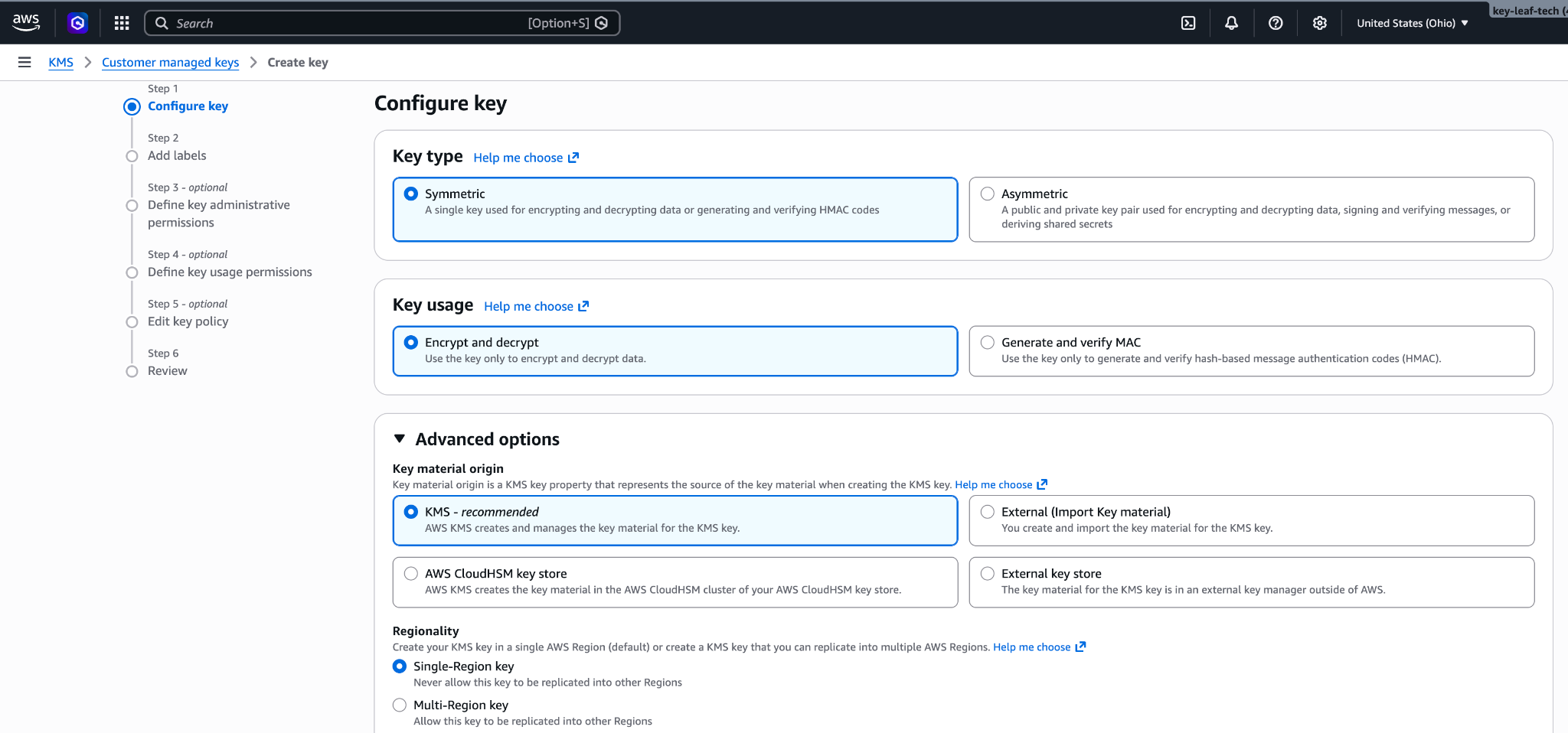
146 </Frame>
147 </Step>
148
149 <Step title="Add labels">
150 Enter an **Alias** for the key, such as `anthropic-cmek`. Click **Next**.
151
152 <Frame caption="An alias for the key.">
153 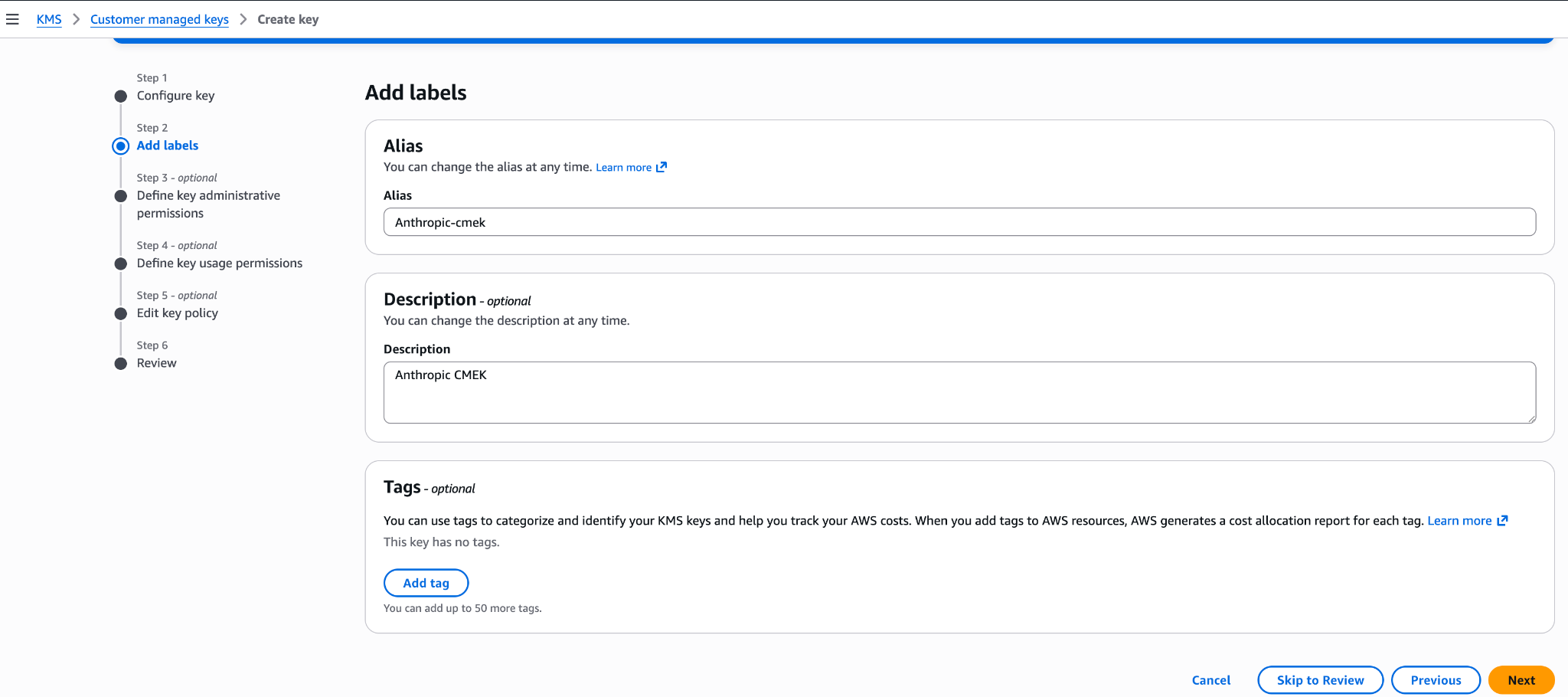
154 </Frame>
155 </Step>
156
157 <Step title="Define key administrative permissions">
158 Don't select any key administrators. Your key policy already gives your AWS account full admin control. Click **Next**.
159
160 <Frame caption="Leave key administrators empty.">
161 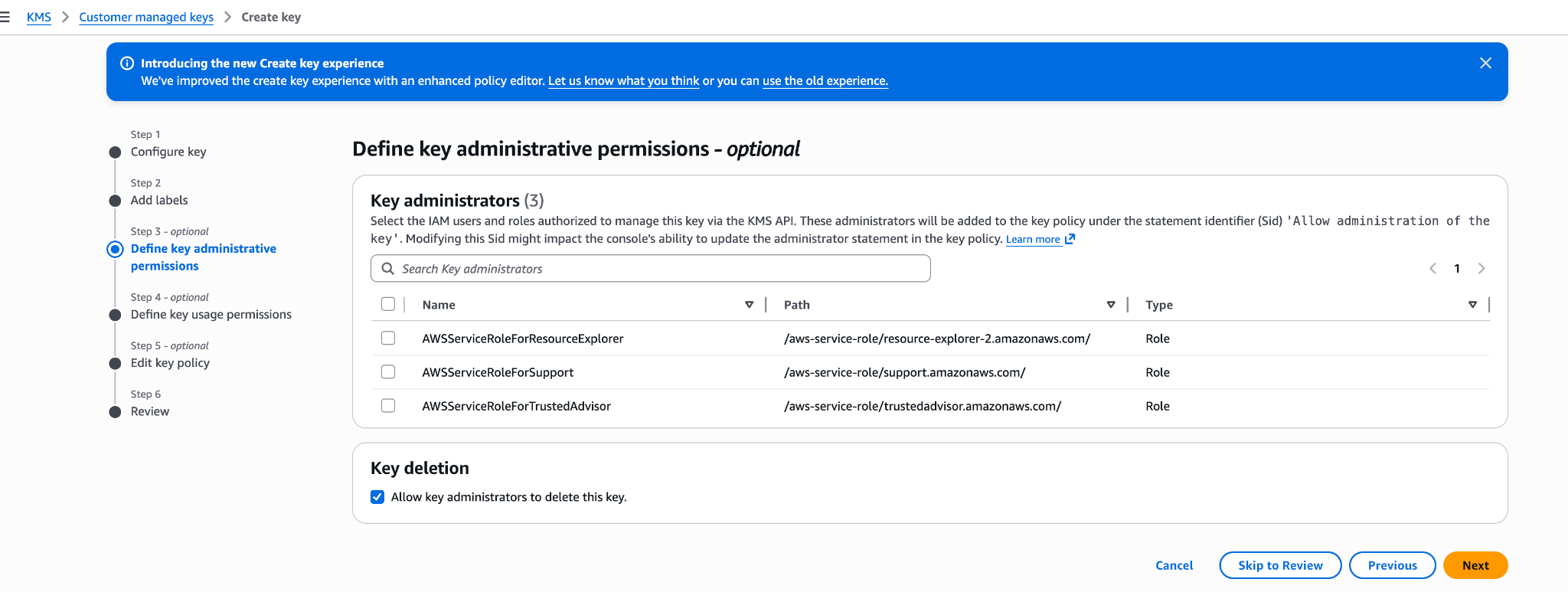
162 </Frame>
163 </Step>
164
165 <Step title="Define key usage permissions">
166 Don't select any key users, and don't add anything under **Other AWS accounts**. Your key policy already grants the access that's needed. Click **Next**.
167 </Step>
168
169 <Step title="Edit key policy">
170 Click **Edit**. Replace the whole policy with your key policy, then click **Next**.
171 </Step>
172
173 <Step title="Review">
174 Click **Finish**.
175 </Step>
176
177 <Step title="Copy the key ARN">
178 In **Customer managed keys**, open the new key and copy its ARN. You need the ARN to register the key.
179 </Step>
180 </Steps>
181
182 To replace the key policy on a key that already exists:
183
184 1. Open the key and click the **Key policy** tab.
185 2. If you see **Switch to policy view**, click it.
186 3. Click **Edit**.
187 4. Replace the JSON with your key policy.
188 5. Click **Save changes**.
189 </Tab>
190
191 <Tab title="AWS CLI">
192 Save your key policy as `key-policy.json`, then create the key. Replace `<REGION>` with the key's region.
128193
129194 ```bash
130195 aws kms create-key \
from line 199
134199 --policy file://key-policy.json
135200 ```
136201
137 Capture `KeyMetadata.Arn` from the output. You need it when you register the key in the next step.
138
139 <Warning>
140 If the key is already configured for CMEK and protects existing data, you must add a statement that lets Anthropic decrypt that data, in addition to the three statements in the preceding policy. In its condition, list the compartment ID of every workspace the key is or was attached to.
141
142 ```json
143 {
144 "Sid": "AllowAnthropicCMEKDecryptExistingData",
145 "Effect": "Allow",
146 "Principal": {
147 "AWS": "arn:aws:iam::915198916910:role/anthropic-cmek-client-us"
148 },
149 "Action": "kms:Decrypt",
150 "Resource": "*",
151 "Condition": {
152 "StringEquals": {
153 "kms:EncryptionContext:anthropic:compartment_uuid": ["<COMPARTMENT_UUID>"]
154 }
155 }
202 Copy `KeyMetadata.Arn` from the output. You need it to register the key.
203 </Tab>
204</Tabs>
205
206<Note>
207 **Optional:** To limit the key to specific workspaces, replace the `AllowAnthropicCMEKCrypto` statement in the key policy with this one. List one compartment ID for each workspace.
208
209 ```json
210 {
211 "Sid": "AllowAnthropicCMEKCrypto",
212 "Effect": "Allow",
213 "Principal": {
214 "AWS": "arn:aws:iam::915198916910:role/anthropic-cmek-client-us"
215 },
216 "Action": ["kms:Encrypt", "kms:Decrypt"],
217 "Resource": "*",
218 "Condition": {
219 "StringEquals": {
220 "kms:EncryptionContext:anthropic:org_uuid": ["<ORGANIZATION_UUID>"]
221 },
222 "StringEqualsIfExists": {
223 "kms:EncryptionContext:anthropic:compartment_uuid": ["<COMPARTMENT_UUID>"]
156224 }
157 ```
158 </Warning>
159
160 Anthropic validates the key when you verify it or attach it to a workspace. Each validation adds four access-denied errors to CloudTrail. These are expected. If you need to filter them out, filter on all three of the following values. The first one alone isn't enough, because any caller can set it:
161
162 * `requestParameters.encryptionContext.associatedData`: `Y21lay12YWxpZGF0aW9u`
163 * `userIdentity.accountId`: `915198916910`
164 * `resources.ARN`: `arn:aws:kms:<REGION>:<AWS_ACCOUNT_ID>:key/<KEY_ID>`
165
166 <Note>
167 **Finding your compartment ID:** See the **Claude Platform** tab under **Register the key with Anthropic**.
168 </Note>
169
170 You can also create the key from the AWS Console. Choose a symmetric key with the encrypt and decrypt key usage, a single-region key, and KMS key material origin. The Create-key wizard commits a key policy at its **Review** step: If you add Anthropic's account ID `915198916910` under key usage permissions there, the generated policy grants the whole Anthropic account broader actions (such as `kms:ReEncrypt*` and `kms:GenerateDataKey*`) with no `EncryptionContext` condition, and validation refuses it. To avoid leaving an over-permissive key, finish the wizard with administrative permissions only, then open the key's **Key policy** tab and replace the JSON with the `key-policy.json` policy shown earlier in this step.
171
172 <Frame caption="Configure key: symmetric, encrypt and decrypt, single-region key.">
173 
174 </Frame>
175
176 <Frame caption="Add an alias and description for the key.">
177 
178 </Frame>
179
180 <Frame caption="Define key administrative permissions (optional). Your account retains full admin control.">
181 
182 </Frame>
183
184 <Frame caption="Do not add Anthropic's account ID here. This wizard step produces an over-permissive policy. Leave usage permissions empty and edit the Key policy JSON after creation (see the preceding key policy).">
185 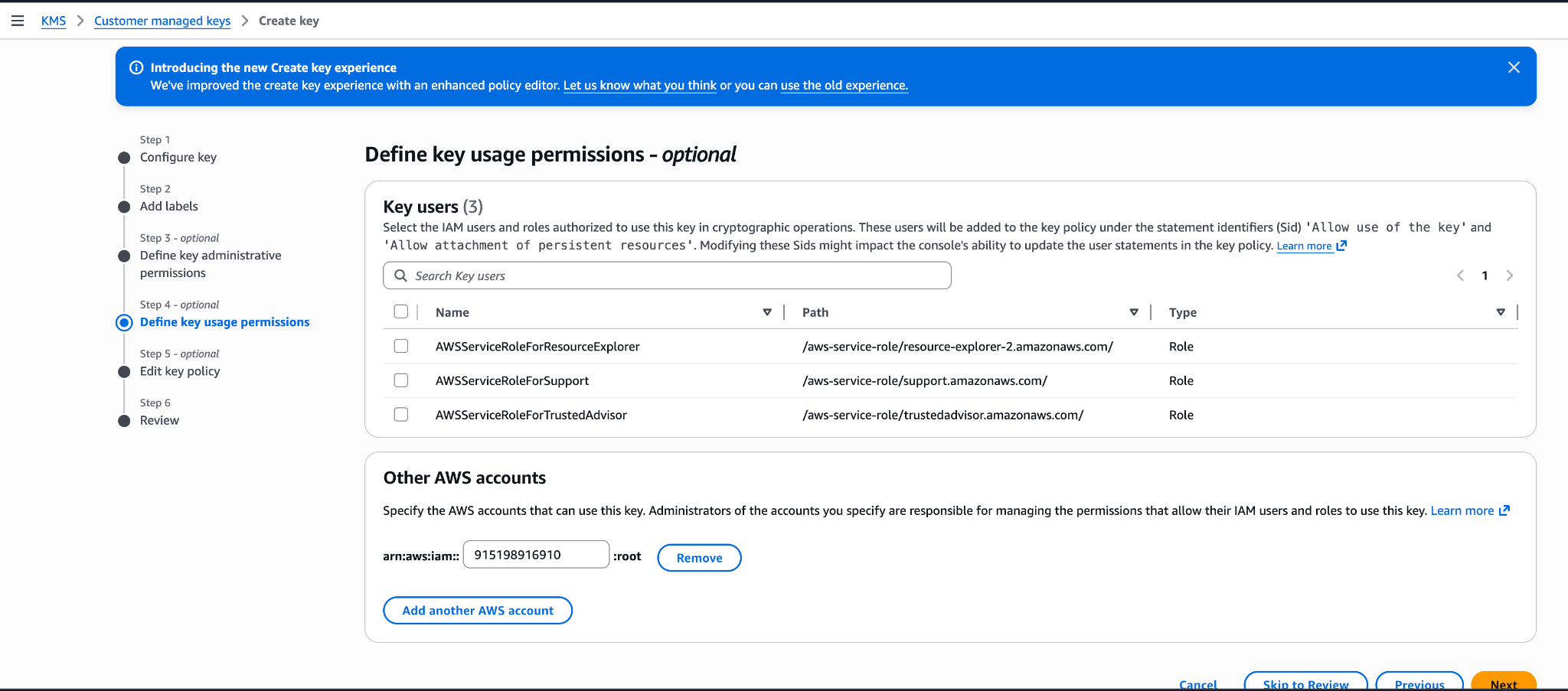
186 </Frame>
187 </Step>
188</Steps>
225 }
226 }
227 ```
228
229 Add each workspace's compartment ID before you attach the key to it. For a new workspace:
230
231 1. Create the workspace without the key.
232 2. Add its compartment ID to the policy.
233 3. Attach the key.
234
235 **Finding your compartment ID:** In the Claude Console, go to the [Data retention](https://platform.claude.com/settings/privacy) page (`platform.claude.com/settings/privacy`). Select the workspace from the dropdown menu at the top of the page. The ID is under **Encryption key**, in the **Compartment ID** field. You can also read the `compartment_id` field returned by the [Get Workspace](https://platform.claude.com/docs/en/api/organization/workspaces/retrieve) endpoint.
236</Note>
189237
190238## Register the key with Anthropic
191239
192How you register the key depends on which product you use.
240Validating the key adds expected access-denied errors to CloudTrail. If you alert on these errors, see [Expected errors in CloudTrail](https://platform.claude.com/docs/en/manage-claude/cmek-aws-kms#expected-errors-in-cloud-trail) first.
193241
194242<Tabs>
195243 <Tab title="Claude Platform">
196 <Note>
197 **Claude Platform on AWS:** The principal, key policy, and registration flow differ, and there is no separate validation step. Follow [Set up CMEK on Claude Platform on AWS](https://platform.claude.com/docs/en/manage-claude/cmek-aws-kms#claude-platform-on-aws) instead of this tab.
198 </Note>
199
200 <Note>
201 **Finding your compartment ID:** Each workspace has a compartment ID that scopes its CMEK data. To find it in the Claude Console, go to the [Data retention](https://platform.claude.com/settings/privacy) page (`platform.claude.com/settings/privacy`) and select the workspace from the dropdown menu at the top of the page. The ID is under **Encryption key**, in the **Compartment ID** field. You can also read the `compartment_id` field returned by the [Get Workspace](https://platform.claude.com/docs/en/api/organization/workspaces/retrieve) endpoint.
202 </Note>
203
204 You can set up the key in the Claude Console or through the Admin API, with the same result.
205
206244 <Tabs>
207245 <Tab title="Claude Console">
208246 <Steps>
209 <Step title="Register the key with Anthropic">
210 In the Claude Console, go to the [Data retention](https://platform.claude.com/settings/privacy#encryption-keys) page (`platform.claude.com/settings/privacy`). If you don't see **Encryption keys**, select **Organization** from the dropdown menu at the top of the page. Under **Encryption keys**, click **Add key**. Enter a display name, choose **AWS KMS**, and click **Continue**. Paste the key ARN into **KMS key ARN**, and click **Add**.
211
212 The key details step shows your organization ID. Add it to the [key policy](https://platform.claude.com/docs/en/manage-claude/cmek-aws-kms#key-policy) before you click **Add**.
247 <Step title="Open the encryption key settings">
248 In the Claude Console, go to the [Data retention](https://platform.claude.com/settings/privacy#encryption-keys) page (`platform.claude.com/settings/privacy`). If you don't see **Encryption keys**, select **Organization** from the dropdown menu at the top of the page.
249 </Step>
250
251 <Step title="Add the key">
252 Under **Encryption keys**, click **Add key**. Enter a **Display name** and select **AWS KMS**. Click **Continue**.
253 </Step>
254
255 <Step title="Enter the key ARN">
256 The dialog box shows the **Organization ID for the key policy**. Check that your [key policy](https://platform.claude.com/docs/en/manage-claude/cmek-aws-kms#key-policy) contains this ID. Paste the key ARN into **KMS key ARN** and click **Add**.
213257 </Step>
214258
215259 <Step title="Validate the key">
216 In the **Encryption keys** list, click **Verify** next to the key. **Connected** appears when the check passes. If it fails, a message gives the reason.
260 In the **Encryption keys** list, click **Verify** next to the key. **Connected** appears when the check passes. If it fails, see [Troubleshoot validation](https://platform.claude.com/docs/en/manage-claude/cmek-aws-kms#troubleshoot-validation) for common causes.
217261 </Step>
218262
219263 <Step title="Attach the key to a workspace">
220 In the Claude Console, go to the [Data retention](https://platform.claude.com/settings/privacy) page (`platform.claude.com/settings/privacy`) and select the workspace from the dropdown menu at the top of the page. Under **Encryption key**, select the key, click **Save**, and confirm. Attaching a key can't be undone. For a workspace that already receives requests, the key can take [up to a day to take effect](https://platform.claude.com/docs/en/manage-claude/cmek#how-it-works).
264 Attaching a key can't be undone. If you can, attach it to a new workspace before that workspace receives any requests. In a workspace that already receives requests, the key can take [up to a day to take effect](https://platform.claude.com/docs/en/manage-claude/cmek#how-it-works).
265
266 On the Data retention page, select the workspace from the dropdown menu at the top of the page. Under **Encryption key**, select the key and click **Save**.
267 </Step>
268
269 <Step title="Confirm the change">
270 Select the checkbox to confirm that you have read the CMEK documentation, then click **Confirm**.
221271 </Step>
222272 </Steps>
223273 </Tab>
224274
225275 <Tab title="API">
226276 <Steps>
227 <Step title="Register the key with Anthropic">
228 Create an external key configuration through the Admin API.
277 <Step title="Create the external key">
278 Replace `<friendly-name>` with a display name and `<key-arn-from-create-key-step>` with the key ARN.
229279
230280 <CodeGroup>
231281 ```bash cURL
from line 428
378428 ```
379429 </CodeGroup>
380430
381 The response contains the external key ID:
431 The `id` field of the response contains the external key ID. Copy it for the next two steps:
382432
383433 ```json
384434 {
from line 440
390440 </Step>
391441
392442 <Step title="Validate the key">
393 Trigger an encrypt and decrypt round-trip against your key.
443 Replace `ekey_<id>` with the external key ID.
394444
395445 <CodeGroup>
396446 ```bash cURL
from line 529
479529 { "type": "external_key_validation", "status": "success", "error": null }
480530 ```
481531
482 If validation fails, common causes are:
483
484 * **Encryption context mismatch:** If the policy has a `kms:EncryptionContext:anthropic:compartment_uuid` condition, make sure it lists the compartment ID of each workspace the key is attached to. Validation sends the compartment ID of the workspace it checks. An older key whose compartment statement still allows `kms:Encrypt` is validated with the all-zeros value (`00000000-0000-0000-0000-000000000000`) while it isn't attached, so keep that value in its list.
485 * **Resource control policies (RCPs):** If your AWS organization has an RCP that denies KMS operations when `aws:PrincipalOrgID` does not match your org, it blocks Anthropic's cross-account role. The RCP needs a carve-out for this key or for Anthropic's role ARN. Service control policies do not apply here, because they do not evaluate for external principals calling through resource-based policies.
486 * **Access granted through IAM instead of the key policy:** Cross-account KMS access must be granted in the key policy itself, not through an IAM policy in your account. Check with `aws kms get-key-policy --key-id <id> --policy-name default`.
487 * **Region mismatch:** Confirm the key's region is one Anthropic operates in for the geo tier you configured.
532 If validation fails, see [Troubleshoot validation](https://platform.claude.com/docs/en/manage-claude/cmek-aws-kms#troubleshoot-validation).
488533 </Step>
489534
490535 <Step title="Attach the key to a workspace">
491 Once the key is validated, attach it to a new workspace before you send any requests to that workspace. For a workspace that already receives requests, the key can take [up to a day to take effect](https://platform.claude.com/docs/en/manage-claude/cmek#how-it-works).
536 Attaching a key can't be undone. If you can, attach it to a new workspace before that workspace receives any requests. In a workspace that already receives requests, the key can take [up to a day to take effect](https://platform.claude.com/docs/en/manage-claude/cmek#how-it-works).
537
538 Replace `<workspace-id>` with the workspace ID and `ekey_<id>` with the external key ID.
492539
493540 <CodeGroup>
494541 ```bash cURL
from line 654
607654 </Tab>
608655
609656 <Tab title="Claude Enterprise">
610 In [claude.ai > Organization settings > Data and privacy](https://claude.ai/admin-settings/data-privacy-controls), open **Encryption keys**, then click **Add key**. Choose **AWS** and click **Continue**, then paste the Key ARN from the previous step and click **Add**. Anthropic validates the key with an encrypt and decrypt round-trip. Once it shows as verified, your organization is CMEK-protected from that point forward.
611
612 The key details step of this flow displays your **Organization ID for the key policy** with a copy button. Substitute that value for `<ORGANIZATION_UUID>` in the key policy. You can open the flow to copy the ID before you create the key.
613
614 On Claude Enterprise, CMEK applies to the whole organization, so there is no separate workspace attach step, and an organization can have only one key.
657 On Claude Enterprise, CMEK applies to the whole organization, and an organization can have only one key.
658
659 <Steps>
660 <Step title="Open the encryption key settings">
661 Go to [claude.ai > Organization settings > Data and privacy](https://claude.ai/admin-settings/data-privacy-controls) and find **Encryption keys**.
662 </Step>
663
664 <Step title="Add the key">
665 Click **Add key**. Enter a **Display name** and select **AWS KMS**. Select the checkbox to confirm that you have read the CMEK documentation, then click **Continue**.
666 </Step>
667
668 <Step title="Enter the key ARN">
669 The dialog box shows the **Organization ID for the key policy**. Check that your [key policy](https://platform.claude.com/docs/en/manage-claude/cmek-aws-kms#key-policy) contains this ID. Paste the key ARN into **KMS key ARN** and click **Add**.
670 </Step>
671
672 <Step title="Confirm that validation passed">
673 When the check passes, **Encryption key configured** appears, and your organization is CMEK-protected from then on. If the check fails, see [Troubleshoot validation](https://platform.claude.com/docs/en/manage-claude/cmek-aws-kms#troubleshoot-validation).
674 </Step>
675 </Steps>
615676 </Tab>
616677</Tabs>
617678
618## Set up CMEK on Claude Platform on AWS
619
620On [Claude Platform on AWS](https://platform.claude.com/docs/en/build-with-claude/claude-platform-on-aws), CMEK uses AWS KMS keys only, and setup differs from the preceding sections in these ways:
621
622* **Principal:** Your key policy grants access to the AWS service principal `aws-external-anthropic.amazonaws.com`. Anthropic's IAM role and account ID are not used, so the [ARN for Anthropic](https://platform.claude.com/docs/en/manage-claude/cmek-aws-kms#amazon-resource-name-arn-for-anthropic) does not apply.
623* **Key requirements:** The key must be a symmetric KMS key with encrypt and decrypt usage, single-region, and in the same AWS account and region as the workspace you attach it to. Cross-account keys are not supported: the key must be in the AWS account that hosts your organization. Multi-region keys (key IDs that begin with `mrk-`) and alias ARNs are rejected when you register the key; use the key ARN.
624* **No separate validation step:** Apart from those checks on the key ARN at registration, the key is validated when you attach it to a workspace. The attach call performs an encrypt/decrypt round against the key with that workspace's compartment ID as the encryption context, so a key policy problem surfaces at attach time rather than at registration. An `EncryptionContext` condition therefore needs no all-zeros entry.
625* **Where you manage keys:** Register and attach keys in the Claude Console, signed in through AWS with the Admin role. The external key endpoints are also available on Claude Platform on AWS, authorized through [IAM actions](https://platform.claude.com/docs/en/api/claude-platform-on-aws-iam-actions#encryption-keys); there, a key is identified by its KMS key ARN rather than an `ekey_` ID.
626
627<Warning>
628 Use only this published service principal name. Never trust an identifier provided over email, chat, or any onboarding channel.
629</Warning>
630
631### Prerequisites
632
633* The AWS account that hosts your Claude Platform on AWS organization, with permissions to create KMS keys and set key policies (`kms:CreateKey` and `kms:PutKeyPolicy`).
634* The **Admin** role in the Claude Console for Claude Platform on AWS. See [Using the Claude Console](https://platform.claude.com/docs/en/build-with-claude/claude-platform-on-aws#using-the-claude-console).
635* For the IAM principal you sign in to the Claude Console with: besides `aws-external-anthropic:AssumeConsole`, the [IAM actions](https://platform.claude.com/docs/en/api/claude-platform-on-aws-iam-actions#encryption-keys) for the operations you perform there, because registering, listing, and attaching keys go through the AWS gateway. Registering a key is `RegisterKey` (with `ListKeys` and `GetKey` to view registrations), and attaching one is `UpdateWorkspace` or `CreateWorkspace`. The external key actions (and `CreateWorkspace`) are account-scoped, so grant them on `Resource: "*"`; a policy limited to workspace ARNs does not include them.
636* For the IAM principal that attaches the key to a workspace (the identity you signed in to the Claude Console with): `kms:DescribeKey`, `kms:Encrypt`, and `kms:Decrypt` on the key. Your principal's access to the key is checked when you attach it, in addition to the service principal's.
637* Optional, for the key picker in the Claude Console: `kms:ListKeys` and `kms:DescribeKey` for the principal you sign in with. Without them, paste the key ARN instead.
638
639### Create the KMS key
640
641The key policy has three statements: your account's root admin statement; a statement that lets the Claude Platform on AWS service principal encrypt, decrypt, and generate data keys; and a separate statement for `kms:DescribeKey`. The crypto statement carries an optional `EncryptionContext` condition that binds the key to the workspaces you list. `DescribeKey` is granted separately because it has no `EncryptionContext` parameter, so an `EncryptionContext` condition on that action would always deny.
642
643If you plan to use the optional `EncryptionContext` condition shown here, create the workspace first (without a key), copy its compartment ID, and substitute it for `<compartment-uuid>`. To find the ID in the Claude Console, go to the [Data retention](https://platform.claude.com/settings/privacy) page (`platform.claude.com/settings/privacy`) and select the workspace from the dropdown menu at the top of the page. The ID is under **Encryption key**, in the **Compartment ID** field. You can also read it from the `compartment_id` field returned by the [Get Workspace](https://platform.claude.com/docs/en/api/organization/workspaces/retrieve) endpoint. If you don't plan to use the condition, delete the `Condition` block from that statement.
644
645```bash
646export YOUR_ACCOUNT=$(aws sts get-caller-identity --query Account --output text)
647
648aws kms create-key \
649 --region <workspace-region> \
650 --description "Anthropic CMEK (Claude Platform on AWS)" \
651 --key-usage ENCRYPT_DECRYPT \
652 --policy "{
653 \"Version\": \"2012-10-17\",
654 \"Statement\": [
655 {
656 \"Sid\": \"AccountRootAdmin\",
657 \"Effect\": \"Allow\",
658 \"Principal\": {\"AWS\": \"arn:aws:iam::${YOUR_ACCOUNT}:root\"},
659 \"Action\": \"kms:*\",
660 \"Resource\": \"*\"
661 },
662 {
663 \"Sid\": \"AllowClaudePlatformOnAWSCrypto\",
664 \"Effect\": \"Allow\",
665 \"Principal\": {\"Service\": \"aws-external-anthropic.amazonaws.com\"},
666 \"Action\": [\"kms:Encrypt\", \"kms:Decrypt\", \"kms:GenerateDataKey\"],
667 \"Resource\": \"*\",
668 \"Condition\": {
669 \"StringEquals\": {
670 \"kms:EncryptionContext:anthropic:compartment_uuid\": [
671 \"<compartment-uuid>\"
672 ]
673 }
674 }
675 },
676 {
677 \"Sid\": \"AllowClaudePlatformOnAWSDescribe\",
678 \"Effect\": \"Allow\",
679 \"Principal\": {\"Service\": \"aws-external-anthropic.amazonaws.com\"},
680 \"Action\": \"kms:DescribeKey\",
681 \"Resource\": \"*\"
682 }
683 ]
684 }"
685```
686
687Capture `KeyMetadata.Arn` from the output. You need it when you register the key.
688
689The `EncryptionContext` condition is optional. Every encrypt, decrypt, and data-key call made for a workspace, including the attach-time check, carries that workspace's compartment ID as `anthropic:compartment_uuid`, so the condition lists the compartment ID of each workspace you attach the key to and needs no all-zeros entry. Adding it binds the key to the workspaces you list at the IAM layer as well. Because a compartment ID exists only once its workspace exists, the order is: create the workspace, put its compartment ID in the condition (at key creation, or later with `kms:PutKeyPolicy`), then attach the key. Before attaching the key to each additional workspace, add that workspace's compartment ID the same way. To start without it, delete the `Condition` block from the `AllowClaudePlatformOnAWSCrypto` statement; if you add it later, include the compartment ID of every workspace the key is already attached to.
690
691You can further restrict both service-principal statements with an `aws:SourceArn` condition. The service passes the [workspace's ARN](https://platform.claude.com/docs/en/api/claude-platform-on-aws-iam-actions#service-details) (`arn:aws:aws-external-anthropic:<region>:<account-id>:workspace/<workspace-id>`) as the source ARN on every call it makes with your key, so `"ArnLike": {"aws:SourceArn": "arn:aws:aws-external-anthropic:*:<account-id>:workspace/*"}` limits the grant to workspaces in your own AWS account, and a list of full workspace ARNs limits it to those workspaces. This condition is not required; the `EncryptionContext` condition on its own binds the key to the workspaces you list.
692
693You can also create the key from the AWS Console: choose a symmetric key with the encrypt and decrypt key usage, a single-region key, and KMS key material origin, in the workspace's region. Leave key usage permissions empty in the Create-key wizard, then open the key's **Key policy** tab and replace the JSON with the policy shown here.
694
695### Register and attach the key
696
697<Steps>
698 <Step title="Register the key">
699 In the Claude Console, go to the [Data retention](https://platform.claude.com/settings/privacy#encryption-keys) page (`platform.claude.com/settings/privacy`). If you don't see **Encryption keys**, select **Organization** from the dropdown menu at the top of the page. Under **Encryption keys**, click **Add key**. Enter a display name, then choose the key from the key picker or choose **Enter ARN manually** and paste the key ARN, and click **Add**. The key must be in the AWS account that hosts your organization; cross-account keys are not supported. The picker lists the enabled, customer-managed, symmetric, single-region keys in your account in one of your organization's regions; for a key the picker doesn't list, enter the ARN. It lists keys only if the principal you signed in with can call `kms:ListKeys` and `kms:DescribeKey`.
700 </Step>
701
702 <Step title="Attach the key to a workspace">
703 Attach the key to a new workspace before you send any requests to that workspace. For a workspace that already receives requests, the key can take [up to a day to take effect](https://platform.claude.com/docs/en/manage-claude/cmek#how-it-works). In the Claude Console, go to the [Data retention](https://platform.claude.com/settings/privacy) page (`platform.claude.com/settings/privacy`) and select the workspace from the dropdown menu at the top of the page. Under **Encryption key**, select the key, click **Save**, and confirm. You can also select a key when you create a workspace in the Claude Console, but only if your key policy does not yet name specific workspaces (no `EncryptionContext` condition), because the workspace's compartment ID is assigned at creation. Once attached, a workspace's key can't be changed.
704
705 This is when the key is validated: the attach call checks your principal's access to the key and performs an encrypt/decrypt round against it with the workspace's compartment ID as the encryption context, so a problem with either the key policy or your principal's permissions surfaces as an error on that call. If the attach fails with a KMS access error, check the following:
706
707 * The key policy names the `aws-external-anthropic.amazonaws.com` service principal and grants `kms:Encrypt`, `kms:Decrypt`, and `kms:GenerateDataKey`, plus `kms:DescribeKey` in a separate statement that has no `EncryptionContext` condition.
708 * Any `EncryptionContext` condition includes this workspace's compartment ID, and any `aws:SourceArn` condition you added matches this workspace's ARN.
709 * The key is enabled, single-region, and in the same AWS account and region as the workspace.
710 * The principal you are signed in as has `kms:DescribeKey`, `kms:Encrypt`, and `kms:Decrypt` on the key.
711 * No service control policy or resource control policy in your AWS organization prevents the service principal or your principal from using the key.
712 * If the policy looks right and the attach still fails, find the denied `kms:` event in CloudTrail in the key's account (it shows the calling principal and, for cryptographic calls, the encryption context), then correct the condition with `kms:PutKeyPolicy` and retry.
713 </Step>
714</Steps>
679## Troubleshoot validation
680
681If validation fails, common causes are:
682
683* **Wrong organization ID:** Make sure the `org_uuid` condition lists your bare organization ID, not the `org_`-prefixed ID.
684* **Encryption context mismatch:** If the policy has a `kms:EncryptionContext:anthropic:compartment_uuid` condition, make sure it lists the [compartment ID](https://platform.claude.com/docs/en/manage-claude/cmek-aws-kms#compartment-id) of each workspace the key is attached to. On an older key, the compartment statement might still allow `kms:Encrypt`. In that case, keep the all-zeros value (`00000000-0000-0000-0000-000000000000`) in the list too.
685* **Resource control policies (RCPs):** Some RCPs deny KMS operations when `aws:PrincipalOrgID` does not match your AWS organization. An RCP like this blocks Anthropic's role. Add an exception to it for this key or for Anthropic's role ARN. Service control policies do not apply here.
686* **Access granted through IAM instead of the key policy:** Grant Anthropic's role access in the key policy itself, not through an IAM policy in your account. To check the key policy, run `aws kms get-key-policy --region <REGION> --key-id <KEY_ARN> --policy-name default`.
687* **Region mismatch:** Confirm that the key is in a US region.
688
689### Expected errors in CloudTrail
690
691Anthropic validates the key whenever you verify it, attach it to a workspace, or view it in the Claude Enterprise settings. Each validation adds four access-denied errors to CloudTrail. These errors are expected.
692
693To filter them out, match all three of these values:
694
695* `requestParameters.encryptionContext.associatedData`: `Y21lay12YWxpZGF0aW9u`
696* `userIdentity.accountId`: `915198916910`
697* `resources.ARN`: `arn:aws:kms:<REGION>:<AWS_ACCOUNT_ID>:key/<KEY_ID>`
698
699The first value alone isn't enough, because any caller can set it.
715700
716701## Terraform
717702
718For infrastructure-as-code deployments, the same steps map to the `aws` provider with the `aws_kms_key` and `aws_kms_alias` resources.
703To create the key with Terraform, use the `aws_kms_key` and `aws_kms_alias` resources from the `aws` provider.
719704
No line in this hunk matches that.
