
cmek-claude-platform-on-aws changedmanage-claude/cmek-claude-platform-on-aws
Nearest release: v2.1.312, published under an hour before this site recorded the change. Shown because the two are within 24 hours of each other. Nothing here says the release caused the edit.
Recorded here
Lines+9added
Lines−9removed
From line
4
where the diff opens
First seen
16 Oct 2026
this site's first read of the page
Recorded edits4to this page, all time
The whole hunk
from line 4, old and new numbered
/
from line 4
44description: Create an AWS KMS key in your AWS account and attach it to a workspace on Claude Platform on AWS.
55---
66
7If your Claude Console sidebar doesn't show **Account managed by AWS**, follow [Set up CMEK with AWS KMS](https://platform.claude.com/docs/en/manage-claude/cmek-aws-kms) instead.
7If your Claude Console sidebar doesn’t show **Account managed by AWS**, follow [Set up CMEK with AWS KMS](https://platform.claude.com/docs/en/manage-claude/cmek-aws-kms) instead.
88
99## Before you start
1010
from line 24
2424
2525 To scope them, see [IAM actions](https://platform.claude.com/docs/en/api/claude-platform-on-aws-iam-actions#encryption-keys).
2626
27* You have a workspace with no key attached, ideally a new one, because [existing data stays under Anthropic's key](https://platform.claude.com/docs/en/manage-claude/cmek-how-it-works#when-your-key-takes-effect). The key policy lists its compartment ID.
27* You have a workspace with no key attached, ideally a new one, because [existing data stays under Anthropic’s key](https://platform.claude.com/docs/en/manage-claude/cmek-how-it-works#when-your-key-takes-effect). The key policy lists its compartment ID.
2828
2929In the Claude Console, open the [Data retention](https://platform.claude.com/settings/privacy) page and select the workspace from the dropdown menu at the top. Copy the **Compartment ID** under **Encryption key**. The [Get Workspace](https://platform.claude.com/docs/en/api/organization/workspaces/retrieve) endpoint returns it as `compartment_id`.
3030
from line 76
7676
7777Replace `<AWS_ACCOUNT_ID>` with your [AWS account ID](https://docs.aws.amazon.com/IAM/latest/UserGuide/console-account-id.html) and `<COMPARTMENT_UUID>` with the [compartment ID](https://platform.claude.com/docs/en/manage-claude/cmek-claude-platform-on-aws#prerequisites).
7878
79The optional `EncryptionContext` condition limits the key to the workspaces you list. Before you attach the key to another workspace, add that workspace's compartment ID and [replace the policy on the key](https://platform.claude.com/docs/en/manage-claude/cmek-aws-kms-workspaces#replace-the-key-policy). To do without the condition, delete the `Condition` block from the `AllowClaudePlatformOnAWSCrypto` statement. If you add the condition later, list every workspace the key is already attached to.
79The optional `EncryptionContext` condition limits the key to the workspaces you list. Before you attach the key to another workspace, add that workspace’s compartment ID and [replace the policy on the key](https://platform.claude.com/docs/en/manage-claude/cmek-aws-kms-workspaces#replace-the-key-policy). To do without the condition, delete the `Condition` block from the `AllowClaudePlatformOnAWSCrypto` statement. If you add the condition later, list every workspace the key is already attached to.
8080
8181To narrow access further, use the key policy, not IP-based restrictions. Add an `aws:SourceArn` condition to both service principal statements. This one allows every workspace in your AWS account:
8282
from line 125
125125 </Step>
126126
127127 <Step title="Define key administrative permissions">
128 Don't select any key administrators. Your key policy already gives your AWS account full admin control. Click **Next**.
128 Don’t select any key administrators. Your key policy already gives your AWS account full admin control. Click **Next**.
129129
130130 <Frame caption="Leave key administrators empty.">
131131 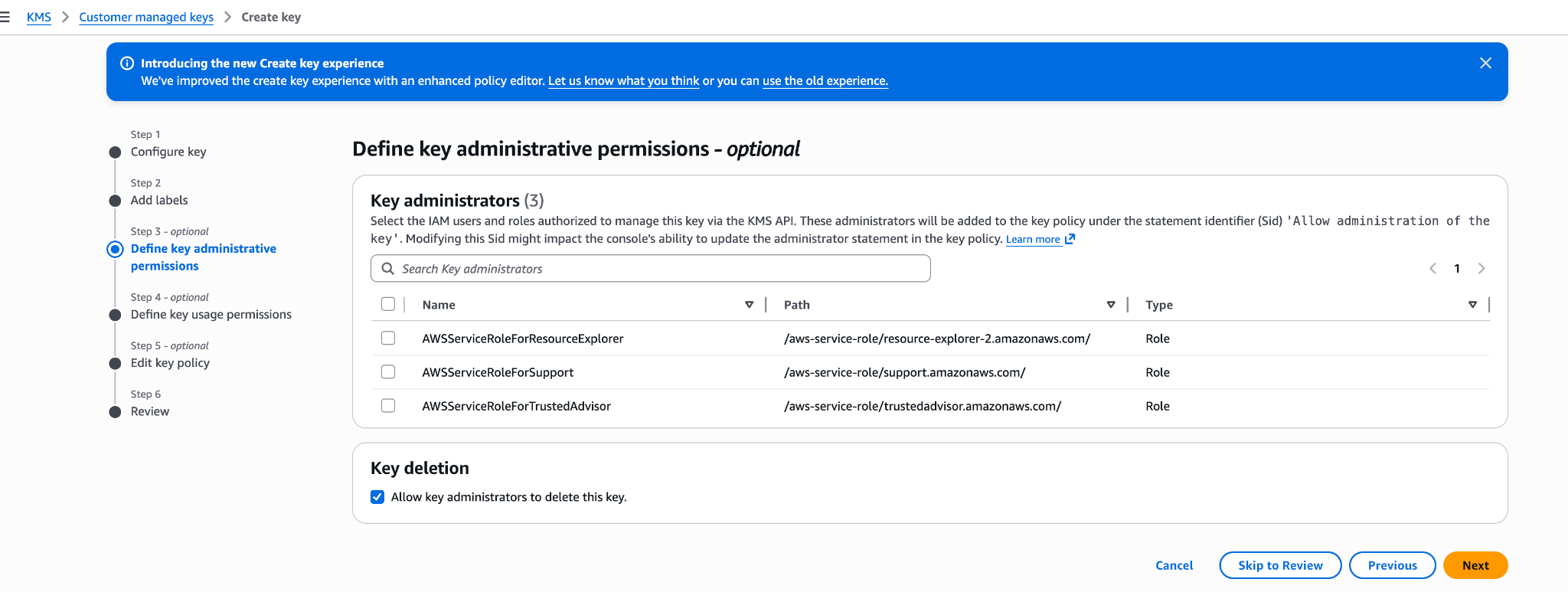
from line 133
133133 </Step>
134134
135135 <Step title="Define key usage permissions">
136 Don't select any key users, and don't add anything under **Other AWS accounts**. Your key policy already grants the access that's needed. Click **Next**.
136 Don’t select any key users, and don’t add anything under **Other AWS accounts**. Your key policy already grants the access that’s needed. Click **Next**.
137137 </Step>
138138
139139 <Step title="Edit key policy">
from line 151
151151 </Tab>
152152
153153 <Tab title="AWS CLI">
154 Save your key policy as `key-policy.json`, then create the key. Replace `<REGION>` with the key's region.
154 Save your key policy as `key-policy.json`, then create the key. Replace `<REGION>` with the key’s region.
155155
156156 ```bash
157157 aws kms create-key \
from line 171
171171
172172<Steps>
173173 <Step title="Open the encryption key settings">
174 In the Claude Console, open [Encryption keys](https://platform.claude.com/settings/privacy#encryption-keys) on the Data retention page. If the section isn't there, select **Organization** from the dropdown menu at the top.
174 In the Claude Console, open [Encryption keys](https://platform.claude.com/settings/privacy#encryption-keys) on the Data retention page. If the section isn’t there, select **Organization** from the dropdown menu at the top.
175175 </Step>
176176
177177 <Step title="Add the key">
from line 179
179179 </Step>
180180
181181 <Step title="Enter the key ARN">
182 In **KMS key ARN**, select your key. If it isn't listed, click **Enter ARN manually** and paste the ARN. Anthropic rejects alias ARNs and multi-Region keys. Click **Add**.
182 In **KMS key ARN**, select your key. If it isn’t listed, click **Enter ARN manually** and paste the ARN. Anthropic rejects alias ARNs and multi-Region keys. Click **Add**.
183183 </Step>
184184
185185 <Step title="Attach the key to a workspace">
186186 <Warning>
187 Attaching a key [can't be undone](https://platform.claude.com/docs/en/manage-claude/cmek-key-lifecycle#what-each-action-does). You can't remove it from the workspace or replace it. If the key is deleted, Anthropic can't recover the data it protects.
187 Attaching a key [can’t be undone](https://platform.claude.com/docs/en/manage-claude/cmek-key-lifecycle#what-each-action-does). You can’t remove it from the workspace or replace it. If the key is deleted, Anthropic can’t recover the data it protects.
188188 </Warning>
189189
190190 1. At the top of the Data retention page, select the workspace from the dropdown menu.
No line in this hunk matches that.