from line 1
11---
22title: Set up CMEK on Claude Platform on AWS
33url: https://platform.claude.com/docs/en/manage-claude/cmek-claude-platform-on-aws
4description: Use an AWS KMS key as a customer-managed encryption key on Claude Platform on AWS.
4description: Create an AWS KMS key in your AWS account and attach it to a workspace on Claude Platform on AWS.
55---
66
7This guide shows how to use an [AWS KMS](https://aws.amazon.com/kms/) key as a [customer-managed encryption key (CMEK)](https://platform.claude.com/docs/en/manage-claude/cmek) on [Claude Platform on AWS](https://platform.claude.com/docs/en/build-with-claude/claude-platform-on-aws). For Claude Platform or Claude Enterprise, follow [Configure AWS KMS for CMEK](https://platform.claude.com/docs/en/manage-claude/cmek-aws-kms) instead.
7If your Claude Console sidebar doesn't show **Account managed by AWS**, follow [Set up CMEK with AWS KMS](https://platform.claude.com/docs/en/manage-claude/cmek-aws-kms) instead.
88
9<Warning>
10 Enabling CMEK is permanent. If your key is deleted or disabled, Anthropic cannot recover the data encrypted under it. Review the [warnings and limitations](https://platform.claude.com/docs/en/manage-claude/cmek) before you start.
11</Warning>
9## Before you start
1210
13## Prerequisites
11* Customer-managed encryption keys (CMEK) are [turned on for your organization](https://platform.claude.com/docs/en/manage-claude/cmek#availability).
1412
15* The AWS account that hosts your Claude Platform on AWS organization, with permissions to create KMS keys and set key policies (`kms:CreateKey` and `kms:PutKeyPolicy`).
13* In the AWS account that hosts your organization, you can create AWS KMS keys and set key policies (`kms:CreateKey` and `kms:PutKeyPolicy`).
1614
17* To create the key from the command line, the [AWS CLI](https://aws.amazon.com/cli/) installed and authenticated.
15* You have the **Admin** role in the [Claude Console](https://platform.claude.com/docs/en/build-with-claude/claude-platform-on-aws#using-the-claude-console).
1816
19* The **Admin** role in the Claude Console for Claude Platform on AWS. See [Using the Claude Console](https://platform.claude.com/docs/en/build-with-claude/claude-platform-on-aws#using-the-claude-console).
17* The IAM principal you sign in with has these permissions:
2018
21* These permissions for the IAM principal you sign in to the Claude Console with:
19 * Sign in: `aws-external-anthropic:AssumeConsole`
20 * Add a key: `aws-external-anthropic:RegisterKey`
21 * View keys: `aws-external-anthropic:ListKeys` and `aws-external-anthropic:GetKey`
22 * Attach a key: `aws-external-anthropic:UpdateWorkspace` or `aws-external-anthropic:CreateWorkspace`, plus `kms:DescribeKey`, `kms:Encrypt`, and `kms:Decrypt` on the key
23 * Pick the key from a list (optional): `kms:ListKeys` and `kms:DescribeKey`
2224
23 * **Sign in:** `aws-external-anthropic:AssumeConsole`
24 * **Register a key:** `aws-external-anthropic:RegisterKey`
25 * **View registered keys:** `aws-external-anthropic:ListKeys` and `aws-external-anthropic:GetKey`
26 * **Attach a key:** `aws-external-anthropic:UpdateWorkspace` or `aws-external-anthropic:CreateWorkspace`, plus `kms:DescribeKey`, `kms:Encrypt`, and `kms:Decrypt` on the key
27 * **Pick the key from a list (optional):** `kms:ListKeys` and `kms:DescribeKey`
25 To scope them, see [IAM actions](https://platform.claude.com/docs/en/api/claude-platform-on-aws-iam-actions#encryption-keys).
2826
29 `aws-external-anthropic:RegisterKey`, `aws-external-anthropic:ListKeys`, `aws-external-anthropic:GetKey`, and `aws-external-anthropic:CreateWorkspace` are account-scoped. Grant them on `Resource: "*"`. See [IAM actions](https://platform.claude.com/docs/en/api/claude-platform-on-aws-iam-actions#encryption-keys).
27* You have a workspace with no key attached, ideally a new one, because [existing data stays under Anthropic's key](https://platform.claude.com/docs/en/manage-claude/cmek-how-it-works#when-your-key-takes-effect). The key policy lists its compartment ID.
3028
31## AWS service principal for Anthropic
29In the Claude Console, open the [Data retention](https://platform.claude.com/settings/privacy) page and select the workspace from the dropdown menu at the top. Copy the **Compartment ID** under **Encryption key**. The [Get Workspace](https://platform.claude.com/docs/en/api/organization/workspaces/retrieve) endpoint returns it as `compartment_id`.
3230
33The key policy in this guide gives the following AWS service principal access to your key:
31## In AWS: create the key
3432
35```text wrap
36aws-external-anthropic.amazonaws.com
37```
33### Write the key policy
3834
39<Warning>
40 Use only this published service principal name. Never trust an identifier provided over email, chat, or any onboarding channel.
41</Warning>
35This policy gives the AWS service principal `aws-external-anthropic.amazonaws.com` access to your key. Use only the name published on this page, never one sent by email or chat. Copy the policy into a text editor:
4236
43## Encryption key setup
44
45### Prepare the key policy
46
47Copy this policy into a text editor:
48
4937```json key-policy.json
5038{
5139 "Version": "2012-10-17",
from line 74
8674}
8775```
8876
89The `EncryptionContext` condition is optional. It limits the key to the workspaces you list. To remove it, delete the `Condition` block from the `AllowClaudePlatformOnAWSCrypto` statement.
77Replace `<AWS_ACCOUNT_ID>` with your [AWS account ID](https://docs.aws.amazon.com/IAM/latest/UserGuide/console-account-id.html) and `<COMPARTMENT_UUID>` with the [compartment ID](https://platform.claude.com/docs/en/manage-claude/cmek-claude-platform-on-aws#prerequisites).
9078
91If you keep the condition, add each workspace's compartment ID before you attach the key to it. For a new workspace:
79The optional `EncryptionContext` condition limits the key to the workspaces you list. Before you attach the key to another workspace, add that workspace's compartment ID and [replace the policy on the key](https://platform.claude.com/docs/en/manage-claude/cmek-aws-kms-workspaces#replace-the-key-policy). To do without the condition, delete the `Condition` block from the `AllowClaudePlatformOnAWSCrypto` statement. If you add the condition later, list every workspace the key is already attached to.
9280
931. Create the workspace without the key.
942. Add its compartment ID to the policy.
953. Attach the key.
81To narrow access further, use the key policy, not IP-based restrictions. Add an `aws:SourceArn` condition to both service principal statements. This one allows every workspace in your AWS account:
9682
97If you add the condition later, list the compartment ID of every workspace the key is already attached to.
83```text wrap
84"ArnLike": {"aws:SourceArn": "arn:aws:aws-external-anthropic:*:<AWS_ACCOUNT_ID>:workspace/*"}
85```
9886
99To limit the key policy further, see the [optional `aws:SourceArn` condition](https://platform.claude.com/docs/en/manage-claude/cmek-claude-platform-on-aws#source-arn-condition).
87For specific workspaces, list their full [workspace ARNs](https://platform.claude.com/docs/en/api/claude-platform-on-aws-iam-actions#service-details) instead, in this form:
10088
101Replace the placeholders:
89```text wrap
90arn:aws:aws-external-anthropic:<REGION>:<AWS_ACCOUNT_ID>:workspace/<WORKSPACE_ID>
91```
10292
103* **`<AWS_ACCOUNT_ID>`:** your [AWS account ID](https://docs.aws.amazon.com/IAM/latest/UserGuide/console-account-id.html). To print it with the AWS CLI, run `aws sts get-caller-identity --query Account --output text`.
104* **`<COMPARTMENT_UUID>`:** the compartment ID of the workspace you attach the key to
105
106<Note>
107 **Finding your compartment ID:** In the Claude Console, go to the [Data retention](https://platform.claude.com/settings/privacy) page (`platform.claude.com/settings/privacy`). Select the workspace from the dropdown menu at the top of the page. The ID is under **Encryption key**, in the **Compartment ID** field. You can also read the `compartment_id` field returned by the [Get Workspace](https://platform.claude.com/docs/en/api/organization/workspaces/retrieve) endpoint.
108</Note>
109
110<Note>
111 **Optional:** To limit both service principal statements further, add an `aws:SourceArn` condition to each. The source ARN on every call is the [workspace's ARN](https://platform.claude.com/docs/en/api/claude-platform-on-aws-iam-actions#service-details), in the form `arn:aws:aws-external-anthropic:<REGION>:<AWS_ACCOUNT_ID>:workspace/<WORKSPACE_ID>`.
112
113 * **All workspaces in your AWS account:** `"ArnLike": {"aws:SourceArn": "arn:aws:aws-external-anthropic:*:<AWS_ACCOUNT_ID>:workspace/*"}`
114 * **Specific workspaces:** the same condition, with a list of full workspace ARNs instead of the wildcard
115</Note>
116
11793### Create the key
11894
119Create the key in the AWS account that hosts your Claude Platform on AWS organization, in the same region as the workspace.
95Create the key in the AWS account that hosts your organization, in the same region as the workspace.
12096
12197<Tabs>
12298 <Tab title="AWS Console">
from line 112
136112 Click **Next**.
137113
138114 <Frame caption="Symmetric, encrypt and decrypt, single-Region key.">
139 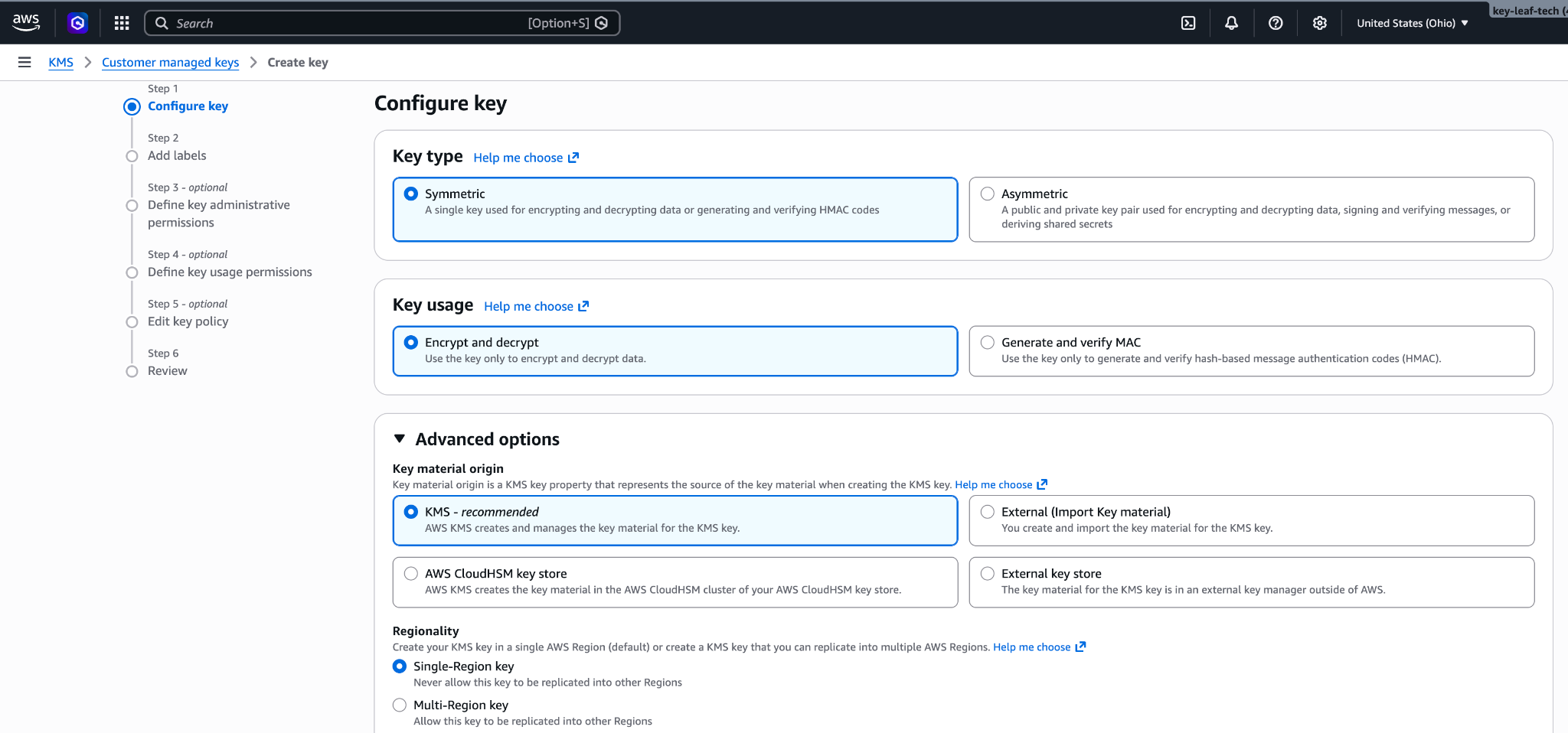
115 
140116 </Frame>
141117 </Step>
142118
from line 145
169145 </Step>
170146
171147 <Step title="Copy the key ARN">
172 In **Customer managed keys**, open the new key and copy its ARN. You need the ARN to register the key.
148 In **Customer managed keys**, open the new key and copy its ARN. Whoever adds the key in Claude needs it.
173149 </Step>
174150 </Steps>
175
176 To replace the key policy on a key that already exists:
177
178 1. Open the key and click the **Key policy** tab.
179 2. If you see **Switch to policy view**, click it.
180 3. Click **Edit**.
181 4. Replace the JSON with your key policy.
182 5. Click **Save changes**.
183151 </Tab>
184152
185153 <Tab title="AWS CLI">
from line 161
193161 --policy file://key-policy.json
194162 ```
195163
196 Copy `KeyMetadata.Arn` from the output. You need it to register the key.
164 Copy `KeyMetadata.Arn` from the output. Whoever adds the key in Claude needs the ARN.
197165 </Tab>
198166</Tabs>
199167
200## Register the key with Anthropic
168## In Claude: add and attach the key
201169
202Sign in to the Claude Console through AWS with the Admin role.
170Sign in to the Claude Console through AWS. To script this part instead, use the endpoints listed in [IAM actions](https://platform.claude.com/docs/en/api/claude-platform-on-aws-iam-actions#encryption-keys).
203171
204172<Steps>
205173 <Step title="Open the encryption key settings">
206 In the Claude Console, go to the [Data retention](https://platform.claude.com/settings/privacy#encryption-keys) page (`platform.claude.com/settings/privacy`). If you don't see **Encryption keys**, select **Organization** from the dropdown menu at the top of the page.
174 In the Claude Console, open [Encryption keys](https://platform.claude.com/settings/privacy#encryption-keys) on the Data retention page. If the section isn't there, select **Organization** from the dropdown menu at the top.
207175 </Step>
208176
209177 <Step title="Add the key">
210 Under **Encryption keys**, click **Add key**. Enter a **Display name**.
178 Under **Encryption keys**, click **Add key** and enter a **Display name**.
211179 </Step>
212180
213181 <Step title="Enter the key ARN">
214 Anthropic rejects alias ARNs and multi-Region keys.
215
216 In **KMS key ARN**, paste the key ARN. If a list of keys appears instead, select your key, or click **Enter ARN manually** and paste the ARN. Click **Add**.
182 In **KMS key ARN**, select your key. If it isn't listed, click **Enter ARN manually** and paste the ARN. Anthropic rejects alias ARNs and multi-Region keys. Click **Add**.
217183 </Step>
218184
219185 <Step title="Attach the key to a workspace">
220 Attaching a key can't be undone. If you can, attach it to a new workspace before that workspace receives any requests. In a workspace that already receives requests, the key can take [up to a day to take effect](https://platform.claude.com/docs/en/manage-claude/cmek#how-it-works).
186 <Warning>
187 Attaching a key [can't be undone](https://platform.claude.com/docs/en/manage-claude/cmek-key-lifecycle#what-each-action-does). You can't remove it from the workspace or replace it. If the key is deleted, Anthropic can't recover the data it protects.
188 </Warning>
221189
222 On the Data retention page, select the workspace from the dropdown menu at the top of the page. Under **Encryption key**, select the key and click **Save**.
223 </Step>
190 1. At the top of the Data retention page, select the workspace from the dropdown menu.
191 2. Under **Encryption key**, select the key and click **Save**.
192 3. Select the checkbox to confirm that you have read the CMEK documentation, then click **Confirm**.
224193
225 <Step title="Confirm the change">
226 Select the checkbox to confirm that you have read the CMEK documentation, then click **Confirm**.
194 You see **Workspace settings updated.** Once the key [takes effect](https://platform.claude.com/docs/en/manage-claude/cmek-how-it-works#when-your-key-takes-effect), CloudTrail records the calls to your key.
195
196 Attaching checks the key with one encrypt call and one decrypt call, so a key policy problem shows up here. If you get a KMS access error, see the [causes and fixes](https://platform.claude.com/docs/en/manage-claude/cmek-troubleshooting#claude-platform-on-aws).
227197 </Step>
228198</Steps>
229
230Attaching validates the key. If it fails with a KMS access error, see [Troubleshoot validation](https://platform.claude.com/docs/en/manage-claude/cmek-claude-platform-on-aws#troubleshoot-validation).
231
232You can also select a key when you create a workspace in the Claude Console, if your key policy has no `EncryptionContext` condition.
233
234To register and attach keys with the API instead, see [IAM actions](https://platform.claude.com/docs/en/api/claude-platform-on-aws-iam-actions#encryption-keys). The API identifies a key by its KMS key ARN.
235
236## Troubleshoot validation
237
238If validation fails, common causes are:
239
240* **Key policy mismatch:** Make sure the key policy matches the one in [Prepare the key policy](https://platform.claude.com/docs/en/manage-claude/cmek-claude-platform-on-aws#prepare-the-key-policy). To check the key policy, run `aws kms get-key-policy --region <REGION> --key-id <KEY_ARN> --policy-name default`.
241* **Condition mismatch:** Make sure any `EncryptionContext` or `aws:SourceArn` condition includes this workspace.
242* **Key state or location:** Confirm that the key is enabled, single-Region, and in the same AWS account and region as the workspace.
243* **Missing permissions:** The principal you are signed in as needs `kms:DescribeKey`, `kms:Encrypt`, and `kms:Decrypt` on the key.
244* **Organization policies:** Make sure no service control policy or resource control policy in your AWS organization blocks the service principal or your principal.
245
246If attaching still fails, find the denied `kms:` event in CloudTrail in the key's account. It shows the calling principal and, for cryptographic calls, the encryption context. After you fix the cause, click **Save** again.
247
248## Terraform
249
250To create the key with Terraform, use the `aws_kms_key` and `aws_kms_alias` resources from the `aws` provider.
251199
No line in this hunk matches that.
