
cmek-aws-kms changedmanage-claude/cmek-aws-kms
Nearest release: v2.1.232, published 7 hours before this site recorded the change. Shown because the two are within 24 hours of each other. Nothing here says the release caused the edit.
Recorded here
Lines+217added
Lines−0removed
From line
—
no hunk to open at
First seen
14 Aug 2026
this site's first read of the page
Recorded edits19to this page, all time
## Prerequisites ## Amazon Resource Name (ARN) for Anthropic ## Encryption key setup ## Register the key with Anthropic ## Terraform
The whole hunk
217 lines, first recorded
/
lines
The first capture of this source. The page was already there, and this is what it said.
---
title: Configure AWS KMS for CMEK
url: https://platform.claude.com/docs/en/manage-claude/cmek-aws-kms
description: Use AWS KMS to provide an encryption key for your organization.
---
```bash Configure with the /claude-api skill in Claude Code
claude "/claude-api help me configure a customer-managed encryption key with AWS KMS"
```
This guide walks through configuring an [AWS KMS](https://aws.amazon.com/kms/) key as a [customer-managed encryption key (CMEK)](https://platform.claude.com/docs/en/manage-claude/cmek) for your Anthropic organization.
<Warning>
Enabling CMEK is permanent. If your KMS key is deleted or disabled, Anthropic cannot recover the data encrypted under it. Review the [warnings and limitations](https://platform.claude.com/docs/en/manage-claude/cmek) before you begin.
</Warning>
## Prerequisites
* An AWS account with permissions to create KMS keys and set key policies (`kms:CreateKey` and `kms:PutKeyPolicy`).
* An Anthropic Admin API key for your organization.
* The [AWS CLI](https://aws.amazon.com/cli/) installed and authenticated.
## Amazon Resource Name (ARN) for Anthropic
To have Anthropic use your encryption key, you must give Anthropic's IAM role a KMS key it can use for encrypting data. The ARN for Anthropic CMEK is:
```text wrap
arn:aws:iam::915198916910:role/anthropic-cmek-client-us
```
<Warning>
Use only this published ARN. Never trust an identifier provided over email, chat, or any onboarding channel.
</Warning>
## Encryption key setup
<Steps>
<Step title="Create the KMS key with a cross-account key policy">
The key policy grants Anthropic's IAM role cross-account access. Three statements are required:
1. **Account root admin:** the standard KMS pattern. Your account retains full admin control.
2. **Anthropic encrypt and decrypt:** the `kms:Encrypt` and `kms:Decrypt` actions, which Anthropic uses to encrypt and decrypt the data keys that protect your workspace data (envelope encryption).
3. **Anthropic describe:** the metadata read Anthropic performs at startup. It is granted separately because `DescribeKey` has no `EncryptionContext` parameter, so an `EncryptionContext` condition on this action would always deny.
```bash
export YOUR_ACCOUNT=$(aws sts get-caller-identity --query Account --output text)
aws kms create-key \
--region <region> \
--description "Anthropic CMEK" \
--key-usage ENCRYPT_DECRYPT \
--policy "{
\"Version\": \"2012-10-17\",
\"Statement\": [
{
\"Sid\": \"AccountRootAdmin\",
\"Effect\": \"Allow\",
\"Principal\": {\"AWS\": \"arn:aws:iam::${YOUR_ACCOUNT}:root\"},
\"Action\": \"kms:*\",
\"Resource\": \"*\"
},
{
\"Sid\": \"AllowAnthropicCMEKCrypto\",
\"Effect\": \"Allow\",
\"Principal\": {\"AWS\": \"arn:aws:iam::915198916910:role/anthropic-cmek-client-us\"},
\"Action\": [\"kms:Encrypt\", \"kms:Decrypt\"],
\"Resource\": \"*\",
\"Condition\": {
\"StringEquals\": {
\"kms:EncryptionContext:anthropic:compartment_uuid\": [
\"00000000-0000-0000-0000-000000000000\",
\"<compartment-uuid>\"
]
}
}
},
{
\"Sid\": \"AllowAnthropicCMEKDescribe\",
\"Effect\": \"Allow\",
\"Principal\": {\"AWS\": \"arn:aws:iam::915198916910:role/anthropic-cmek-client-us\"},
\"Action\": \"kms:DescribeKey\",
\"Resource\": \"*\"
}
]
}"
```
Capture `KeyMetadata.Arn` from the output. You need it when you register the key in the next step.
The `EncryptionContext` condition is recommended but optional. Anthropic always includes your workspace's compartment ID in the encryption context, so ciphertext is cryptographically bound to that compartment regardless. Adding the condition provides defense-in-depth at the IAM layer. To start without it, omit the `Condition` block from the `AllowAnthropicCMEKCrypto` statement and add it later with `kms:PutKeyPolicy`.
<Note>
**Finding your compartment ID:** Where to find your compartment ID differs between Claude Platform and Claude Enterprise. See the **Claude Platform** and **Claude Enterprise** tabs under **Register the key with Anthropic**.
</Note>
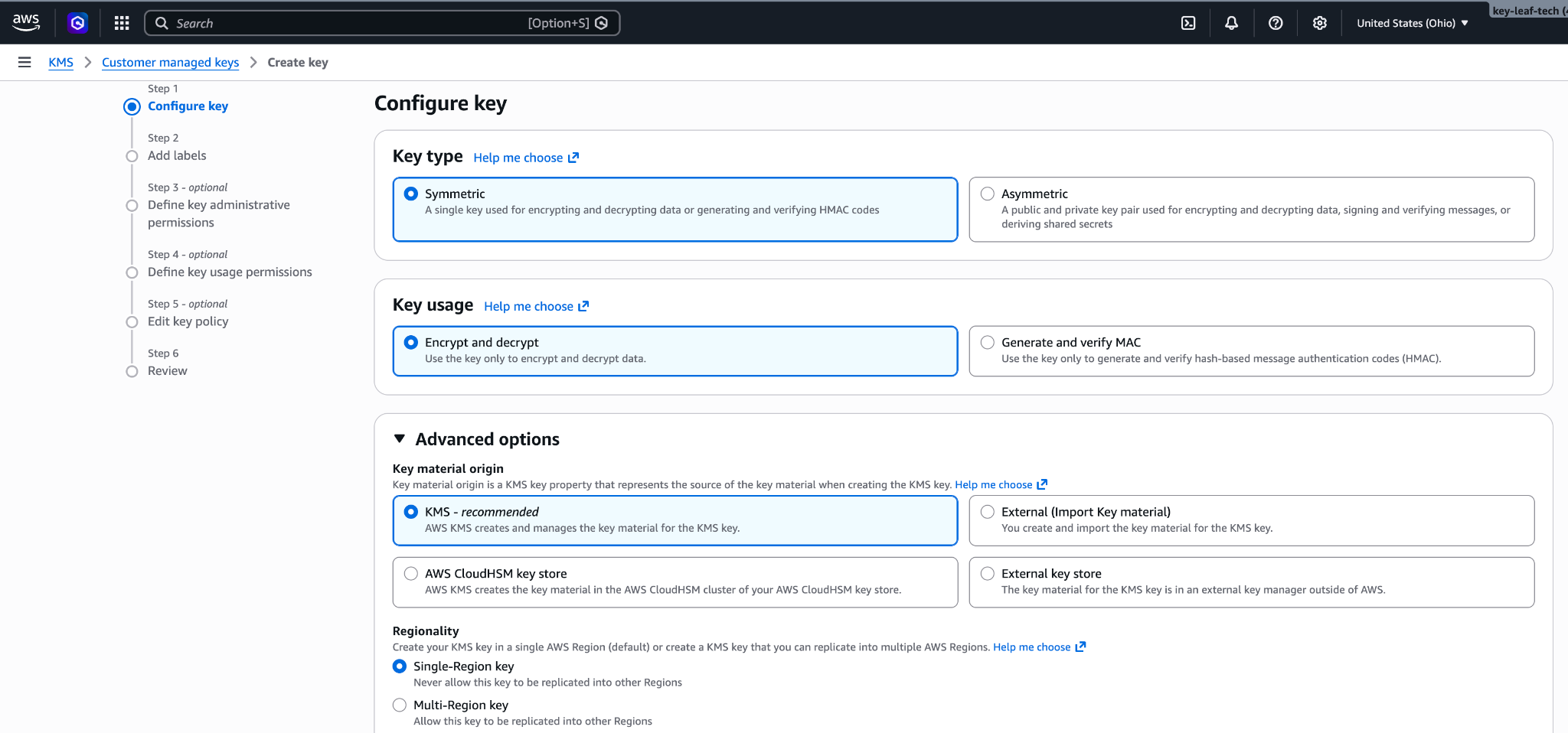
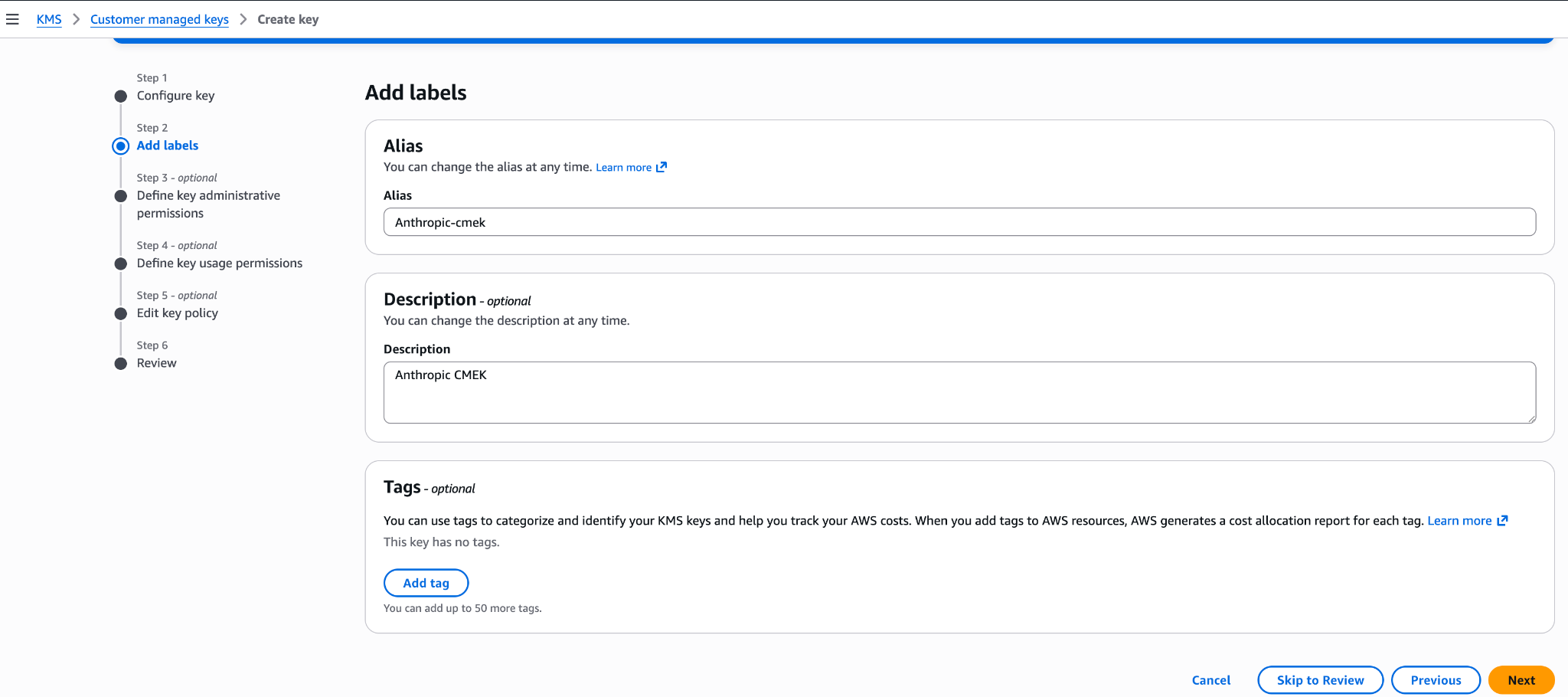
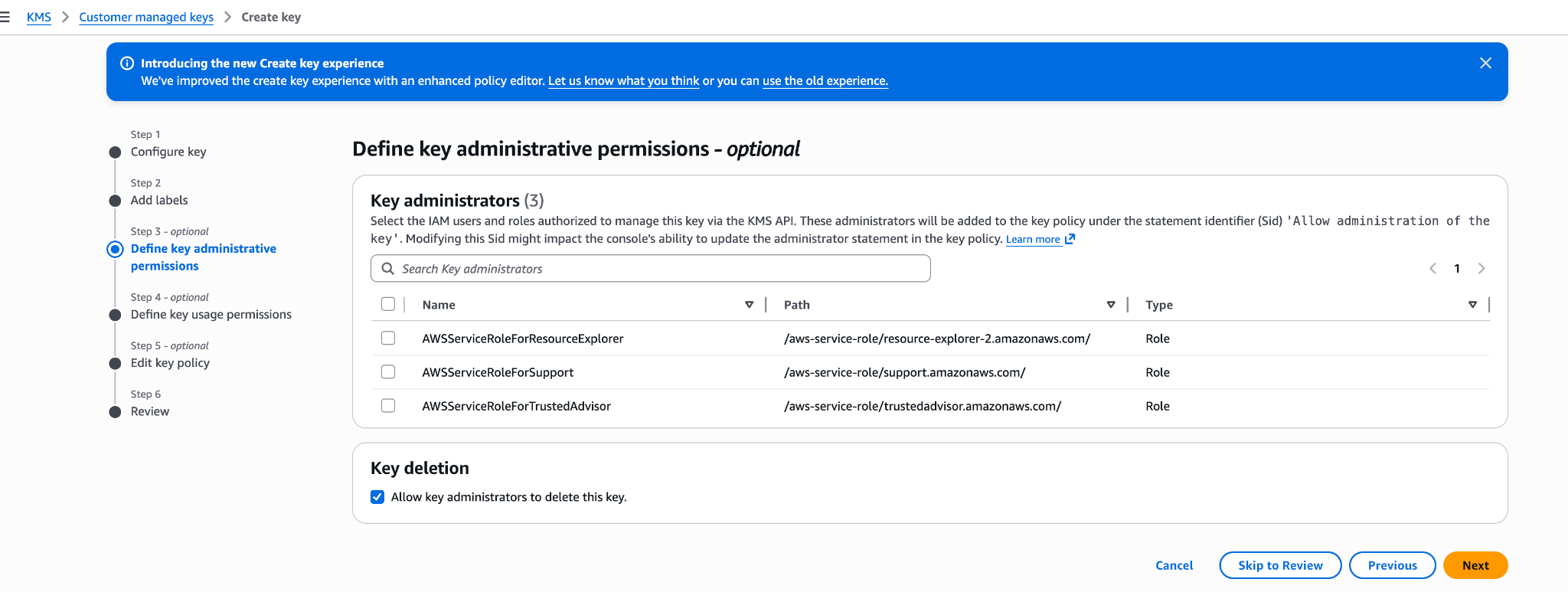
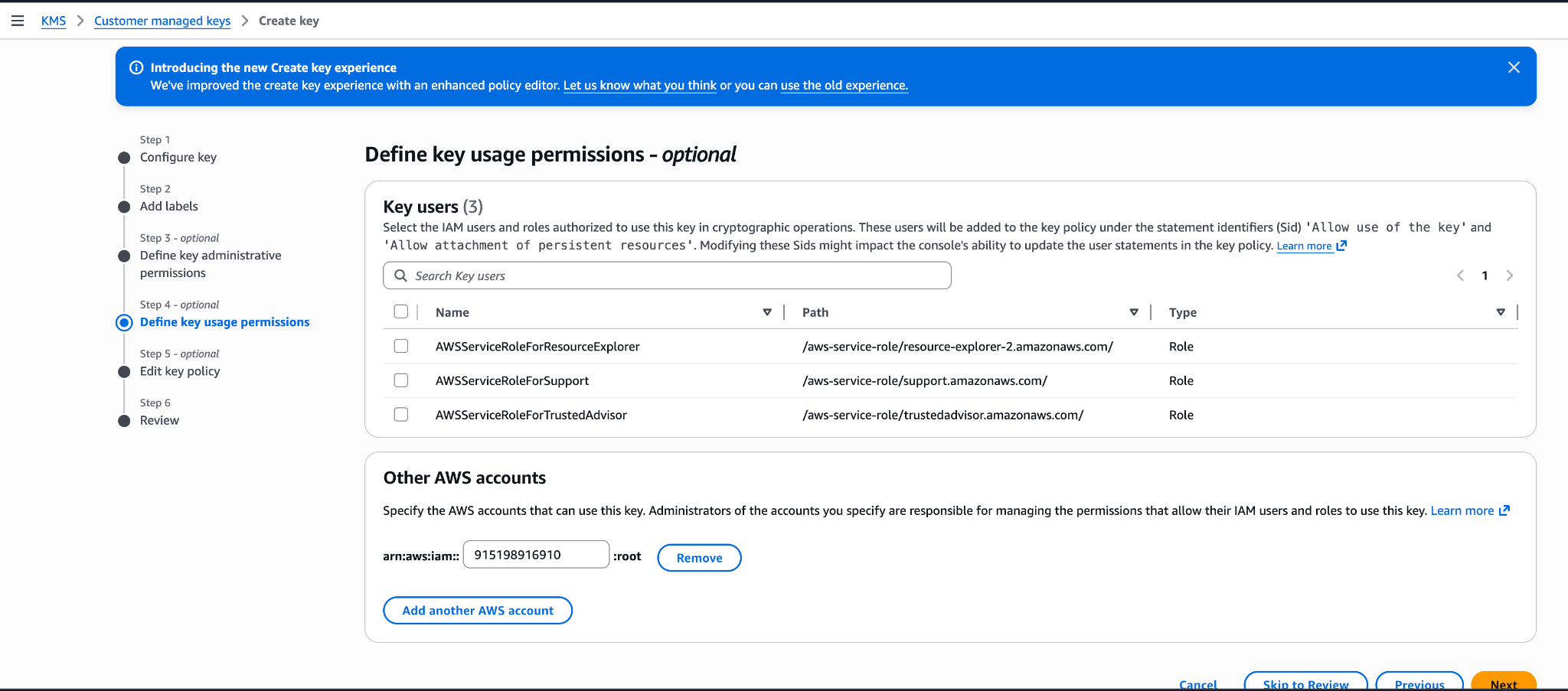
You can also create the key from the AWS Console. Choose a symmetric key with the encrypt and decrypt key usage, a single-region key, and KMS key material origin. The Create-key wizard commits a key policy at its **Review** step: If you add Anthropic's account ID `915198916910` under key usage permissions there, the generated policy grants the whole Anthropic account broader actions (such as `kms:ReEncrypt*` and `kms:GenerateDataKey*`) with no `EncryptionContext` condition, and validation would still succeed against it. To avoid leaving an over-permissive key, finish the wizard with administrative permissions only, then open the key's **Key policy** tab and replace the JSON with the role-scoped policy shown earlier (the three statements scoped to the `anthropic-cmek-client-us` role, with the `EncryptionContext` condition).
<Frame caption="Configure key: symmetric, encrypt and decrypt, single-region key.">
</Frame>
<Frame caption="Add an alias and description for the key.">
</Frame>
<Frame caption="Define key administrative permissions (optional). Your account retains full admin control.">
</Frame>
<Frame caption="Do not add Anthropic's account ID here. This wizard step produces an over-permissive policy. Leave usage permissions empty and edit the Key policy JSON after creation (see the preceding key policy).">
</Frame>
</Step>
</Steps>
## Register the key with Anthropic
How you register the key depends on which product you use.
<Tabs>
<Tab title="Claude Platform">
<Note>
**Finding your compartment ID:** Each workspace has a compartment ID that scopes its CMEK data. Find it in the Claude Console under **Workspace > Security > Encryption keys** (the **Compartment ID** field), or read the `compartment_id` field returned by the [Get Workspace](https://platform.claude.com/docs/en/api/admin-api/workspaces/get-workspace) endpoint. Substitute that value for `<compartment-uuid>` in the preceding key policy.
Key validation always sends the all-zeros compartment UUID (`00000000-0000-0000-0000-000000000000`) as the encryption context, because validation runs before the key is attached to any workspace. Live traffic sends the compartment ID of each attached workspace.
Any `EncryptionContext` condition must allow the all-zeros value plus the compartment ID of every workspace the key is attached to. Validation also runs again whenever key setup is re-run, so keep the all-zeros entry in place permanently.
To attach the key to an additional workspace, add that workspace's compartment ID to the condition with `kms:PutKeyPolicy` before attaching.
</Note>
<Steps>
<Step title="Register the key with Anthropic">
Create an external key configuration through the Admin API.
<Note>
For organizations on [Claude Platform on AWS](https://platform.claude.com/docs/en/build-with-claude/claude-platform-on-aws), the external key endpoints are not yet available. Register, validate, and attach your key in the Claude Console instead.
</Note>
```bash
curl -sS https://api.anthropic.com/v1/organizations/external_keys \
-H "x-api-key: <anthropic-admin-api-key>" \
-H "anthropic-version: 2023-06-01" \
-H "content-type: application/json" \
-d '{
"display_name": "<friendly-name>",
"geo": "us",
"provider_config": {
"type": "aws",
"kms_arn": "<key-arn-from-create-key-step>",
"role_arn": "arn:aws:iam::915198916910:role/anthropic-cmek-client-us"
}
}'
```
The response contains the external key ID:
```json
{
"type": "external_key",
"id": "ekey_<id>",
"display_name": "<friendly-name>"
}
```
</Step>
<Step title="Validate the key">
Trigger an encrypt and decrypt round-trip against your key.
```bash
curl -sS -X POST https://api.anthropic.com/v1/organizations/external_keys/ekey_<id>/validate \
-H "x-api-key: <anthropic-admin-api-key>" \
-H "anthropic-version: 2023-06-01" \
-H "content-type: application/json" \
-d '{}'
```
A successful response looks like this:
```json
{ "type": "external_key_validation", "status": "success", "error": null }
```
If validation fails, common causes are:
* **Encryption context mismatch:** Validation fails while data traffic works (or the reverse) with an opaque `AccessDeniedException` when a `kms:EncryptionContext:anthropic:compartment_uuid` condition allows only one of the two values Anthropic sends. Validation sends the all-zeros UUID (`00000000-0000-0000-0000-000000000000`); live traffic sends the attached workspace's compartment ID. Confirm the condition lists both. To rule the condition out entirely, temporarily remove the `Condition` block from the `AllowAnthropicCMEKCrypto` statement and re-validate.
* **Resource control policies (RCPs):** If your AWS organization has an RCP that denies KMS operations when `aws:PrincipalOrgID` does not match your org, it blocks Anthropic's cross-account role. The RCP needs a carve-out for this key or for Anthropic's role ARN. Service control policies do not apply here, because they do not evaluate for external principals calling through resource-based policies.
* **Access granted through IAM instead of the key policy:** Cross-account KMS access must be granted in the key policy itself, not through an IAM policy in your account. Check with `aws kms get-key-policy --key-id <id> --policy-name default`.
* **Region mismatch:** Confirm the key's region is one Anthropic operates in for the geo tier you configured.
</Step>
<Step title="Attach the key to a workspace">
```bash
curl -sS -X POST https://api.anthropic.com/v1/organizations/workspaces/<workspace-id> \
-H "x-api-key: <anthropic-admin-api-key>" \
-H "anthropic-version: 2023-06-01" \
-H "content-type: application/json" \
-d '{
"external_key_id": "ekey_<id>"
}'
```
</Step>
</Steps>
</Tab>
<Tab title="Claude Enterprise">
In [claude.ai > Organization settings > Data and privacy](https://claude.ai/admin-settings/data-privacy-controls), open **Encryption keys**, then click **Add key**. Choose **AWS** and click **Continue**, then paste the Key ARN from the previous step and click **Add**. Anthropic validates the key with an encrypt and decrypt round-trip. Once it shows as verified, your organization is CMEK-protected from that point forward.
The key details step of this flow displays your organization's **Compartment ID** with a copy button. Substitute that value for `<compartment-uuid>` in the key policy (see the Create the KMS key step under Encryption key setup); you can open the flow to copy the ID before you create the key. After setup, the ID remains visible on the key under **Encryption keys**.
On Claude Enterprise, CMEK applies to the whole organization, so there is no separate workspace attach step, and an organization can have only one key.
</Tab>
</Tabs>
## Terraform
For infrastructure-as-code deployments, the same steps map to the `aws` provider with the `aws_kms_key` and `aws_kms_alias` resources.
No line in this hunk matches that.