
cmek-google-cloud-kms changedmanage-claude/cmek-google-cloud-kms
Nearest release: v2.1.302, published an hour after this site recorded the change. Shown because the two are within 24 hours of each other. Nothing here says the release caused the edit.
Recorded here
Lines+222added
Lines−131removed
From line
10
where the diff opens
First seen
14 Aug 2026
this site's first read of the page
Recorded edits13to this page, all time
## Troubleshoot validation
The whole hunk
from line 10, old and new numbered
/
from line 10
1010/claude-api help me configure a customer-managed encryption key with Google Cloud KMS
1111```
1212
13This guide walks through configuring a Google Cloud KMS key as a [customer-managed encryption key (CMEK)](https://platform.claude.com/docs/en/manage-claude/cmek) for your Anthropic organization.
13This guide shows how to use a Google Cloud KMS key as a [customer-managed encryption key (CMEK)](https://platform.claude.com/docs/en/manage-claude/cmek) for your Anthropic organization.
1414
1515<Warning>
1616 Enabling CMEK is permanent. If your KMS key is deleted or disabled, Anthropic cannot recover the data encrypted under it. Review the [warnings and limitations](https://platform.claude.com/docs/en/manage-claude/cmek) before you begin.
from line 21
2121* A Google Cloud project with billing enabled.
2222* The Cloud KMS API enabled (`cloudkms.googleapis.com`).
2323* Permissions to create KMS key rings and keys, and to set IAM policy on them (`roles/cloudkms.admin` or equivalent).
24* An Anthropic Admin API key for your organization.
25* The [`gcloud` CLI](https://cloud.google.com/cli) installed and authenticated.
26* Cloud KMS **Data Access audit logs** enabled for the project (IAM & Admin > Audit Logs > Cloud Key Management Service, with `DATA_READ` and `DATA_WRITE`). These are off by default; without them, Anthropic's encrypt and decrypt operations produce no entries in Cloud Logging.
24* Cloud KMS Data Access audit logs (Data Read and Data Write) turned on for the project, so that Cloud Logging records Anthropic's use of your key. They're off by default. To turn them on, see Google's [Enable Data Access audit logs](https://docs.cloud.google.com/logging/docs/audit/configure-data-access).
25* To create the key from the command line, the [`gcloud` CLI](https://cloud.google.com/cli) installed and authenticated.
26* To register the key through the API, an Anthropic Admin API key for your organization.
2727
2828## Anthropic service account email
2929
30To have Anthropic use your encryption key, you must give Anthropic's service account a key it can use for encrypting data. The service account email for Anthropic CMEK is:
30In this guide, you give the following Anthropic service account access to your key:
3131
3232```text wrap
3333anthropic-cmek-client-us@gcp-anthropic-cmek-clients.iam.gserviceaccount.com
from line 38
3838</Warning>
3939
4040<Note>
41 **Domain restricted sharing:** If your project is under a Google Cloud organization that enforces `constraints/iam.allowedPolicyMemberDomains`, the following IAM bindings are rejected because the Anthropic service account is outside your organization. You need either a project-level carve-out on that constraint, or to add Anthropic's Cloud Identity customer ID (format `C0xxxxxxxx`) to the allowed list. Contact Anthropic for the customer ID if needed.
41 **Domain restricted sharing:** If your Google Cloud organization enforces `constraints/iam.allowedPolicyMemberDomains`, it rejects the IAM bindings for this service account. Add a project-level exception to that constraint, or add Anthropic's Cloud Identity customer ID (format `C0xxxxxxxx`) to the allowed list. Contact Anthropic for the customer ID.
4242</Note>
4343
4444## Encryption key setup
4545
46<Steps>
47 <Step title="Create or choose a key ring">
48 Skip this step if you already have a key ring to reuse. Key rings are regional. Choose a single-region US location such as `us-east5` that matches the Anthropic geography you are configuring. Multi-region locations like `us` and `global` are not supported.
46The key must meet these requirements:
4947
50 ```bash
51 gcloud kms keyrings create <your-keyring-name> \
52 --project=<your-project-id> \
53 --location=<region>
54 ```
55 </Step>
48* **Location:** Use a single-region US location, such as `us-east5`. Multi-region locations such as `us` and `global` aren't supported. See [Availability and regions](https://platform.claude.com/docs/en/manage-claude/cmek#availability-and-regions).
49* **Type:** Use a symmetric key with the `ENCRYPT_DECRYPT` purpose. Anthropic strongly recommends HSM protection.
50* **Organization label:** Add the label `anthropic-org-<ORGANIZATION_UUID>` with the value `true`. Replace `<ORGANIZATION_UUID>` with your Anthropic organization ID in lowercase. Validation fails without this label. To label an existing key, see [Keys you already have](https://platform.claude.com/docs/en/manage-claude/cmek-google-cloud-kms#existing-key-label).
51* **Access:** Give Anthropic's service account the `roles/cloudkms.cryptoKeyEncrypterDecrypter` and `roles/cloudkms.viewer` roles on the key itself.
5652
57 <Step title="Create the crypto key">
58 Create a symmetric key with the `ENCRYPT_DECRYPT` purpose. Anthropic strongly recommends HSM protection: Cloud KMS HSM keys are FIPS 140-2 Level 3 validated, and the cost delta over software keys is small.
53<Note>
54 **Finding your organization ID:** Use the bare UUID, not the `org_`-prefixed ID. Copy it from one of these places:
5955
60 The `--labels` option adds the organization label, `anthropic-org-<ORGANIZATION_UUID>` with the value `true`, where `<ORGANIZATION_UUID>` is your Anthropic organization ID in lowercase. The label is required for Anthropic to validate the key.
56 * **Claude Console:** the **Organization ID** field on the [Organization](https://platform.claude.com/settings/organization) page (`platform.claude.com/settings/organization`)
57 * **claude.ai:** the **Organization ID** field under **Organization settings > Organization**
58 * **Admin API:** the `id` field from the [Organization Info](https://platform.claude.com/docs/en/api/organization/retrieve) endpoint
59</Note>
6160
62 <Note>
63 **Finding your organization ID:** Copy the **Organization ID** field on the [Organization](https://platform.claude.com/settings/organization) page (`platform.claude.com/settings/organization`) in the Claude Console, or under **Organization settings > Organization** in claude.ai, or read the `id` field from the [Organization Info](https://platform.claude.com/docs/en/api/organization/retrieve) endpoint. Use the bare UUID, not the `org_`-prefixed ID.
64 </Note>
61<Tabs>
62 <Tab title="Google Cloud Console">
63 <Steps>
64 <Step title="Create or choose a key ring">
65 In the Google Cloud console, go to the [Key management](https://console.cloud.google.com/security/kms) page. Open a key ring in a single-region US location, such as `us-east5`, or create one.
66 </Step>
6567
66 ```bash
67 gcloud kms keys create <KEY_NAME> \
68 --project=<PROJECT_ID> \
69 --location=<REGION> \
70 --keyring=<KEYRING_NAME> \
71 --purpose=encryption \
72 --protection-level=hsm \
73 --labels=anthropic-org-<ORGANIZATION_UUID>=true
74 ```
68 <Step title="Configure the key">
69 Click **Create key** and enter a name. Select these options:
7570
76 For software protection instead, omit `--protection-level=hsm`. Nothing else in this guide changes.
71 * **Protection level:** HSM
72 * **Key material:** Generated key
73 * **Purpose:** Symmetric encrypt/decrypt
74 * **Algorithm:** Google symmetric key
75 </Step>
7776
78 You can also create the key from the Google Cloud Console. Open the key ring, click **Create key**, select **Generated key**, set the purpose and algorithm to symmetric encrypt and decrypt, and choose **HSM** under protection level.
77 <Step title="Add the organization label">
78 Click **Additional settings**, then **Add label**. Enter the organization label:
7979
80 <Frame caption="Create an HSM-protected symmetric encrypt/decrypt key with the organization label.">
81 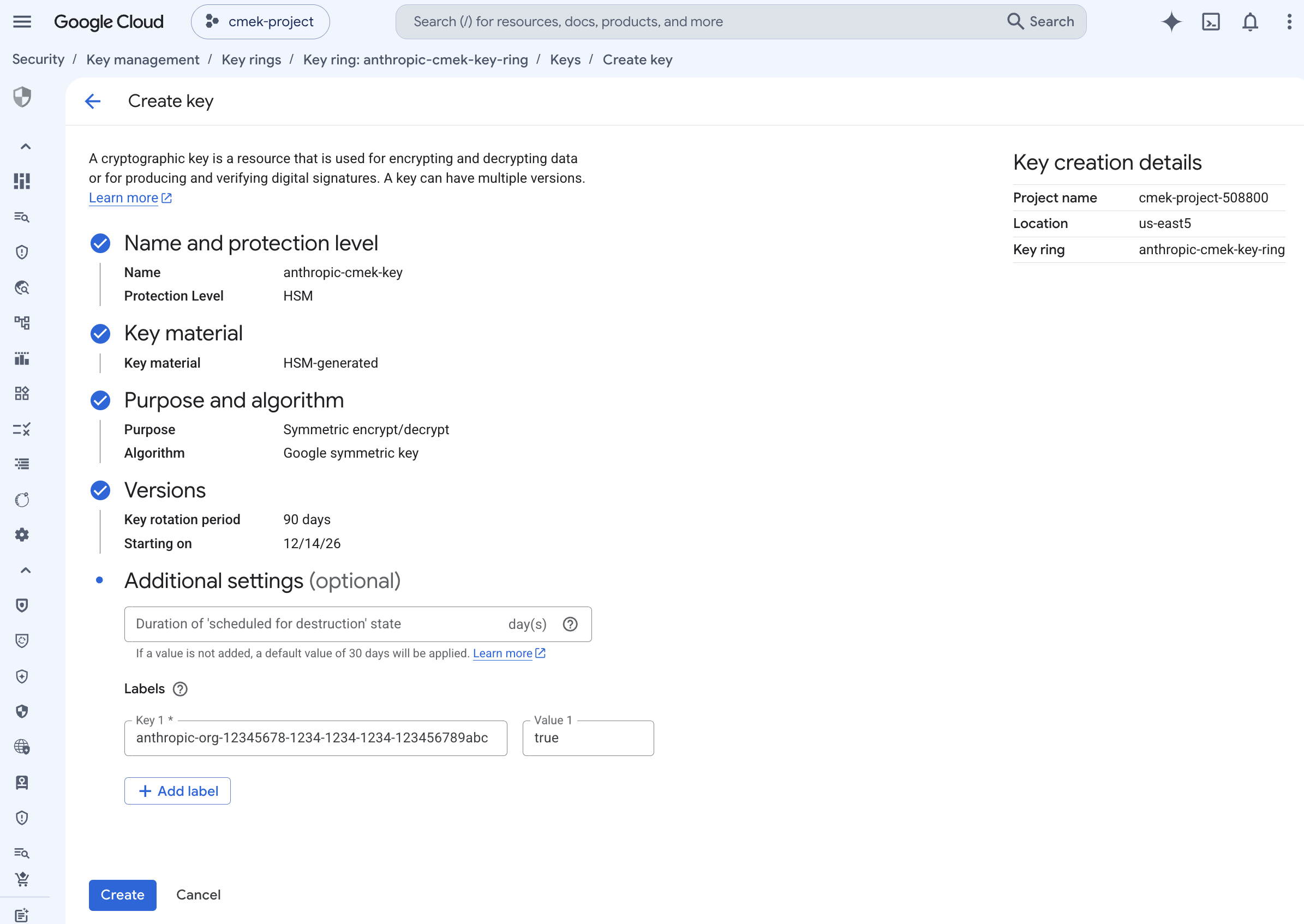
82 </Frame>
80 * **Key 1:** `anthropic-org-<ORGANIZATION_UUID>`
81 * **Value 1:** `true`
8382
84 To share one key among several Anthropic organizations, add one such label for each organization. A key can carry at most 64 labels, including your own.
83 Click **Create**.
8584
86 <Note>
87 To add the label to a key that doesn't have it, run `gcloud kms keys update <KEY_NAME> --project=<PROJECT_ID> --location=<REGION> --keyring=<KEYRING_NAME> --update-labels=anthropic-org-<ORGANIZATION_UUID>=true`. It merges the label with any labels the key already has.
88 </Note>
89 </Step>
85 <Frame caption="An HSM-protected symmetric encrypt/decrypt key with the organization label.">
86 
87 </Frame>
88 </Step>
9089
91 <Step title="Grant Anthropic's service account access to the key">
92 Two key-level IAM bindings are required. Both are scoped to the single crypto key, not project-wide or keyring-wide.
90 <Step title="Open the key's permissions">
91 On the key ring details page, select the checkbox next to the key. Open the **Permissions** panel and click **Grant access**.
92 </Step>
9393
94 Encrypt and decrypt, which Anthropic uses to encrypt and decrypt the data keys that protect your workspace data (envelope encryption):
94 <Step title="Grant Anthropic's service account access to the key">
95 Check that **Resource** shows the key, not the key ring or project. Enter these values:
9596
96 ```bash
97 gcloud kms keys add-iam-policy-binding <your-key-name> \
98 --project=<your-project-id> \
99 --location=<region> \
100 --keyring=<your-keyring-name> \
101 --member="serviceAccount:anthropic-cmek-client-us@gcp-anthropic-cmek-clients.iam.gserviceaccount.com" \
102 --role=roles/cloudkms.cryptoKeyEncrypterDecrypter
103 ```
97 * **New principals:** `anthropic-cmek-client-us@gcp-anthropic-cmek-clients.iam.gserviceaccount.com`
98 * **Role:** Cloud KMS CryptoKey Encrypter/Decrypter
10499
105 Viewer, for the metadata read (`cryptoKeys.get`) Anthropic performs at startup to validate the key's purpose and algorithm:
100 Click **Add another role** and select **Cloud KMS Viewer**. Click **Save**.
106101
107 ```bash
108 gcloud kms keys add-iam-policy-binding <your-key-name> \
109 --project=<your-project-id> \
110 --location=<region> \
111 --keyring=<your-keyring-name> \
112 --member="serviceAccount:anthropic-cmek-client-us@gcp-anthropic-cmek-clients.iam.gserviceaccount.com" \
113 --role=roles/cloudkms.viewer
114 ```
102 <Frame caption="Grant the Anthropic service account both roles, scoped to the key.">
103 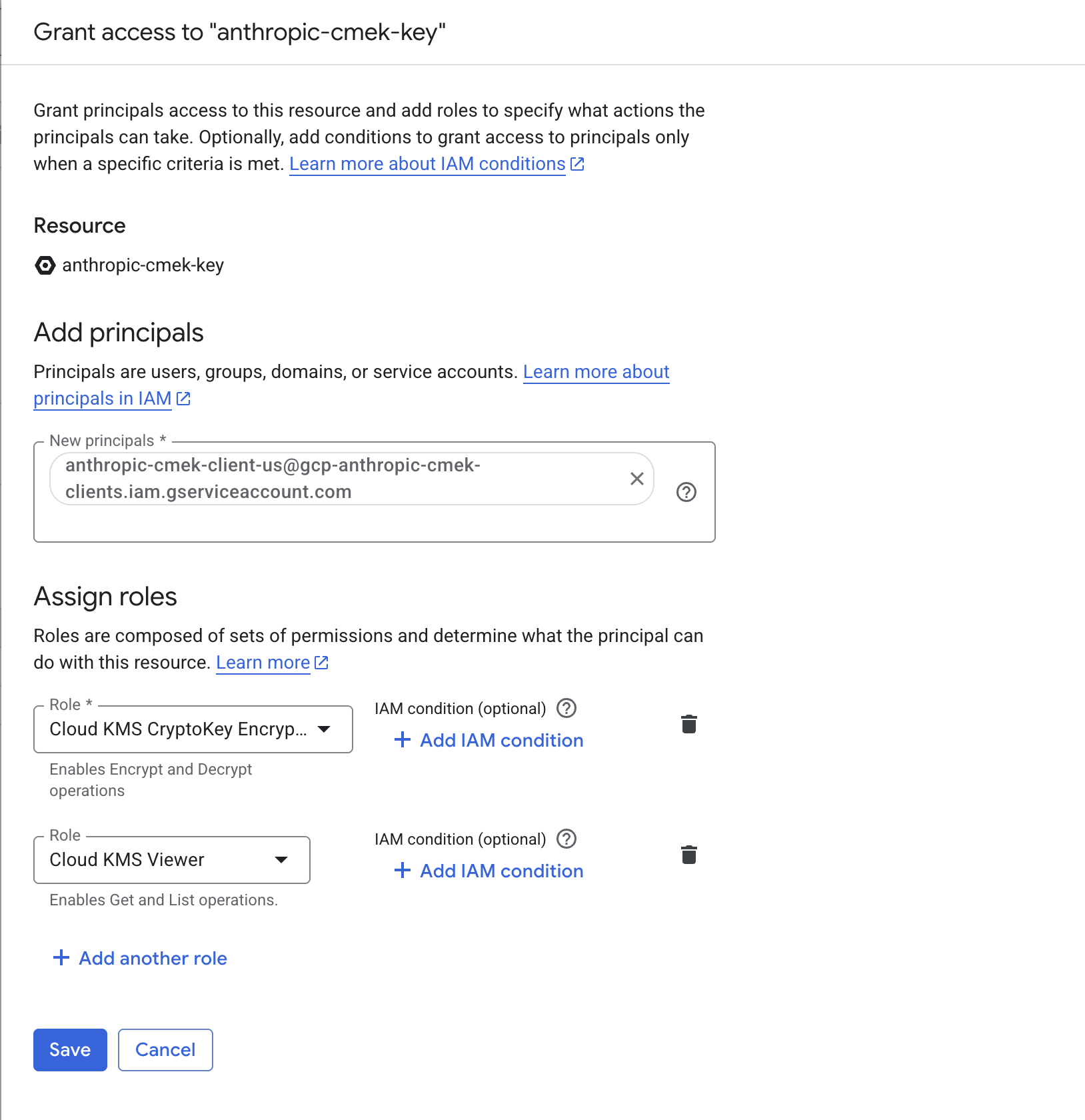
104 </Frame>
105 </Step>
115106
116 From the Console, select the key, open the **Permissions** panel, click **Grant access**, and add the service account with both the Cloud KMS CryptoKey Encrypter/Decrypter and Cloud KMS Viewer roles. Make sure you are on the key's permissions page, not the key ring or project, so the grant is scoped to this key only.
107 <Step title="Copy the full key resource name">
108 On the key ring details page, open the key's **Actions** menu and click **Copy resource name**.
117109
118 <Frame caption="Grant the Anthropic service account both roles, scoped to the key.">
119 
120 </Frame>
121 </Step>
110 <Frame caption="Copy the key's full resource name from the actions menu.">
111 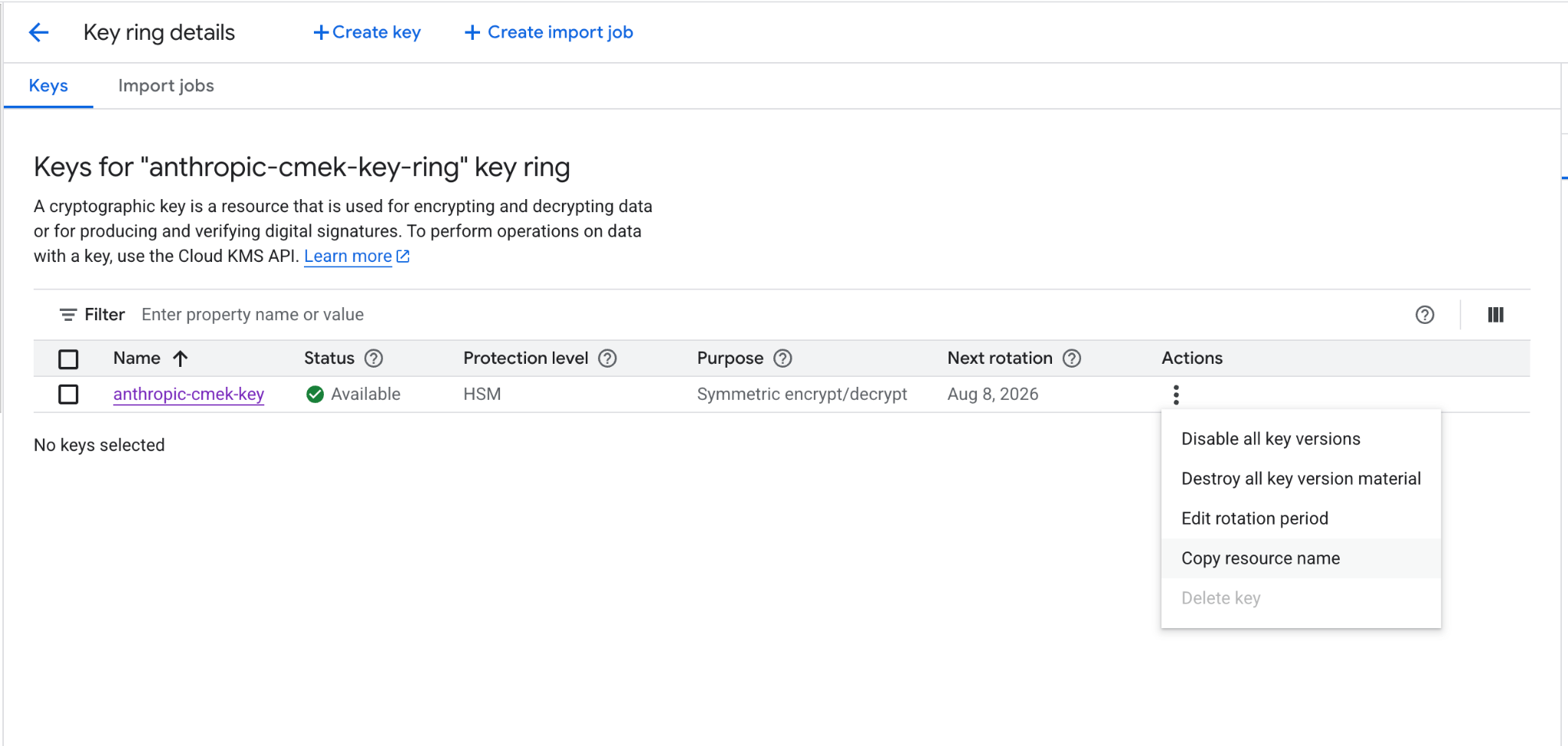
112 </Frame>
113 </Step>
114 </Steps>
115 </Tab>
122116
123 <Step title="Note the full key resource name">
124 You pass this to Anthropic when you register the key. The format is:
117 <Tab title="gcloud CLI">
118 In each command, replace these placeholders:
125119
126 ```text wrap
127 projects/<your-project-id>/locations/<region>/keyRings/<your-keyring-name>/cryptoKeys/<your-key-name>
128 ```
120 * **`<your-project-id>`:** your Google Cloud project ID
121 * **`<region>`:** the key's location, such as `us-east5`
122 * **`<your-keyring-name>`:** the key ring's name
123 * **`<your-key-name>`:** the key's name
124 * **`<ORGANIZATION_UUID>`:** your Anthropic organization ID in lowercase
129125
130 Retrieve it with:
126 <Steps>
127 <Step title="Create or choose a key ring">
128 Skip this step if you already have a key ring to reuse.
131129
132 ```bash
133 gcloud kms keys describe <your-key-name> \
134 --project=<your-project-id> \
135 --location=<region> \
136 --keyring=<your-keyring-name> \
137 --format="value(name)"
138 ```
130 ```bash
131 gcloud kms keyrings create <your-keyring-name> \
132 --project=<your-project-id> \
133 --location=<region>
134 ```
135 </Step>
139136
140 From the Console, open the key's details page and click **Copy resource name**.
137 <Step title="Create the key">
138 ```bash
139 gcloud kms keys create <your-key-name> \
140 --project=<your-project-id> \
141 --location=<region> \
142 --keyring=<your-keyring-name> \
143 --purpose=encryption \
144 --protection-level=hsm \
145 --labels=anthropic-org-<ORGANIZATION_UUID>=true
146 ```
141147
142 <Frame caption="Copy the key's full resource name from the actions menu.">
143 
144 </Frame>
145 </Step>
146</Steps>
148 For software protection, omit `--protection-level=hsm`.
149 </Step>
147150
148## Register the key with Anthropic
151 <Step title="Grant Anthropic's service account access to the key">
152 Run both commands:
149153
150How you register the key depends on which product you use.
154 ```bash
155 gcloud kms keys add-iam-policy-binding <your-key-name> \
156 --project=<your-project-id> \
157 --location=<region> \
158 --keyring=<your-keyring-name> \
159 --member="serviceAccount:anthropic-cmek-client-us@gcp-anthropic-cmek-clients.iam.gserviceaccount.com" \
160 --role=roles/cloudkms.cryptoKeyEncrypterDecrypter
161 ```
151162
163 ```bash
164 gcloud kms keys add-iam-policy-binding <your-key-name> \
165 --project=<your-project-id> \
166 --location=<region> \
167 --keyring=<your-keyring-name> \
168 --member="serviceAccount:anthropic-cmek-client-us@gcp-anthropic-cmek-clients.iam.gserviceaccount.com" \
169 --role=roles/cloudkms.viewer
170 ```
171 </Step>
172
173 <Step title="Get the full key resource name">
174 ```bash
175 gcloud kms keys describe <your-key-name> \
176 --project=<your-project-id> \
177 --location=<region> \
178 --keyring=<your-keyring-name> \
179 --format="value(name)"
180 ```
181 </Step>
182 </Steps>
183 </Tab>
184</Tabs>
185
186You register the key with its full resource name, in this format:
187
188```text wrap
189projects/<your-project-id>/locations/<region>/keyRings/<your-keyring-name>/cryptoKeys/<your-key-name>
190```
191
192<Note>
193 **Keys you already have:** Add the organization label with this command, in Cloud Shell or with the gcloud CLI:
194
195 ```bash
196 gcloud kms keys update <your-key-name> \
197 --project=<your-project-id> \
198 --location=<region> \
199 --keyring=<your-keyring-name> \
200 --update-labels=anthropic-org-<ORGANIZATION_UUID>=true
201 ```
202
203 The placeholders match the parts of the key's full resource name. The command merges the label with any labels the key already has. Then grant access and copy the resource name as the preceding steps describe.
204
205 To share one key among several Anthropic organizations, add one organization label for each.
206</Note>
207
208## Register the key with Anthropic
209
152210<Tabs>
153211 <Tab title="Claude Platform">
154 You can set up the key in the Claude Console or through the Admin API, with the same result.
155
156212 <Tabs>
157213 <Tab title="Claude Console">
158214 <Steps>
159 <Step title="Register the key with Anthropic">
160 In the Claude Console, go to the [Data retention](https://platform.claude.com/settings/privacy#encryption-keys) page (`platform.claude.com/settings/privacy`). If you don't see **Encryption keys**, select **Organization** from the dropdown menu at the top of the page. Under **Encryption keys**, click **Add key**. Enter a display name, choose **Google Cloud KMS**, and click **Continue**. Paste the full key resource name into **Key resource name**, and click **Add**.
215 <Step title="Open the encryption key settings">
216 In the Claude Console, go to the [Data retention](https://platform.claude.com/settings/privacy#encryption-keys) page (`platform.claude.com/settings/privacy`). If you don't see **Encryption keys**, select **Organization** from the dropdown menu at the top of the page.
217 </Step>
161218
162 The key details step shows the organization label. Add it to the key, as [the create step](https://platform.claude.com/docs/en/manage-claude/cmek-google-cloud-kms#organization-label) describes, before you click **Add**.
219 <Step title="Add the key">
220 Under **Encryption keys**, click **Add key**. Enter a **Display name** and select **Google Cloud KMS**. Click **Continue**.
163221 </Step>
164222
223 <Step title="Enter the key resource name">
224 The dialog box shows an **Organization label**. Check that your key has this label. Paste the full key resource name into **Key resource name** and click **Add**.
225 </Step>
226
165227 <Step title="Validate the key">
166 In the **Encryption keys** list, click **Verify** next to the key. **Connected** appears when the check passes. If it fails, a message gives the reason.
228 In the **Encryption keys** list, click **Verify** next to the key. **Connected** appears when the check passes. If it fails, see [Troubleshoot validation](https://platform.claude.com/docs/en/manage-claude/cmek-google-cloud-kms#troubleshoot-validation) for common causes.
167229 </Step>
168230
169231 <Step title="Attach the key to a workspace">
170 In the Claude Console, go to the [Data retention](https://platform.claude.com/settings/privacy) page (`platform.claude.com/settings/privacy`) and select the workspace from the dropdown menu at the top of the page. Under **Encryption key**, select the key, click **Save**, and confirm. Attaching a key can't be undone. For a workspace that already receives requests, the key can take [up to a day to take effect](https://platform.claude.com/docs/en/manage-claude/cmek#how-it-works).
232 Attaching a key can't be undone. If you can, attach it to a new workspace before that workspace receives any requests. In a workspace that already receives requests, the key can take [up to a day to take effect](https://platform.claude.com/docs/en/manage-claude/cmek#how-it-works).
233
234 On the Data retention page, select the workspace from the dropdown menu at the top of the page. Under **Encryption key**, select the key and click **Save**.
171235 </Step>
236
237 <Step title="Confirm the change">
238 Select the checkbox to confirm that you have read the CMEK documentation, then click **Confirm**.
239 </Step>
172240 </Steps>
173241 </Tab>
174242
175243 <Tab title="API">
176244 <Steps>
177 <Step title="Register the key with Anthropic">
178 Create an external key configuration through the Admin API, using the resource name from the Note the full key resource name step under Encryption key setup.
245 <Step title="Create the external key">
246 Replace `<friendly-name>` with a display name. Replace the value that starts with `projects/` with the full key resource name.
179247
180248 <CodeGroup>
181249 ```bash cURL
from line 397
329397 ```
330398 </CodeGroup>
331399
332 The response contains the external key ID:
400 The `id` field of the response contains the external key ID. Copy it for the next two steps:
333401
334402 ```json
335403 {
from line 409
341409 </Step>
342410
343411 <Step title="Validate the key">
344 Trigger an encrypt and decrypt round-trip against your key.
412 Replace `ekey_<id>` with the external key ID.
345413
346414 <CodeGroup>
347415 ```bash cURL
from line 498
430498 { "type": "external_key_validation", "status": "success", "error": null }
431499 ```
432500
433 If validation fails, common causes are:
434
435 * **VPC Service Controls:** if a service perimeter protects Cloud KMS in your project, add Anthropic to an access level on the perimeter (or exclude the key's project) so Anthropic can reach the key.
436 * **Domain restricted sharing:** the `constraints/iam.allowedPolicyMemberDomains` org policy can strip the Anthropic service account binding (see the earlier note). Confirm the binding is present with `gcloud kms keys get-iam-policy <your-key-name> --project=<your-project-id> --location=<region> --keyring=<your-keyring-name>`.
437 * **Disabled or destroyed key version:** confirm the key's primary version is enabled, and not disabled, scheduled for destruction, or destroyed.
501 If validation fails, see [Troubleshoot validation](https://platform.claude.com/docs/en/manage-claude/cmek-google-cloud-kms#troubleshoot-validation).
438502 </Step>
439503
440504 <Step title="Attach the key to a workspace">
441 Once the key is validated, attach it to a new workspace before you send any requests to that workspace. For a workspace that already receives requests, the key can take [up to a day to take effect](https://platform.claude.com/docs/en/manage-claude/cmek#how-it-works).
505 Attaching a key can't be undone. If you can, attach it to a new workspace before that workspace receives any requests. In a workspace that already receives requests, the key can take [up to a day to take effect](https://platform.claude.com/docs/en/manage-claude/cmek#how-it-works).
442506
507 Replace `<workspace-id>` with the workspace ID and `ekey_<id>` with the external key ID.
508
443509 <CodeGroup>
444510 ```bash cURL
445511 curl -sS -X POST "https://api.anthropic.com/v1/organizations/workspaces/<workspace-id>" \
from line 623
557623 </Tab>
558624
559625 <Tab title="Claude Enterprise">
560 In [claude.ai > Organization settings > Data and privacy](https://claude.ai/admin-settings/data-privacy-controls), open **Encryption keys**, then click **Add key**. Choose **Google Cloud**, paste the full key resource name from the previous step, and click **Continue**. Anthropic validates the key with an encrypt and decrypt round-trip. Once it shows as verified, your organization is CMEK-protected from that point forward.
626 On Claude Enterprise, CMEK applies to the whole organization, and an organization can have only one key.
561627
562 On Claude Enterprise, CMEK applies to the whole organization, so there is no separate workspace attach step, and an organization can have only one key.
628 <Steps>
629 <Step title="Open the encryption key settings">
630 Go to [claude.ai > Organization settings > Data and privacy](https://claude.ai/admin-settings/data-privacy-controls) and find **Encryption keys**.
631 </Step>
632
633 <Step title="Add the key">
634 Click **Add key**. Enter a **Display name** and select **Google Cloud KMS**. Select the checkbox to confirm that you have read the CMEK documentation, then click **Continue**.
635 </Step>
636
637 <Step title="Enter the key resource name">
638 The dialog box shows an **Organization label**. Check that your key has this label. Paste the full key resource name into **Key resource name** and click **Add**.
639 </Step>
640
641 <Step title="Confirm that validation passed">
642 When the check passes, **Encryption key configured** appears, and your organization is CMEK-protected from then on. If the check fails, see [Troubleshoot validation](https://platform.claude.com/docs/en/manage-claude/cmek-google-cloud-kms#troubleshoot-validation).
643 </Step>
644 </Steps>
563645 </Tab>
564646</Tabs>
565647
648## Troubleshoot validation
649
650If validation fails, common causes are:
651
652* **Wrong organization label:** Make sure the key has the [organization label](https://platform.claude.com/docs/en/manage-claude/cmek-google-cloud-kms#organization-label), with your bare organization ID in lowercase.
653* **VPC Service Controls:** A service perimeter that protects Cloud KMS in your project can block Anthropic. Add Anthropic to an access level on the perimeter, or exclude the key's project from it.
654* **Domain restricted sharing:** The `constraints/iam.allowedPolicyMemberDomains` org policy blocks the binding for Anthropic's service account. To check that the binding is there, run `gcloud kms keys get-iam-policy <your-key-name> --project=<your-project-id> --location=<region> --keyring=<your-keyring-name>`. To allow it, see [Anthropic service account email](https://platform.claude.com/docs/en/manage-claude/cmek-google-cloud-kms#anthropic-service-account-email).
655* **Disabled or destroyed key version:** Confirm that the key's primary version is enabled.
656
566657## Terraform
567658
568For infrastructure-as-code deployments, the same steps map to the `google` provider with the `google_kms_key_ring`, `google_kms_crypto_key`, and `google_kms_crypto_key_iam_member` resources.
659To create the key with Terraform, use the `google_kms_key_ring`, `google_kms_crypto_key`, and `google_kms_crypto_key_iam_member` resources from the `google` provider.
569660
No line in this hunk matches that.