
cmek-azure-key-vault changedmanage-claude/cmek-azure-key-vault
Nearest release: v2.1.302, published an hour after this site recorded the change. Shown because the two are within 24 hours of each other. Nothing here says the release caused the edit.
Recorded here
Lines+274added
Lines−137removed
From line
10
where the diff opens
First seen
14 Aug 2026
this site's first read of the page
Recorded edits13to this page, all time
### Create the key and grant access ### Check your vault configuration ## Troubleshoot validation
The whole hunk
from line 10, old and new numbered
/
from line 10
1010/claude-api help me configure a customer-managed encryption key with Azure Key Vault
1111```
1212
13This guide walks through configuring an Azure Key Vault key as a [customer-managed encryption key (CMEK)](https://platform.claude.com/docs/en/manage-claude/cmek) for your Anthropic organization.
13This guide shows how to use an Azure Key Vault key as a [customer-managed encryption key (CMEK)](https://platform.claude.com/docs/en/manage-claude/cmek) for your Anthropic organization.
1414
1515<Warning>
1616 Enabling CMEK is permanent. If your Key Vault key is deleted or disabled, Anthropic cannot recover the data encrypted under it. Review the [warnings and limitations](https://platform.claude.com/docs/en/manage-claude/cmek) before you start.
from line 18
1818
1919## Prerequisites
2020
21* An Azure Key Vault with **RBAC authorization enabled** (`enableRbacAuthorization: true`) and **public network access allowed**. Anthropic calls your vault over the public data-plane endpoint; private endpoints are not supported.
22* **Purge protection enabled** (`enablePurgeProtection: true`) on the vault. Without it, a deleted key can be permanently purged during the soft-delete retention window, causing irreversible loss of your CMEK-protected data. Purge protection cannot be disabled once enabled.
21* An Azure Key Vault with these settings:
22
23 * RBAC authorization is enabled (`enableRbacAuthorization: true`).
24 * Public network access is allowed. Private endpoints are not supported.
25 * Purge protection is enabled (`enablePurgeProtection: true`). You can't turn off purge protection after you enable it.
26 * Diagnostic settings route the `AuditEvent` log category to Log Analytics, a storage account, or an event hub. Without them, you have no audit trail of Anthropic's key operations, such as `KeyWrap`, `KeyUnwrap`, and `KeyGet`.
27
2328* Permissions to create keys in the vault and to assign RBAC roles on it.
29
2430* Permissions to create service principals in your Entra tenant (`Application Administrator`, `Cloud Application Administrator`, or an equivalent custom role).
25* An Anthropic Admin API key for your organization.
26* The [`az` CLI](https://learn.microsoft.com/en-us/cli/azure/?view=azure-cli-latest) installed and authenticated.
27* **Diagnostic Settings** configured on the vault to route the `AuditEvent` log category to Log Analytics, a storage account, or an event hub. Azure Key Vault does not emit data-plane audit logs (such as `KeyWrap`, `KeyUnwrap`, and `KeyGet`) by default, so without this you get no audit trail for Anthropic's key operations.
2831
32* The [`az` CLI](https://learn.microsoft.com/en-us/cli/azure/?view=azure-cli-latest) installed and authenticated, or Cloud Shell in the Azure portal. Some steps have no portal equivalent.
33
34* To register the key through the API, an Anthropic Admin API key for your organization.
35
2936## Anthropic app information
3037
31To have Anthropic use your encryption key, you must configure an Anthropic multitenant application ID and display name. Those values are:
38You give the following Anthropic multitenant application access to your key. The application requests no Microsoft Graph permissions.
3239
3340| Field | Value |
3441| ------------------------------ | -------------------------------------- |
from line 48
4148
4249## Encryption key setup
4350
44<Steps>
45 <Step title="Consent to the Anthropic multitenant application">
46 This creates a service principal in your Entra tenant for Anthropic's CMEK client application. The application requests no Microsoft Graph permissions; it exists solely as a federation target for Key Vault data-plane access.
51The key must meet these requirements:
4752
48 ```bash
49 az ad sp create --id 8635ae1a-3e5d-44e8-a4ed-e0f614466f87
50 ```
53* **Type:** RSA, 3072-bit or larger. For an HSM-backed key, use `RSA-HSM`, which requires a Premium-SKU vault.
54* **Permitted operations:** `wrapKey` and `unwrapKey`. The steps in this guide turn off every other operation, so Anthropic can only read the key and wrap and unwrap with it.
55* **Organization tag:** `anthropic-org-<ORGANIZATION_UUID>` with the value `true`. Replace `<ORGANIZATION_UUID>` with your Anthropic organization ID in lowercase. Validation fails without the tag.
56* **Access:** the `Key Vault Crypto User` role for Anthropic's service principal, assigned on the key.
5157
52 From the output, capture the `id` field. This is the service principal's object ID in your tenant, which you use when you assign the RBAC role.
58<Note>
59 **Finding your organization ID:** Use the bare UUID, not the `org_`-prefixed ID. Copy it from one of these places:
5360
54 ```json
55 {
56 "appId": "8635ae1a-3e5d-44e8-a4ed-e0f614466f87",
57 "displayName": "anthropic-cmek-client-us",
58 "id": "<sp-object-id>"
59 }
60 ```
61 * **Claude Console:** the **Organization ID** field on the [Organization](https://platform.claude.com/settings/organization) page (`platform.claude.com/settings/organization`)
62 * **claude.ai:** the **Organization ID** field under **Organization settings > Organization**
63 * **Admin API:** the `id` field from the [Organization Info](https://platform.claude.com/docs/en/api/organization/retrieve) endpoint
64</Note>
6165
62 If the service principal already exists in your tenant (from a prior attempt or another integration), `az ad sp create` exits with an "already exists" error. Fetch its object ID instead:
66### Create the key and grant access
6367
64 ```bash
65 az ad sp show --id 8635ae1a-3e5d-44e8-a4ed-e0f614466f87 --query id -o tsv
66 ```
68<Tabs>
69 <Tab title="Azure portal">
70 <Steps>
71 <Step title="Create Anthropic's service principal">
72 Open Cloud Shell from the portal's top navigation bar. Run this command:
6773
68 This step has no Portal equivalent. If you do not have the Azure CLI installed locally, open Cloud Shell from the Portal's top navigation bar. After the command succeeds, you can find the service principal's object ID in **Microsoft Entra ID > Enterprise applications** by clearing the default application-type filter and searching for `anthropic-cmek-client-us`.
74 ```bash
75 az ad sp create --id 8635ae1a-3e5d-44e8-a4ed-e0f614466f87
76 ```
6977
70 <Frame caption="Find the service principal's Object ID on its Entra enterprise application overview.">
71 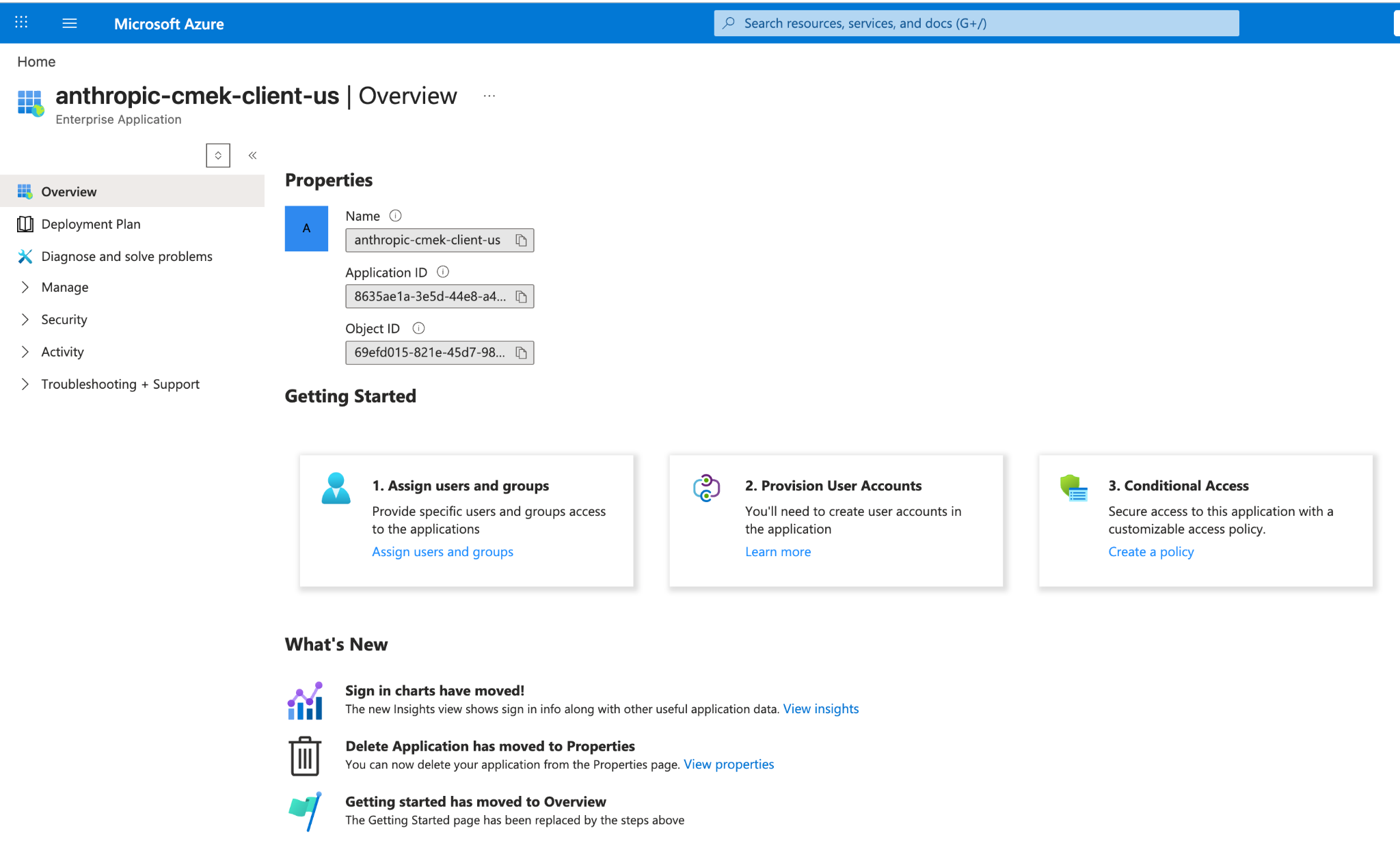
72 </Frame>
73 </Step>
78 If the service principal already exists, continue to the next step.
79 </Step>
7480
75 <Step title="Create an RSA key in your vault">
76 Azure Key Vault does not support symmetric key wrapping, so the key must be RSA (3072-bit or larger) with `wrapKey` and `unwrapKey` in its allowed operations.
81 <Step title="Confirm the service principal exists">
82 Go to **Microsoft Entra ID > Enterprise applications** and clear the default application-type filter. Search for `anthropic-cmek-client-us`.
7783
78 The `--tags` option adds the organization tag, `anthropic-org-<ORGANIZATION_UUID>` with the value `true`, where `<ORGANIZATION_UUID>` is your Anthropic organization ID in lowercase. The tag is required for Anthropic to validate the key.
84 <Frame caption="The anthropic-cmek-client-us service principal in Entra enterprise applications.">
85 
86 </Frame>
87 </Step>
7988
80 <Note>
81 **Finding your organization ID:** Copy the **Organization ID** field on the [Organization](https://platform.claude.com/settings/organization) page (`platform.claude.com/settings/organization`) in the Claude Console, or under **Organization settings > Organization** in claude.ai, or read the `id` field from the [Organization Info](https://platform.claude.com/docs/en/api/organization/retrieve) endpoint. Use the bare UUID, not the `org_`-prefixed ID.
82 </Note>
89 <Step title="Open the Create a key page">
90 Open your key vault and select **Keys**. Click **Generate/Import**.
91 </Step>
8392
84 ```bash
85 az keyvault key create \
86 --vault-name <VAULT_NAME> \
87 --name <KEY_NAME> \
88 --kty RSA --size 3072 \
89 --ops wrapKey unwrapKey \
90 --tags anthropic-org-<ORGANIZATION_UUID>=true
91 ```
93 <Step title="Create an RSA key in your vault">
94 Set these values:
9295
93 For HSM-backed keys, use `--kty RSA-HSM` (requires a Premium-SKU vault). Software-protected RSA keys are acceptable for this integration.
96 * **Name:** a name for the key
97 * **Key type:** RSA
98 * **RSA key size:** 3072 or larger
9499
95 From the Portal, open your Key Vault, select **Keys**, then **Generate/Import**. Set the key type to RSA and the size to 3072 or larger. To restrict the key to wrap and unwrap only, open the key version, scroll to **Permitted operations**, and uncheck everything except **Wrap Key** and **Unwrap Key**.
100 Click the link next to **Tags**.
101 </Step>
96102
97 On the **Create a key** page, also add the organization tag under **Tags**.
103 <Step title="Add the organization tag">
104 Enter these values:
98105
99 <Frame caption="Create an RSA key sized 3072 or larger, with the tag anthropic-org-<ORGANIZATION_UUID> set to true.">
100 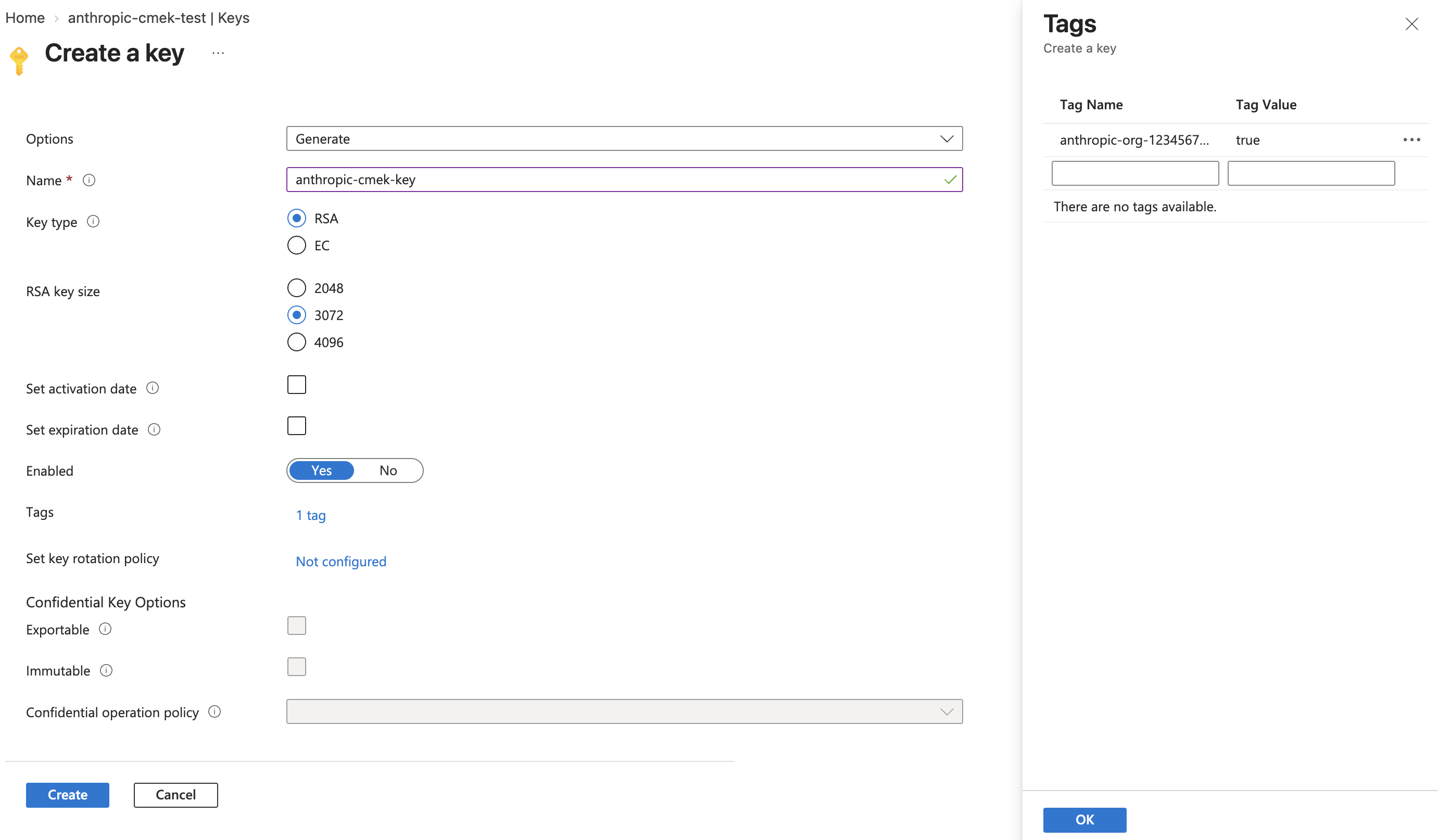
101 </Frame>
106 * **Tag Name:** `anthropic-org-<ORGANIZATION_UUID>`
107 * **Tag Value:** `true`
102108
103 <Frame caption="Restrict permitted operations to Wrap Key and Unwrap Key. The key version shows the organization tag.">
104 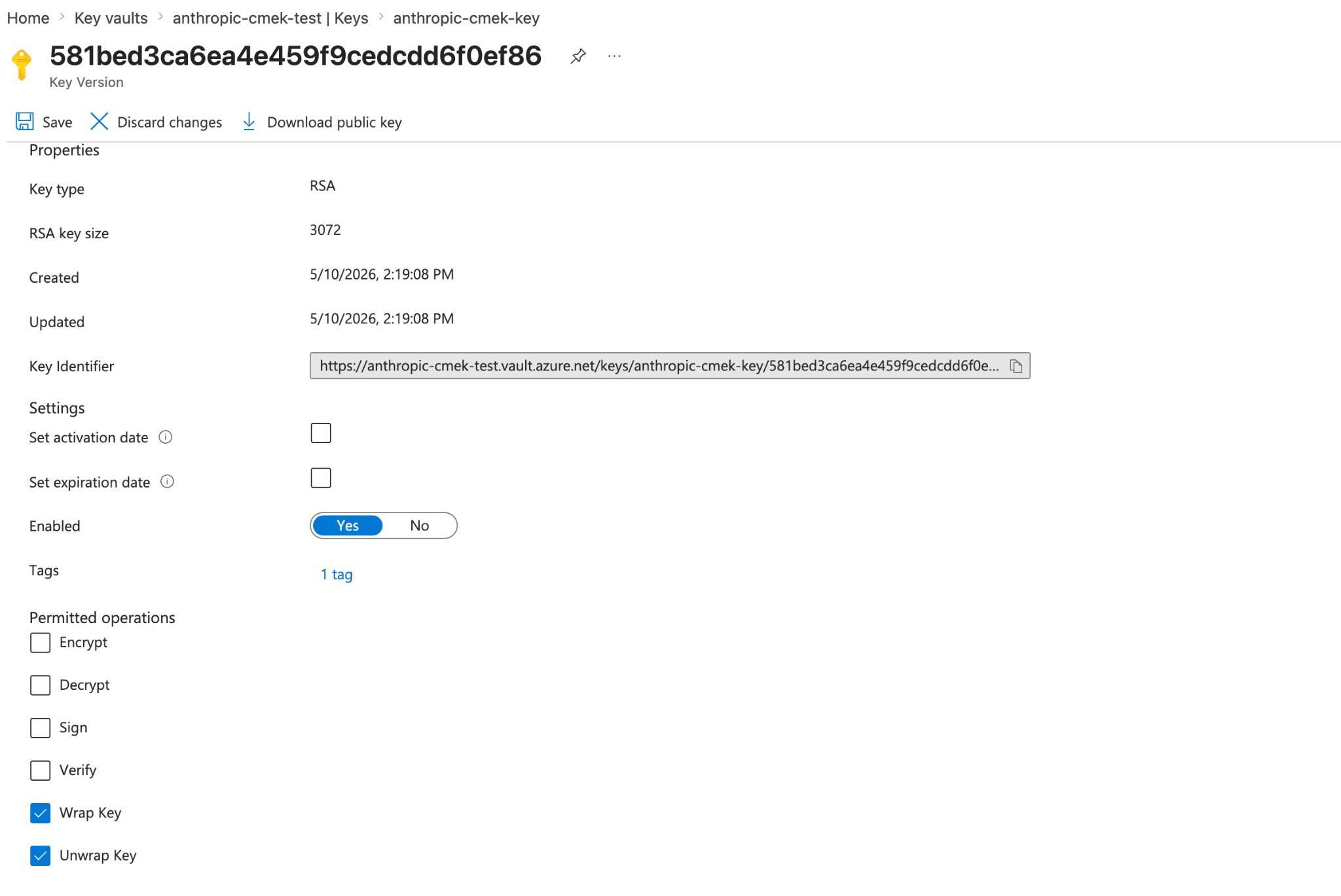
105 </Frame>
109 Click **OK**, then click **Create**.
106110
107 To share one key among several Anthropic organizations, add one such tag for each organization. A key version can carry at most 15 tags, including your own.
111 <Frame caption="Create an RSA key sized 3072 or larger, with the tag anthropic-org-<ORGANIZATION_UUID> set to true.">
112 
113 </Frame>
114 </Step>
108115
109 <Note>
110 To add the tag to a key you already have, open the key's current version in the Portal, select the link next to **Tags**, add the tag, and click **Save**. With the Azure CLI, run `az keyvault key set-attributes --vault-name <VAULT_NAME> --name <KEY_NAME> --tags anthropic-org-<ORGANIZATION_UUID>=true`. Its `--tags` option replaces the version's tags, so also put each tag the version already has in `--tags`, as `name=value`. For a key in a Managed HSM, use `--hsm-name <HSM_NAME>` instead of `--vault-name`.
111 </Note>
112 </Step>
116 <Step title="Limit the permitted operations">
117 Open the new key, then open its current version. Under **Permitted operations**, clear every checkbox except **Wrap Key** and **Unwrap Key**. Click **Save**.
113118
114 <Step title="Grant the Anthropic service principal access to your key">
115 Assign the `Key Vault Crypto User` role to the service principal from the first step, scoped to the **individual key** rather than the whole vault.
119 <Frame caption="Restrict permitted operations to Wrap Key and Unwrap Key. The key version shows the organization tag.">
120 
121 </Frame>
122 </Step>
116123
117 ```bash
118 VAULT_ID=$(az keyvault show --name <your-vault-name> --query id -o tsv)
124 <Step title="Open the key's access control">
125 Open the key itself, not the vault. Select its **Access control (IAM)** tab and click **Add > Add role assignment**.
126 </Step>
119127
120 az role assignment create \
121 --role "Key Vault Crypto User" \
122 --assignee-object-id <sp-object-id> \
123 --assignee-principal-type ServicePrincipal \
124 --scope "${VAULT_ID}/keys/<your-key-name>"
125 ```
128 <Step title="Select the role">
129 On the **Role** tab, select **Key Vault Crypto User**. Click **Next**.
130 </Step>
126131
127 The built-in `Key Vault Crypto User` role grants key cryptographic operations (encrypt, decrypt, wrap, unwrap, sign, verify) plus key read on its assigned scope. The `--ops wrapKey unwrapKey` restriction you set on the key in the previous step further narrows which of those operations can succeed against this key, so in practice Anthropic can only wrap and unwrap.
132 <Step title="Add Anthropic's service principal">
133 On the **Members** tab, click **Select members**. Search for `anthropic-cmek-client-us` and select it. Click **Select**, then click **Next**.
134 </Step>
128135
129 From the Portal, open the **key** (not the vault), select its **Access control (IAM)** tab, click **Add > Add role assignment**, select **Key Vault Crypto User**, and assign it to the `anthropic-cmek-client-us` service principal.
136 <Step title="Review and assign">
137 On the **Review + assign** tab, click **Review + assign**.
138 </Step>
139 </Steps>
130140
131 <Note>
132 **Dedicated vault alternative:** Microsoft recommends a dedicated vault per application with roles assigned at the vault scope. If you provision a vault that holds only this Anthropic CMEK key, you can assign the role at the vault scope instead and the effect is identical. Scope to the individual key when the key lives in a shared vault.
133 </Note>
141 To use a key you already have, follow these steps instead of steps 3 to 6, then continue from step 7:
134142
135 <Frame caption="Assign Key Vault Crypto User to the Anthropic service principal, scoped to the key.">
136 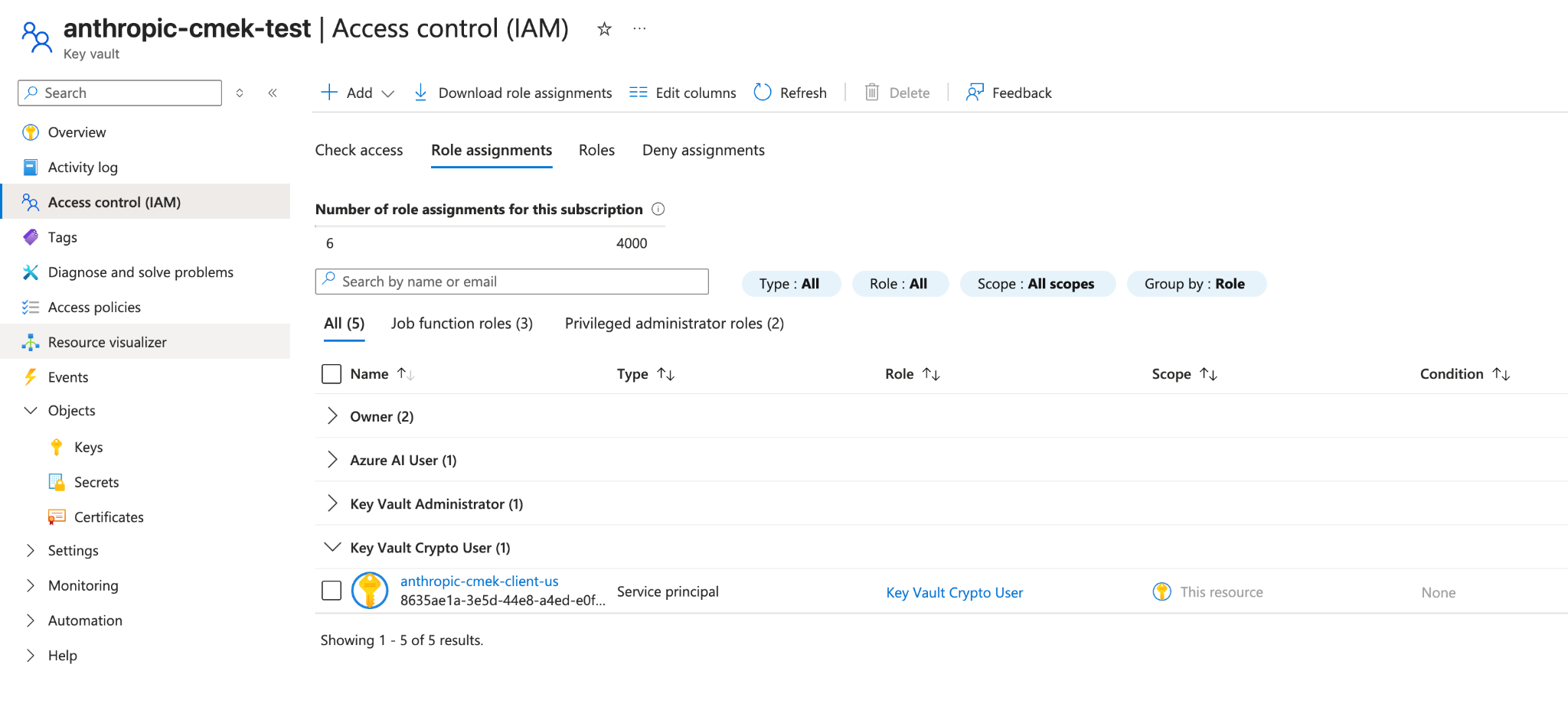
137 </Frame>
138 </Step>
143 1. In your key vault, select **Keys** and open the key. Open its current version.
144 2. Click the link next to **Tags**.
145 3. Add the organization tag and click **OK**.
146 4. Under **Permitted operations**, clear every checkbox except **Wrap Key** and **Unwrap Key**.
147 5. Click **Save**.
148 </Tab>
139149
140 <Step title="Verify your vault configuration">
150 <Tab title="Azure CLI">
151 <Steps>
152 <Step title="Create Anthropic's service principal">
153 ```bash
154 az ad sp create --id 8635ae1a-3e5d-44e8-a4ed-e0f614466f87
155 ```
156
157 Copy the `id` field from the output.
158
159 If the command exits with an "already exists" error, get the `id` with this command instead:
160
161 ```bash
162 az ad sp show --id 8635ae1a-3e5d-44e8-a4ed-e0f614466f87 --query id -o tsv
163 ```
164 </Step>
165
166 <Step title="Create an RSA key in your vault">
167 ```bash
168 az keyvault key create \
169 --vault-name <your-vault-name> \
170 --name <your-key-name> \
171 --kty RSA --size 3072 \
172 --ops wrapKey unwrapKey \
173 --tags anthropic-org-<ORGANIZATION_UUID>=true
174 ```
175
176 Replace the placeholders:
177
178 * **`<your-vault-name>`:** the name of your key vault
179 * **`<your-key-name>`:** a name for the key
180 * **`<ORGANIZATION_UUID>`:** your Anthropic organization ID in lowercase
181
182 For an HSM-backed key, use `--kty RSA-HSM`.
183 </Step>
184
185 <Step title="Grant the Anthropic service principal access to your key">
186 ```bash
187 VAULT_ID=$(az keyvault show --name <your-vault-name> --query id -o tsv)
188
189 az role assignment create \
190 --role "Key Vault Crypto User" \
191 --assignee-object-id <sp-object-id> \
192 --assignee-principal-type ServicePrincipal \
193 --scope "${VAULT_ID}/keys/<your-key-name>"
194 ```
195
196 Replace the placeholders:
197
198 * **`<your-vault-name>`:** the name of your key vault
199 * **`<sp-object-id>`:** the `id` value from the first step
200 * **`<your-key-name>`:** the name of the key
201 </Step>
202 </Steps>
203
204 To use a key you already have, run this command instead of step 2:
205
141206 ```bash
142 az keyvault show --name <your-vault-name> \
143 --query "{rbac:properties.enableRbacAuthorization, purge:properties.enablePurgeProtection, pub:properties.publicNetworkAccess, net:properties.networkAcls.defaultAction, ipRules:properties.networkAcls.ipRules, uri:properties.vaultUri, tenantId:properties.tenantId}"
207 az keyvault key set-attributes \
208 --vault-name <your-vault-name> \
209 --name <your-key-name> \
210 --ops wrapKey unwrapKey \
211 --tags anthropic-org-<ORGANIZATION_UUID>=true
144212 ```
145213
146 Confirm that:
214 This replaces the version's existing tags. Add each existing tag to `--tags` as `name=value`.
215 </Tab>
216</Tabs>
147217
148 * `rbac` is `true`.
149 * `purge` is `true`. If it is `false` or `null`, enable purge protection on the vault before proceeding. Without it, a soft-deleted key can be permanently purged during the retention window, making your CMEK-protected data unrecoverable.
150 * `pub` is `"Enabled"`. If it is `"Disabled"`, Anthropic cannot reach the vault over its public data-plane endpoint and validation fails.
151 * `net` is `"Allow"`, or, if it is `"Deny"`, that `ipRules` include Anthropic's egress ranges (contact Anthropic for the current list).
152 * `uri` is the vault URI you use when you register the key.
153 * `tenantId` is the tenant that governs the vault. Use this value as `tenant_id` when you register the key, not the tenant of your currently-active subscription (the two can differ in cross-tenant setups).
154 </Step>
155</Steps>
218<Note>
219 **Optional:**
156220
157## Register the key with Anthropic
221 * To share one key among several Anthropic organizations, add one organization tag for each. A key version can carry at most 15 tags, including your own.
222 * If the vault holds only this key, you can assign the role on the vault instead of the key.
223</Note>
158224
159How you register the key depends on which product you use.
225### Check your vault configuration
160226
227Run this command with the Azure CLI or in Cloud Shell. Replace `<your-vault-name>` with the name of your key vault.
228
229```bash
230az keyvault show --name <your-vault-name> \
231 --query "{rbac:properties.enableRbacAuthorization, purge:properties.enablePurgeProtection, pub:properties.publicNetworkAccess, net:properties.networkAcls.defaultAction, ipRules:properties.networkAcls.ipRules, uri:properties.vaultUri, tenantId:properties.tenantId}"
232```
233
234Confirm these values:
235
236* `rbac`: `true`
237* `purge`: `true`. If it's `false` or `null`, enable purge protection before you continue.
238* `pub`: `"Enabled"`. If it's `"Disabled"`, turn on public network access.
239* `net`: `"Allow"`, or `"Deny"` with Anthropic's outbound IP ranges in `ipRules`. For the ranges, see [Outbound IP addresses](https://platform.claude.com/docs/en/api/ip-addresses#outbound-ip-addresses).
240
241Copy these values to register the key:
242
243* `uri`: the vault URI
244* `tenantId`: the ID of the tenant that governs the vault
245
246## Register the key with Anthropic
247
161248<Tabs>
162249 <Tab title="Claude Platform">
163 You can set up the key in the Claude Console or through the Admin API, with the same result.
164
165250 <Tabs>
166251 <Tab title="Claude Console">
167252 <Steps>
168 <Step title="Register the key with Anthropic">
169 In the Claude Console, go to the [Data retention](https://platform.claude.com/settings/privacy#encryption-keys) page (`platform.claude.com/settings/privacy`). If you don't see **Encryption keys**, select **Organization** from the dropdown menu at the top of the page. Under **Encryption keys**, click **Add key**. Enter a display name, choose **Azure Key Vault**, and click **Continue**. Fill in **Vault URI**, **Key name**, and **Tenant ID**, and click **Add**.
253 <Step title="Open the encryption key settings">
254 In the Claude Console, go to the [Data retention](https://platform.claude.com/settings/privacy#encryption-keys) page (`platform.claude.com/settings/privacy`). If you don't see **Encryption keys**, select **Organization** from the dropdown menu at the top of the page.
255 </Step>
170256
171 The key details step shows the organization tag. Add it to the key, as [the create step](https://platform.claude.com/docs/en/manage-claude/cmek-azure-key-vault#organization-tag) describes, before you click **Add**.
257 <Step title="Add the key">
258 Under **Encryption keys**, click **Add key**. Enter a **Display name** and select **Azure Key Vault**. Click **Continue**.
172259 </Step>
173260
261 <Step title="Enter the key details">
262 The dialog box shows an **Organization tag**. Check that your key has this tag. Enter these values:
263
264 * **Vault URI:** the `uri` value that you copied
265 * **Key name:** the name of the key
266 * **Tenant ID:** the `tenantId` value that you copied
267
268 Click **Add**.
269 </Step>
270
174271 <Step title="Validate the key">
175 In the **Encryption keys** list, click **Verify** next to the key. **Connected** appears when the check passes. If it fails, a message gives the reason.
272 In the **Encryption keys** list, click **Verify** next to the key. **Connected** appears when the check passes. If it fails, see [Troubleshoot validation](https://platform.claude.com/docs/en/manage-claude/cmek-azure-key-vault#troubleshoot-validation) for common causes.
176273 </Step>
177274
178275 <Step title="Attach the key to a workspace">
179 In the Claude Console, go to the [Data retention](https://platform.claude.com/settings/privacy) page (`platform.claude.com/settings/privacy`) and select the workspace from the dropdown menu at the top of the page. Under **Encryption key**, select the key, click **Save**, and confirm. Attaching a key can't be undone. For a workspace that already receives requests, the key can take [up to a day to take effect](https://platform.claude.com/docs/en/manage-claude/cmek#how-it-works).
276 Attaching a key can't be undone. If you can, attach it to a new workspace before that workspace receives any requests. In a workspace that already receives requests, the key can take [up to a day to take effect](https://platform.claude.com/docs/en/manage-claude/cmek#how-it-works).
277
278 On the Data retention page, select the workspace from the dropdown menu at the top of the page. Under **Encryption key**, select the key and click **Save**.
180279 </Step>
280
281 <Step title="Confirm the change">
282 Select the checkbox to confirm that you have read the CMEK documentation, then click **Confirm**.
283 </Step>
181284 </Steps>
182285 </Tab>
183286
184287 <Tab title="API">
185288 <Steps>
186 <Step title="Register the key with Anthropic">
187 Create an external key configuration through the Admin API.
289 <Step title="Create the external key">
290 Replace the placeholders:
188291
292 * **`<friendly-name>`:** a display name for the key
293 * **`<your-vault-name>`:** the name of your key vault
294 * **`<your-key-name>`:** the name of the key
295 * **`<your-tenant-id>`:** the `tenantId` value that you copied
296
189297 <CodeGroup>
190298 ```bash cURL
191299 curl -sS "https://api.anthropic.com/v1/organizations/external_keys" \
from line 466
358466 ```
359467 </CodeGroup>
360468
361 The response contains the external key ID:
469 The `id` field of the response contains the external key ID. Copy it for the next two steps:
362470
363471 ```json
364472 {
from line 478
370478 </Step>
371479
372480 <Step title="Validate the key">
373 Trigger an encrypt and decrypt round-trip against your key. This confirms that Anthropic can authenticate to your tenant and perform wrap and unwrap operations.
481 Replace `ekey_<id>` with the external key ID.
374482
375483 <CodeGroup>
376484 ```bash cURL
from line 566
458566 { "type": "external_key_validation", "status": "success", "error": null }
459567 ```
460568
461 If validation fails, the `error` field describes the problem. Common causes are:
462
463 * **RBAC propagation delay:** role assignments can take a few minutes to take effect. Wait and retry.
464 * **Network ACLs blocking Anthropic:** confirm public network access and `ipRules` as described in the verification step.
465 * **Conditional access policies on workload identities:** if your tenant has conditional access policies that target service principals, exclude the Anthropic service principal or add Anthropic's egress ranges to the policy's named locations.
569 If validation fails, the `error` field describes the problem. For common causes, see [Troubleshoot validation](https://platform.claude.com/docs/en/manage-claude/cmek-azure-key-vault#troubleshoot-validation).
466570 </Step>
467571
468572 <Step title="Attach the key to a workspace">
469 Once the key is validated, attach it to a new workspace before you send any requests to that workspace. For a workspace that already receives requests, the key can take [up to a day to take effect](https://platform.claude.com/docs/en/manage-claude/cmek#how-it-works).
573 Attaching a key can't be undone. If you can, attach it to a new workspace before that workspace receives any requests. In a workspace that already receives requests, the key can take [up to a day to take effect](https://platform.claude.com/docs/en/manage-claude/cmek#how-it-works).
470574
575 Replace `<workspace-id>` with the workspace ID and `ekey_<id>` with the external key ID.
576
471577 <CodeGroup>
472578 ```bash cURL
473579 curl -sS -X POST "https://api.anthropic.com/v1/organizations/workspaces/<workspace-id>" \
from line 690
584690 </Tab>
585691
586692 <Tab title="Claude Enterprise">
587 In [claude.ai > Organization settings > Data and privacy](https://claude.ai/admin-settings/data-privacy-controls), open **Encryption keys**, then click **Add key**. Choose **Azure**, enter the vault URI, key name, and tenant ID from the verification step, and click **Continue**. Anthropic validates the key with an encrypt and decrypt round-trip. Once it shows as verified, your organization is CMEK-protected from that point forward.
693 On Claude Enterprise, CMEK applies to the whole organization, and an organization can have only one key.
588694
589 On Claude Enterprise, CMEK applies to the whole organization, so there is no separate workspace attach step, and an organization can have only one key.
695 <Steps>
696 <Step title="Open the encryption key settings">
697 Go to [claude.ai > Organization settings > Data and privacy](https://claude.ai/admin-settings/data-privacy-controls) and find **Encryption keys**.
698 </Step>
699
700 <Step title="Add the key">
701 Click **Add key**. Enter a **Display name** and select **Azure Key Vault**. Select the checkbox to confirm that you have read the CMEK documentation, then click **Continue**.
702 </Step>
703
704 <Step title="Enter the key details">
705 The dialog box shows an **Organization tag**. Check that your key has this tag. Enter these values:
706
707 * **Vault URI:** the `uri` value that you copied
708 * **Key name:** the name of the key
709 * **Tenant ID:** the `tenantId` value that you copied
710
711 Click **Add**.
712 </Step>
713
714 <Step title="Confirm that validation passed">
715 When the check passes, **Encryption key configured** appears, and your organization is CMEK-protected from then on. If the check fails, see [Troubleshoot validation](https://platform.claude.com/docs/en/manage-claude/cmek-azure-key-vault#troubleshoot-validation).
716 </Step>
717 </Steps>
590718 </Tab>
591719</Tabs>
592720
721## Troubleshoot validation
722
723If validation fails, common causes are:
724
725* **Wrong organization tag:** Make sure the key's current version has the tag `anthropic-org-<ORGANIZATION_UUID>` with the value `true`. The organization ID must be the bare UUID in lowercase.
726* **RBAC propagation delay:** Role assignments can take a few minutes to take effect. Wait and retry.
727* **Network ACLs blocking Anthropic:** Confirm public network access and `ipRules`, as described in [Check your vault configuration](https://platform.claude.com/docs/en/manage-claude/cmek-azure-key-vault#check-your-vault-configuration).
728* **Conditional access policies on workload identities:** If your tenant has conditional access policies that target service principals, exclude the Anthropic service principal. Or add Anthropic's outbound IP ranges to the policy's named locations.
729
593730## Terraform
594731
595For infrastructure-as-code deployments, the same steps map to the `azurerm` and `azuread` providers.
732To create the key with Terraform, use the `azurerm` and `azuread` providers.
596733
No line in this hunk matches that.