
## Prerequisites ## Anthropic service account email ## Encryption key setup ## Register the key with Anthropic ## Terraform
The whole hunk
216 lines, first recorded
/
lines
The first capture of this source. The page was already there, and this is what it said.
---
title: Configure Google Cloud KMS for CMEK
url: https://platform.claude.com/docs/en/manage-claude/cmek-google-cloud-kms
description: Use Google Cloud KMS to provide an encryption key for your organization.
---
```bash Configure with the /claude-api skill in Claude Code
claude "/claude-api help me configure a customer-managed encryption key with Google Cloud KMS"
```
This guide walks through configuring a Google Cloud KMS key as a [customer-managed encryption key (CMEK)](https://platform.claude.com/docs/en/manage-claude/cmek) for your Anthropic organization.
<Warning>
Enabling CMEK is permanent. If your KMS key is deleted or disabled, Anthropic cannot recover the data encrypted under it. Review the [warnings and limitations](https://platform.claude.com/docs/en/manage-claude/cmek) before you begin.
</Warning>
## Prerequisites
* A Google Cloud project with billing enabled.
* The Cloud KMS API enabled (`cloudkms.googleapis.com`).
* Permissions to create KMS key rings and keys, and to set IAM policy on them (`roles/cloudkms.admin` or equivalent).
* An Anthropic Admin API key for your organization.
* The [`gcloud` CLI](https://cloud.google.com/cli) installed and authenticated.
* Cloud KMS **Data Access audit logs** enabled for the project (IAM & Admin > Audit Logs > Cloud Key Management Service, with `DATA_READ` and `DATA_WRITE`). These are off by default; without them, Anthropic's encrypt and decrypt operations produce no entries in Cloud Logging.
## Anthropic service account email
To have Anthropic use your encryption key, you must give Anthropic's service account a key it can use for encrypting data. The service account email for Anthropic CMEK is:
```text wrap
anthropic-cmek-client-us@gcp-anthropic-cmek-clients.iam.gserviceaccount.com
```
<Warning>
Use only this published service account email. Never trust an identifier provided over email, chat, or any onboarding channel.
</Warning>
<Note>
**Domain restricted sharing:** If your project is under a Google Cloud organization that enforces `constraints/iam.allowedPolicyMemberDomains`, the following IAM bindings are rejected because the Anthropic service account is outside your organization. You need either a project-level carve-out on that constraint, or to add Anthropic's Cloud Identity customer ID (format `C0xxxxxxxx`) to the allowed list. Contact Anthropic for the customer ID if needed.
</Note>
## Encryption key setup
<Steps>
<Step title="Create or choose a key ring">
Skip this step if you already have a key ring to reuse. Key rings are regional. Choose a single-region US location such as `us-east5` that matches the Anthropic geography you are configuring. Multi-region locations like `us` and `global` are not supported.
```bash
gcloud kms keyrings create <your-keyring-name> \
--project=<your-project-id> \
--location=<region>
```
</Step>
<Step title="Create the crypto key">
Create a symmetric key with the `ENCRYPT_DECRYPT` purpose. Anthropic strongly recommends HSM protection: Cloud KMS HSM keys are FIPS 140-2 Level 3 validated, and the cost delta over software keys is small.
```bash
gcloud kms keys create <your-key-name> \
--project=<your-project-id> \
--location=<region> \
--keyring=<your-keyring-name> \
--purpose=encryption \
--protection-level=hsm
```
For software protection instead, omit `--protection-level=hsm`. Nothing else in this guide changes.
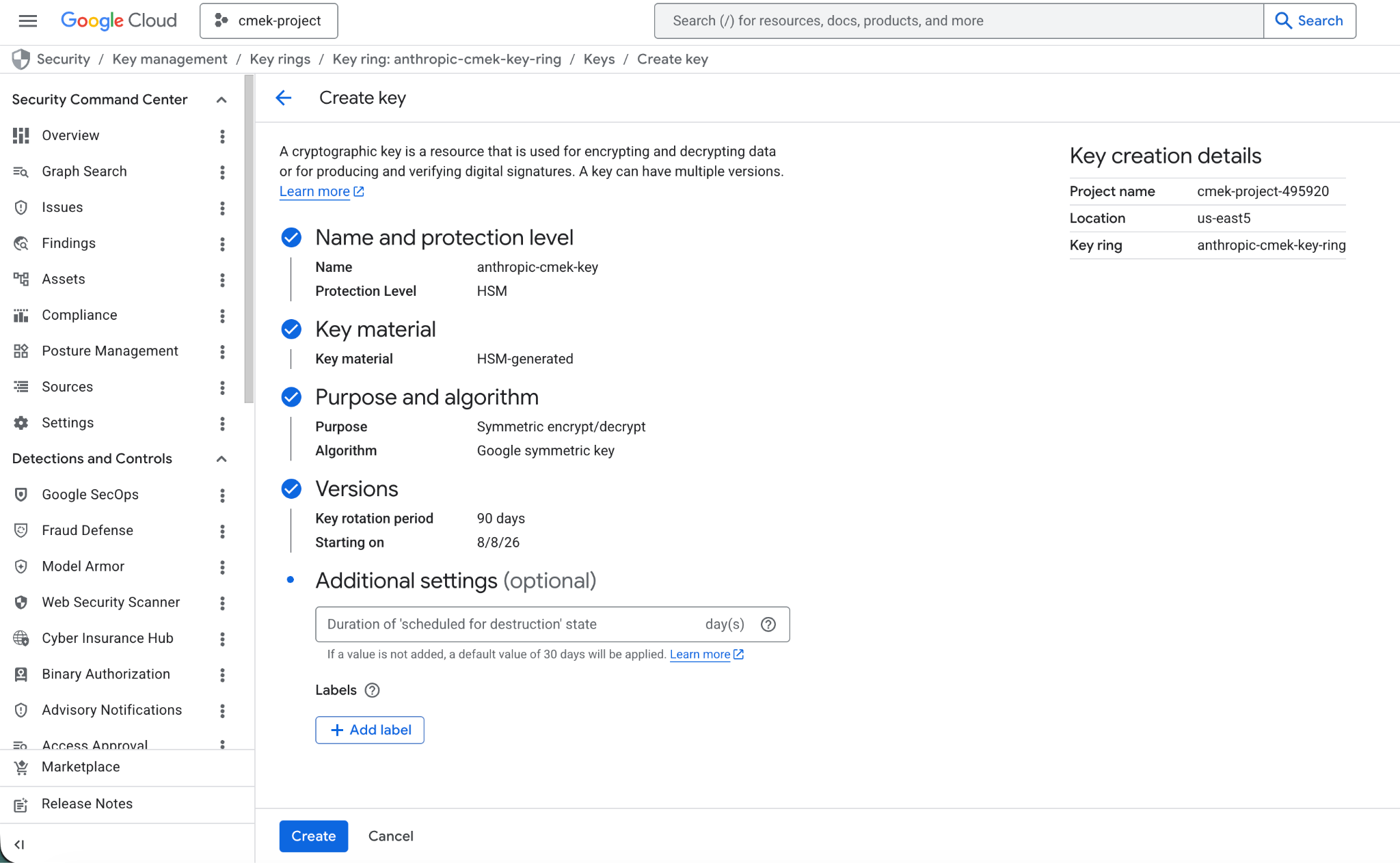
You can also create the key from the Google Cloud Console. Open the key ring, click **Create key**, select **Generated key**, set the purpose and algorithm to symmetric encrypt and decrypt, and choose **HSM** under protection level.
<Frame caption="Create an HSM-protected symmetric encrypt/decrypt key.">
</Frame>
</Step>
<Step title="Grant Anthropic's service account access to the key">
Two key-level IAM bindings are required. Both are scoped to the single crypto key, not project-wide or keyring-wide.
Encrypt and decrypt, which Anthropic uses to encrypt and decrypt the data keys that protect your workspace data (envelope encryption):
```bash
gcloud kms keys add-iam-policy-binding <your-key-name> \
--project=<your-project-id> \
--location=<region> \
--keyring=<your-keyring-name> \
--member="serviceAccount:anthropic-cmek-client-us@gcp-anthropic-cmek-clients.iam.gserviceaccount.com" \
--role=roles/cloudkms.cryptoKeyEncrypterDecrypter
```
Viewer, for the metadata read (`cryptoKeys.get`) Anthropic performs at startup to validate the key's purpose and algorithm:
```bash
gcloud kms keys add-iam-policy-binding <your-key-name> \
--project=<your-project-id> \
--location=<region> \
--keyring=<your-keyring-name> \
--member="serviceAccount:anthropic-cmek-client-us@gcp-anthropic-cmek-clients.iam.gserviceaccount.com" \
--role=roles/cloudkms.viewer
```
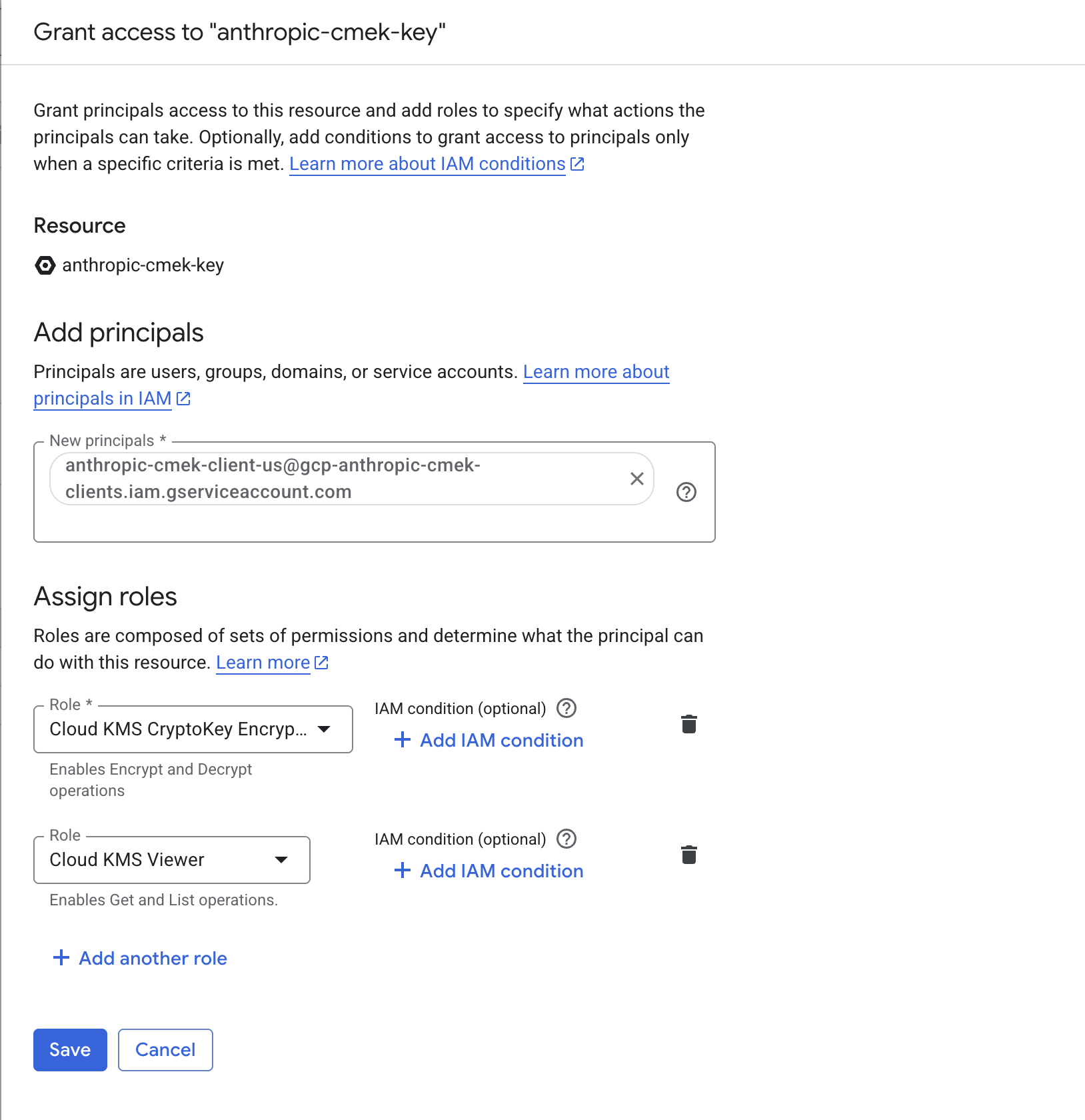
From the Console, select the key, open the **Permissions** panel, click **Grant access**, and add the service account with both the Cloud KMS CryptoKey Encrypter/Decrypter and Cloud KMS Viewer roles. Make sure you are on the key's permissions page, not the key ring or project, so the grant is scoped to this key only.
<Frame caption="Grant the Anthropic service account both roles, scoped to the key.">
</Frame>
</Step>
<Step title="Note the full key resource name">
You pass this to Anthropic when you register the key. The format is:
```text wrap
projects/<your-project-id>/locations/<region>/keyRings/<your-keyring-name>/cryptoKeys/<your-key-name>
```
Retrieve it with:
```bash
gcloud kms keys describe <your-key-name> \
--project=<your-project-id> \
--location=<region> \
--keyring=<your-keyring-name> \
--format="value(name)"
```
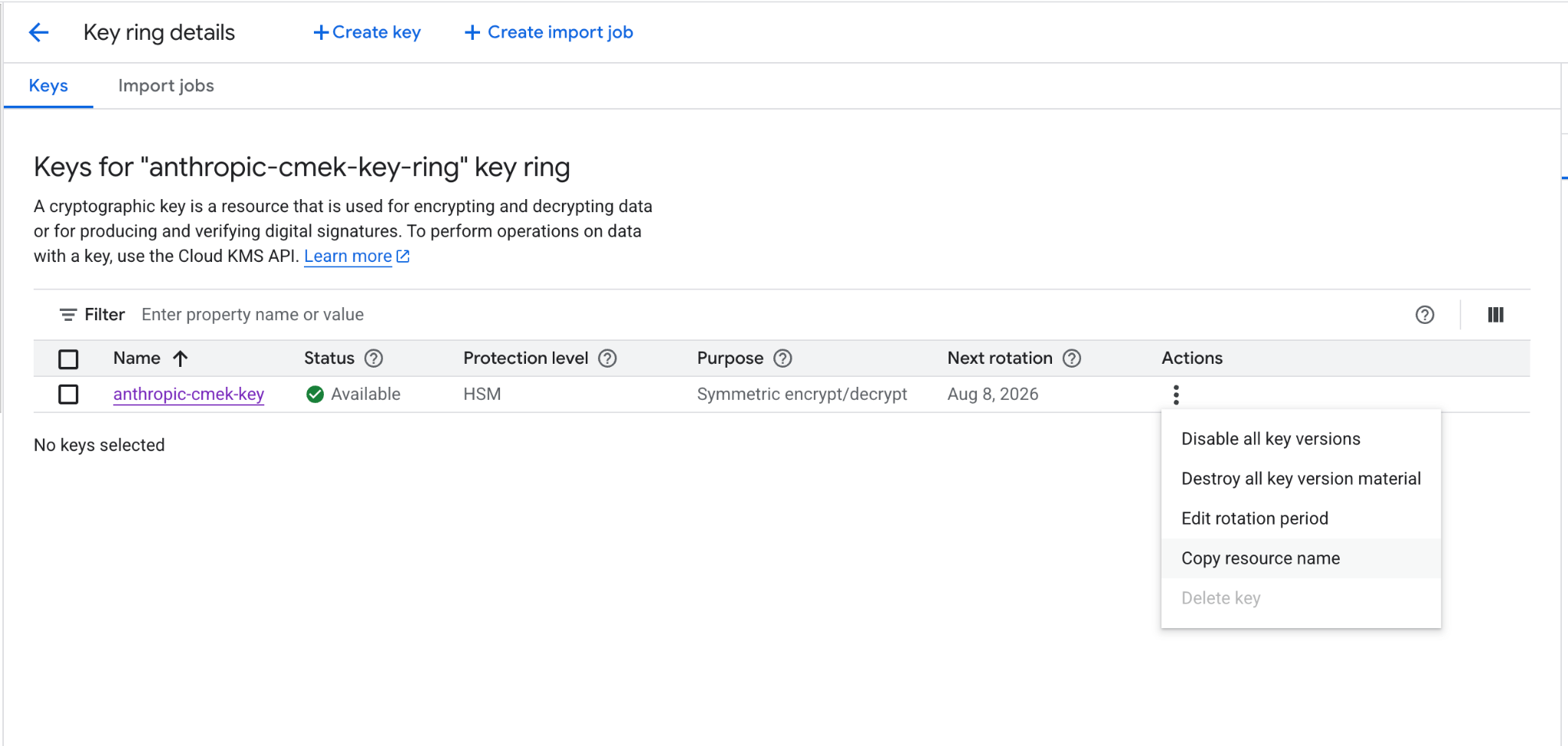
From the Console, open the key's details page and click **Copy resource name**.
<Frame caption="Copy the key's full resource name from the actions menu.">
</Frame>
</Step>
</Steps>
## Register the key with Anthropic
How you register the key depends on which product you use.
<Tabs>
<Tab title="Claude Platform">
<Steps>
<Step title="Register the key with Anthropic">
Create an external key configuration through the Admin API, using the resource name from the Note the full key resource name step under Encryption key setup.
```bash
curl -sS https://api.anthropic.com/v1/organizations/external_keys \
-H "x-api-key: <anthropic-admin-api-key>" \
-H "anthropic-version: 2023-06-01" \
-H "content-type: application/json" \
-d '{
"display_name": "<friendly-name>",
"geo": "us",
"provider_config": {
"type": "gcp",
"key_name": "projects/<your-project-id>/locations/<region>/keyRings/<your-keyring-name>/cryptoKeys/<your-key-name>"
}
}'
```
The response contains the external key ID:
```json
{
"type": "external_key",
"id": "ekey_<id>",
"display_name": "<friendly-name>"
}
```
</Step>
<Step title="Validate the key">
Trigger an encrypt and decrypt round-trip against your key.
```bash
curl -sS -X POST https://api.anthropic.com/v1/organizations/external_keys/ekey_<id>/validate \
-H "x-api-key: <anthropic-admin-api-key>" \
-H "anthropic-version: 2023-06-01" \
-H "content-type: application/json" \
-d '{}'
```
A successful response looks like this:
```json
{ "type": "external_key_validation", "status": "success", "error": null }
```
If validation fails, common causes are:
* **VPC Service Controls:** if a service perimeter protects Cloud KMS in your project, add Anthropic to an access level on the perimeter (or exclude the key's project) so Anthropic can reach the key.
* **Domain restricted sharing:** the `constraints/iam.allowedPolicyMemberDomains` org policy can strip the Anthropic service account binding (see the earlier note). Confirm the binding is present with `gcloud kms keys get-iam-policy <your-key-name> --project=<your-project-id> --location=<region> --keyring=<your-keyring-name>`.
* **Disabled or destroyed key version:** confirm the key's primary version is enabled, and not disabled, scheduled for destruction, or destroyed.
</Step>
<Step title="Attach the key to a workspace">
```bash
curl -sS -X POST https://api.anthropic.com/v1/organizations/workspaces/<workspace-id> \
-H "x-api-key: <anthropic-admin-api-key>" \
-H "anthropic-version: 2023-06-01" \
-H "content-type: application/json" \
-d '{
"external_key_id": "ekey_<id>"
}'
```
</Step>
</Steps>
</Tab>
<Tab title="Claude Enterprise">
In [claude.ai > Organization settings > Data and privacy](https://claude.ai/admin-settings/data-privacy-controls), open **Encryption keys**, then click **Add key**. Choose **Google Cloud**, paste the full key resource name from the previous step, and click **Continue**. Anthropic validates the key with an encrypt and decrypt round-trip. Once it shows as verified, your organization is CMEK-protected from that point forward.
On Claude Enterprise, CMEK applies to the whole organization, so there is no separate workspace attach step, and an organization can have only one key.
</Tab>
</Tabs>
## Terraform
For infrastructure-as-code deployments, the same steps map to the `google` provider with the `google_kms_key_ring`, `google_kms_crypto_key`, and `google_kms_crypto_key_iam_member` resources.