
Build an MCP App changedextensions/apps/build
Nearest release: v2.1.203, published an hour before upstream edited the page. Shown because the two are within 24 hours of each other. Nothing here says the release caused the edit.
Upstream edited this page at 7 Jul 2026 19:26 UTC, give or take a minute or two: the time comes from Anthropic’s own sitemap rather than from a commit. This site recorded the change at 20 Oct 2026 20:07 UTC.
Upstream edited
Recorded here
Lines+218added
Lines−248removed
From line
27
where the diff opens
First seen
14 Aug 2026
this site's first read of the page
Recorded edits3to this page, all time
The whole hunk
from line 27, old and new numbered
/
from line 27
2727The `create-mcp-app` skill includes architecture guidance, best practices, and
2828working examples that the agent uses to generate your project.
2929
30<Steps>
31 <Step title="Install the skill">
32 If you are using Claude Code, you can install the skill directly with:
30**1. Install the skill**
3331
34 ```
35 /plugin marketplace add modelcontextprotocol/ext-apps
36 /plugin install mcp-apps@modelcontextprotocol-ext-apps
37 ```
32If you are using Claude Code, you can install the skill directly with:
3833
39 You can also use the [Vercel Skills CLI](https://skills.sh/) to install skills across different AI coding agents:
34```
35/plugin marketplace add modelcontextprotocol/ext-apps
36/plugin install mcp-apps@modelcontextprotocol-ext-apps
37```
4038
41 ```bash theme={null}
42 npx skills add modelcontextprotocol/ext-apps
43 ```
39You can also use the [Vercel Skills CLI](https://skills.sh/) to install skills across different AI coding agents:
4440
45 Alternatively, you can install the skill manually by cloning the ext-apps repository:
41```bash theme={null}
42npx skills add modelcontextprotocol/ext-apps
43```
4644
47 ```bash theme={null}
48 git clone https://github.com/modelcontextprotocol/ext-apps.git
49 ```
45Alternatively, you can install the skill manually by cloning the ext-apps repository:
5046
51 And then copying the skill to the appropriate location for your agent:
47```bash theme={null}
48git clone https://github.com/modelcontextprotocol/ext-apps.git
49```
5250
53 | Agent | Skills directory (macOS/Linux) | Skills directory (Windows) |
54 | - | - | - |
55 | [Claude Code](https://docs.anthropic.com/en/docs/claude-code/skills) | `~/.claude/skills/` | `%USERPROFILE%\.claude\skills\` |
56 | [VS Code](https://code.visualstudio.com/docs/copilot/customization/agent-skills) and [GitHub Copilot](https://docs.github.com/en/copilot/concepts/agents/about-agent-skills) | `~/.copilot/skills/` | `%USERPROFILE%\.copilot\skills\` |
57 | [Gemini CLI](https://geminicli.com/docs/cli/skills/) | `~/.gemini/skills/` | `%USERPROFILE%\.gemini\skills\` |
58 | [Cline](https://cline.bot/blog/cline-3-48-0-skills-and-websearch-make-cline-smarter) | `~/.cline/skills/` | `%USERPROFILE%\.cline\skills\` |
59 | [Goose](https://goose-docs.ai/docs/guides/context-engineering/using-skills/) | `~/.config/goose/skills/` | `%USERPROFILE%\.config\goose\skills\` |
60 | [Codex](https://developers.openai.com/codex/skills/) | `~/.codex/skills/` | `%USERPROFILE%\.codex\skills\` |
61 | [Cursor](https://cursor.com/docs/context/skills) | `~/.cursor/skills/` | `%USERPROFILE%\.cursor\skills\` |
51And then copying the skill to the appropriate location for your agent:
6252
63 <Note>
64 This list is not comprehensive. Other agents may support skills in different locations; check your agent's documentation.
65 </Note>
53| Agent | Skills directory (macOS/Linux) | Skills directory (Windows) |
54| - | - | - |
55| [Claude Code](https://docs.anthropic.com/en/docs/claude-code/skills) | `~/.claude/skills/` | `%USERPROFILE%\.claude\skills\` |
56| [VS Code](https://code.visualstudio.com/docs/copilot/customization/agent-skills) and [GitHub Copilot](https://docs.github.com/en/copilot/concepts/agents/about-agent-skills) | `~/.copilot/skills/` | `%USERPROFILE%\.copilot\skills\` |
57| [Gemini CLI](https://geminicli.com/docs/cli/skills/) | `~/.gemini/skills/` | `%USERPROFILE%\.gemini\skills\` |
58| [Cline](https://cline.bot/blog/cline-3-48-0-skills-and-websearch-make-cline-smarter) | `~/.cline/skills/` | `%USERPROFILE%\.cline\skills\` |
59| [Goose](https://goose-docs.ai/docs/guides/context-engineering/using-skills/) | `~/.config/goose/skills/` | `%USERPROFILE%\.config\goose\skills\` |
60| [Codex](https://developers.openai.com/codex/skills/) | `~/.codex/skills/` | `%USERPROFILE%\.codex\skills\` |
61| [Cursor](https://cursor.com/docs/context/skills) | `~/.cursor/skills/` | `%USERPROFILE%\.cursor\skills\` |
6662
67 For example, with Claude Code you can install the skill globally (available in all projects):
63> [!NOTE]
64>
65> This list is not comprehensive. Other agents may support skills in different locations; check your agent's documentation.
6866
69 <CodeGroup>
70 ```bash macOS/Linux theme={null}
71 cp -r ext-apps/plugins/mcp-apps/skills/create-mcp-app ~/.claude/skills/create-mcp-app
72 ```
67For example, with Claude Code you can install the skill globally (available in all projects):
7368
74 ```powershell Windows theme={null}
75 Copy-Item -Recurse ext-apps\plugins\mcp-apps\skills\create-mcp-app $env:USERPROFILE\.claude\skills\create-mcp-app
76 ```
77 </CodeGroup>
69```bash macOS/Linux theme={null}
70cp -r ext-apps/plugins/mcp-apps/skills/create-mcp-app ~/.claude/skills/create-mcp-app
71```
7872
79 Or install it for a single project only by copying to `.claude/skills/` in your project directory:
73```powershell Windows theme={null}
74Copy-Item -Recurse ext-apps\plugins\mcp-apps\skills\create-mcp-app $env:USERPROFILE\.claude\skills\create-mcp-app
75```
8076
81 <CodeGroup>
82 ```bash macOS/Linux theme={null}
83 mkdir -p .claude/skills && cp -r ext-apps/plugins/mcp-apps/skills/create-mcp-app .claude/skills/create-mcp-app
84 ```
77Or install it for a single project only by copying to `.claude/skills/` in your project directory:
8578
86 ```powershell Windows theme={null}
87 New-Item -ItemType Directory -Force -Path .claude\skills | Out-Null; Copy-Item -Recurse ext-apps\plugins\mcp-apps\skills\create-mcp-app .claude\skills\create-mcp-app
88 ```
89 </CodeGroup>
79```bash macOS/Linux theme={null}
80mkdir -p .claude/skills && cp -r ext-apps/plugins/mcp-apps/skills/create-mcp-app .claude/skills/create-mcp-app
81```
9082
91 To verify the skill is installed, ask your agent "What skills do you have access to?" — you should see `create-mcp-app` as one of the available skills.
92 </Step>
83```powershell Windows theme={null}
84New-Item -ItemType Directory -Force -Path .claude\skills | Out-Null; Copy-Item -Recurse ext-apps\plugins\mcp-apps\skills\create-mcp-app .claude\skills\create-mcp-app
85```
9386
94 <Step title="Create your app">
95 Ask your AI coding agent to build it:
87To verify the skill is installed, ask your agent "What skills do you have access to?" — you should see `create-mcp-app` as one of the available skills.
9688
97 ```
98 Create an MCP App that displays a color picker
99 ```
89**2. Create your app**
10090
101 The agent will recognize the `create-mcp-app` skill is relevant, load its instructions, then scaffold a complete project with server, UI, and configuration files.
91Ask your AI coding agent to build it:
10292
103 <Frame caption="Creating a new MCP App with Claude Code">
104 <img src="https://mintcdn.com/mcp/GU_E-622SLWFdCrP/images/quickstart-apps/create-mcp-app-skill.gif?s=6c3a3b8a7590b5e97b5c3d8480a9ab12" alt="Creating a new MCP App with Claude Code" width="800" height="563" data-path="images/quickstart-apps/create-mcp-app-skill.gif" />
105 </Frame>
106 </Step>
93```
94Create an MCP App that displays a color picker
95```
10796
108 <Step title="Run your app">
109 <CodeGroup>
110 ```bash macOS/Linux theme={null}
111 npm install && npm run build && npm run serve
112 ```
97The agent will recognize the `create-mcp-app` skill is relevant, load its instructions, then scaffold a complete project with server, UI, and configuration files.
11398
114 ```powershell Windows theme={null}
115 npm install; npm run build; npm run serve
116 ```
117 </CodeGroup>
99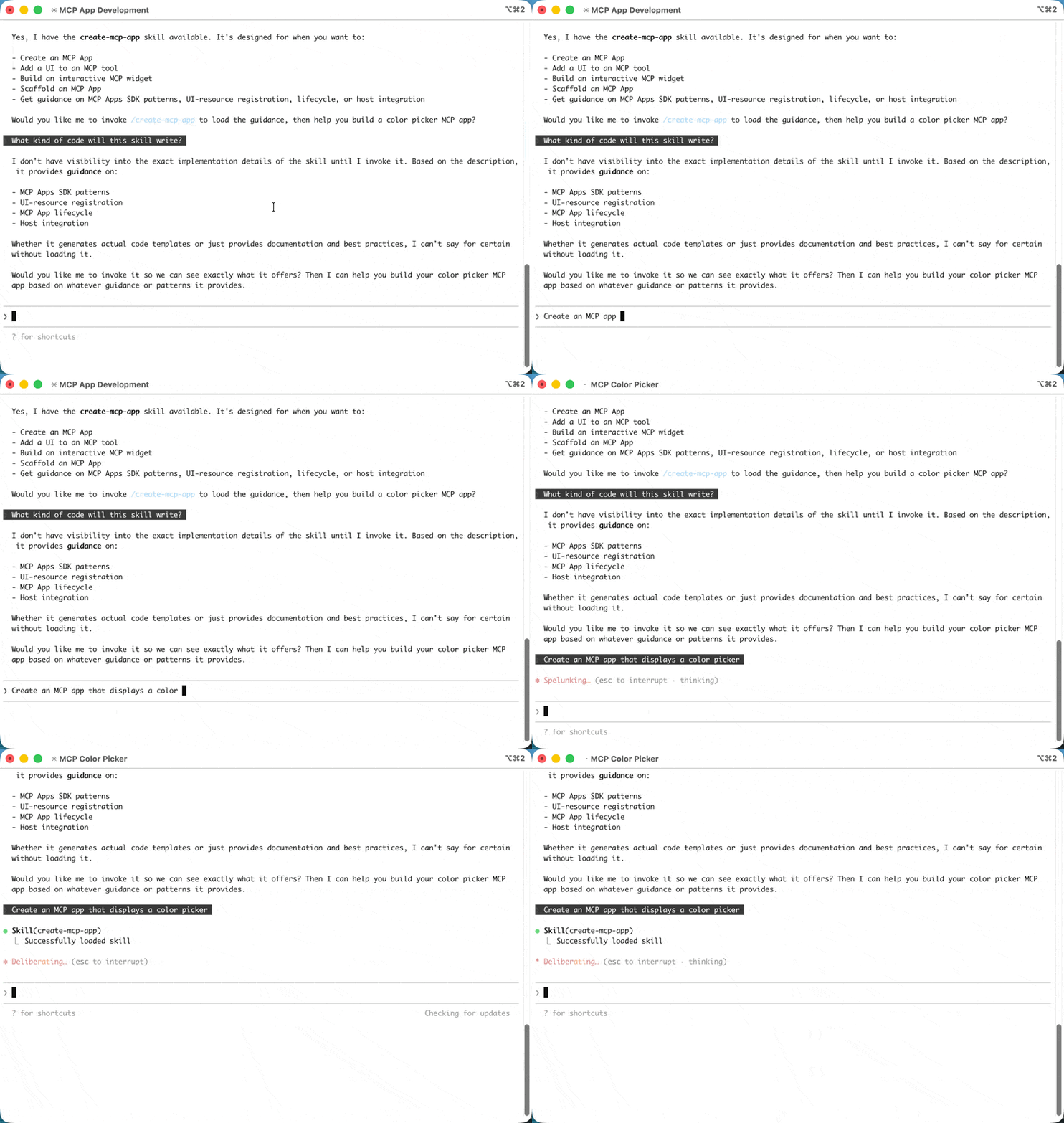
118100
119 <Tip>
120 You might need to make sure that you are first in the **app folder** before running the commands above.
121 </Tip>
122 </Step>
101**3. Run your app**
123102
124 <Step title="Test your app">
125 Follow the instructions in [Testing your app](#testing-your-app) below. For the color picker example, start a new chat and ask Claude to provide you a color picker.
103```bash macOS/Linux theme={null}
104npm install && npm run build && npm run serve
105```
126106
127 <Frame caption="Testing the color picker in Claude">
128 <img src="https://mintcdn.com/mcp/GU_E-622SLWFdCrP/images/quickstart-apps/test-color-picker.gif?s=09413b99bc31d7edc7f9aa22df4faa6a" alt="Testing the color picker in Claude" width="800" height="544" data-path="images/quickstart-apps/test-color-picker.gif" />
129 </Frame>
130 </Step>
131</Steps>
107```powershell Windows theme={null}
108npm install; npm run build; npm run serve
109```
132110
111> [!TIP]
112>
113> You might need to make sure that you are first in the **app folder** before running the commands above.
114
115**4. Test your app**
116
117Follow the instructions in [Testing your app](#testing-your-app) below. For the color picker example, start a new chat and ask Claude to provide you a color picker.
118
119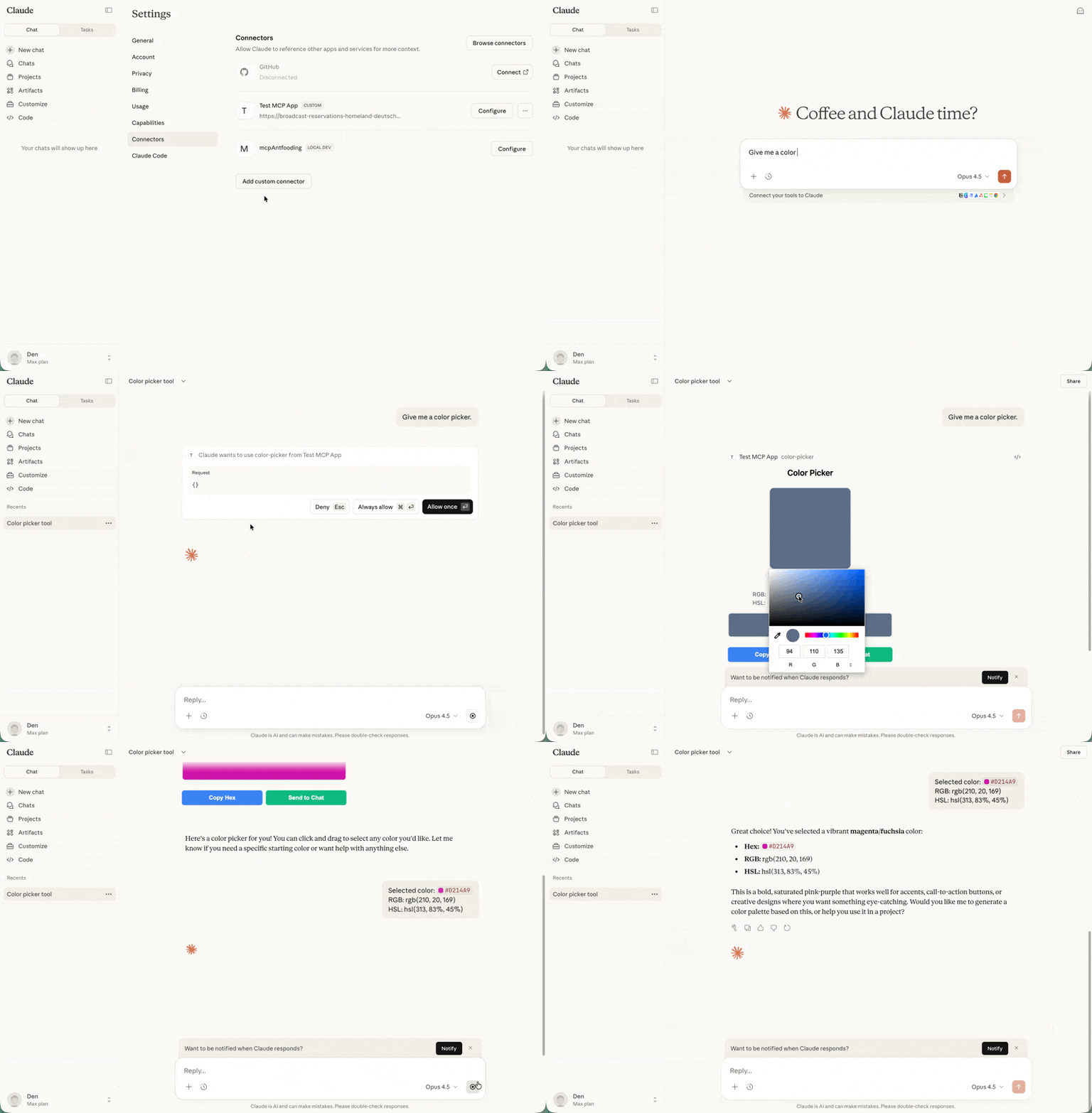
120
133121### Manual setup
134122
135123If you're not using an AI coding agent, or prefer to understand the setup
136124process, follow these steps.
137125
138<Steps>
139 <Step title="Create the project structure">
140 A typical MCP App project separates the server code from the UI code:
126**1. Create the project structure**
141127
142 <Tree>
143 <Tree.Folder name="my-mcp-app" defaultOpen>
144 <Tree.File name="package.json" />
128A typical MCP App project separates the server code from the UI code:
145129
146 <Tree.File name="tsconfig.json" />
130**my-mcp-app**
147131
148 <Tree.File name="vite.config.ts" />
132**package.json**
149133
150 <Tree.File name="server.ts" comment="MCP server with tool + resource" />
134**tsconfig.json**
151135
152 <Tree.File name="mcp-app.html" comment="UI entry point" />
136**vite.config.ts**
153137
154 <Tree.Folder name="src" defaultOpen>
155 <Tree.File name="mcp-app.ts" comment="UI logic" />
156 </Tree.Folder>
157 </Tree.Folder>
158 </Tree>
138**server.ts**
159139
160 The server registers the tool and serves the UI resource. The UI resource will eventually be rendered in a secure iframe with deny-by-default CSP configuration. If your app has CSS and JS assets, you will need to [configure CSP](https://apps.extensions.modelcontextprotocol.io/api/documents/Patterns.html#configuring-csp-and-cors), or you can bundle your assets into the HTML with a tool like `vite-plugin-singlefile`, which is what we will do in this tutorial.
161 </Step>
140**mcp-app.html**
162141
163 <Step title="Install dependencies">
164 ```bash theme={null}
165 npm install @modelcontextprotocol/ext-apps @modelcontextprotocol/sdk
166 npm install -D typescript vite vite-plugin-singlefile express cors @types/express @types/cors tsx
167 ```
142**src**
168143
169 The `ext-apps` package provides helpers for both the server side (registering tools and resources) and the client side (the `App` class for UI-to-host communication). Vite with the `vite-plugin-singlefile` plugin is used here to bundle your UI and assets into a single HTML file for convenience, but this is optional — you can use any bundler or serve unbundled files if you [configure CSP](https://apps.extensions.modelcontextprotocol.io/api/documents/Patterns.html#configuring-csp-and-cors).
170 </Step>
144**mcp-app.ts**
171145
172 <Step title="Configure the project">
173 <Tabs>
174 <Tab title="package.json">
175 The `"type": "module"` setting enables ES module syntax. The `build` script uses the `INPUT` environment variable to tell Vite which HTML file to bundle. The `serve` script runs your server using `tsx` for TypeScript execution.
146The server registers the tool and serves the UI resource. The UI resource will eventually be rendered in a secure iframe with deny-by-default CSP configuration. If your app has CSS and JS assets, you will need to [configure CSP](https://apps.extensions.modelcontextprotocol.io/api/documents/Patterns.html#configuring-csp-and-cors), or you can bundle your assets into the HTML with a tool like `vite-plugin-singlefile`, which is what we will do in this tutorial.
176147
177 ```json theme={null}
178 {
179 "type": "module",
180 "scripts": {
181 "build": "INPUT=mcp-app.html vite build",
182 "serve": "npx tsx server.ts"
183 }
184 }
185 ```
186 </Tab>
148**2. Install dependencies**
187149
188 <Tab title="tsconfig.json">
189 The TypeScript configuration targets modern JavaScript (`ES2022`) and uses ESNext modules with bundler resolution, which works well with Vite. The `include` array covers both the server code in the root and UI code in `src/`.
150```bash theme={null}
151npm install @modelcontextprotocol/ext-apps @modelcontextprotocol/sdk
152npm install -D typescript vite vite-plugin-singlefile express cors @types/express @types/cors tsx
153```
190154
191 ```json theme={null}
192 {
193 "compilerOptions": {
194 "target": "ES2022",
195 "module": "ESNext",
196 "moduleResolution": "bundler",
197 "strict": true,
198 "esModuleInterop": true,
199 "skipLibCheck": true,
200 "outDir": "dist"
201 },
202 "include": ["*.ts", "src/**/*.ts"]
203 }
204 ```
205 </Tab>
155The `ext-apps` package provides helpers for both the server side (registering tools and resources) and the client side (the `App` class for UI-to-host communication). Vite with the `vite-plugin-singlefile` plugin is used here to bundle your UI and assets into a single HTML file for convenience, but this is optional — you can use any bundler or serve unbundled files if you [configure CSP](https://apps.extensions.modelcontextprotocol.io/api/documents/Patterns.html#configuring-csp-and-cors).
206156
207 <Tab title="vite.config.ts">
208 ```typescript theme={null}
209 import { defineConfig } from "vite";
210 import { viteSingleFile } from "vite-plugin-singlefile";
157**3. Configure the project**
211158
212 export default defineConfig({
213 plugins: [viteSingleFile()],
214 build: {
215 outDir: "dist",
216 rollupOptions: {
217 input: process.env.INPUT,
218 },
219 },
220 });
221 ```
222 </Tab>
223 </Tabs>
224 </Step>
159**package.json**
225160
226 <Step title="Build the project">
227 With the project structure and configuration in place, continue to [Building an MCP App](#building-an-mcp-app) below to implement the server and UI.
228 </Step>
229</Steps>
161The `"type": "module"` setting enables ES module syntax. The `build` script uses the `INPUT` environment variable to tell Vite which HTML file to bundle. The `serve` script runs your server using `tsx` for TypeScript execution.
230162
163```json theme={null}
164{
165 "type": "module",
166 "scripts": {
167 "build": "INPUT=mcp-app.html vite build",
168 "serve": "npx tsx server.ts"
169 }
170}
171```
172
173**tsconfig.json**
174
175The TypeScript configuration targets modern JavaScript (`ES2022`) and uses ESNext modules with bundler resolution, which works well with Vite. The `include` array covers both the server code in the root and UI code in `src/`.
176
177```json theme={null}
178{
179 "compilerOptions": {
180 "target": "ES2022",
181 "module": "ESNext",
182 "moduleResolution": "bundler",
183 "strict": true,
184 "esModuleInterop": true,
185 "skipLibCheck": true,
186 "outDir": "dist"
187 },
188 "include": ["*.ts", "src/**/*.ts"]
189}
190```
191
192**vite.config.ts**
193
194```typescript theme={null}
195import { defineConfig } from "vite";
196import { viteSingleFile } from "vite-plugin-singlefile";
197
198export default defineConfig({
199 plugins: [viteSingleFile()],
200 build: {
201 outDir: "dist",
202 rollupOptions: {
203 input: process.env.INPUT,
204 },
205 },
206});
207```
208
209**4. Build the project**
210
211With the project structure and configuration in place, continue to [Building an MCP App](#building-an-mcp-app) below to implement the server and UI.
212
231213## Building an MCP App
232214
233215Let's build a simple app that displays the current server time. This example
from line 390
408390
409391To test your MCP App, build the UI and start your local server:
410392
411<CodeGroup>
412 ```bash macOS/Linux theme={null}
413 npm run build && npm run serve
414 ```
393```bash macOS/Linux theme={null}
394npm run build && npm run serve
395```
415396
416 ```powershell Windows theme={null}
417 npm run build; npm run serve
418 ```
419</CodeGroup>
397```powershell Windows theme={null}
398npm run build; npm run serve
399```
420400
421401In the default configuration, your server will be available at
422402`http://localhost:3001/mcp`. However, to see your app render, you need an MCP
from line 420
440420in Claude - click on your profile, go to **Settings**, **Connectors**, and
441421finally **Add custom connector**.
442422
443<Note>
444 Custom connectors are available on paid Claude plans (Pro, Max, or Team).
445</Note>
423> [!NOTE]
424>
425> Custom connectors are available on paid Claude plans (Pro, Max, or Team).
446426
447<Frame caption="Adding a custom connector in Claude">
448 <img src="https://mintcdn.com/mcp/GU_E-622SLWFdCrP/images/quickstart-apps/add-custom-connector.gif?s=c4ec0750413ff7575c7f9492e2713212" alt="Adding a custom connector in Claude" width="800" height="543" data-path="images/quickstart-apps/add-custom-connector.gif" />
449</Frame>
427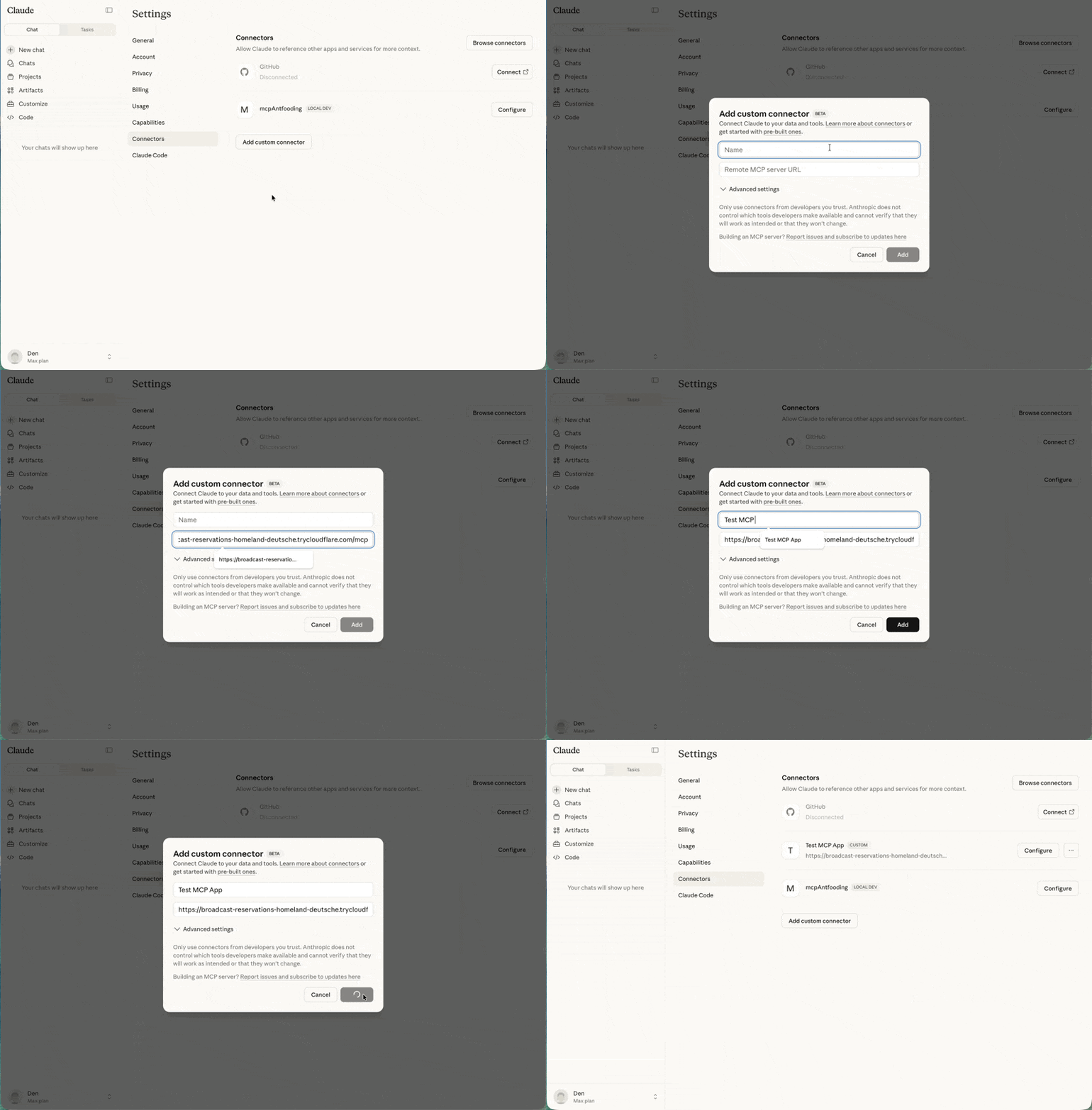
450428
451429### Testing with the basic-host
452430
from line 431
453431The `ext-apps` repository includes a test host for development. Clone the repo and
454432install dependencies:
455433
456<CodeGroup>
457 ```bash macOS/Linux theme={null}
458 git clone https://github.com/modelcontextprotocol/ext-apps.git
459 cd ext-apps/examples/basic-host
460 npm install
461 ```
434```bash macOS/Linux theme={null}
435git clone https://github.com/modelcontextprotocol/ext-apps.git
436cd ext-apps/examples/basic-host
437npm install
438```
462439
463 ```powershell Windows theme={null}
464 git clone https://github.com/modelcontextprotocol/ext-apps.git
465 cd ext-apps\examples\basic-host
466 npm install
467 ```
468</CodeGroup>
440```powershell Windows theme={null}
441git clone https://github.com/modelcontextprotocol/ext-apps.git
442cd ext-apps\examples\basic-host
443npm install
444```
469445
470446Running `npm start` from `ext-apps/examples/basic-host/` will start the basic-host
471447test interface. To connect it to a specific server (e.g., one you're developing),
472448pass the `SERVERS` environment variable inline:
473449
474<CodeGroup>
475 ```bash macOS/Linux theme={null}
476 SERVERS='["http://localhost:3001/mcp"]' npm start
477 ```
450```bash macOS/Linux theme={null}
451SERVERS='["http://localhost:3001/mcp"]' npm start
452```
478453
479 ```powershell Windows theme={null}
480 $env:SERVERS='["http://localhost:3001/mcp"]'; npm start
481 ```
482</CodeGroup>
454```powershell Windows theme={null}
455$env:SERVERS='["http://localhost:3001/mcp"]'; npm start
456```
483457
484458Navigate to `http://localhost:8080`. You'll see a simple interface where you can
485459select a tool and call it. When you call your tool, the host fetches the UI
from line 460
486460resource and renders it in a sandboxed iframe. You can then interact with your
487461app and verify that tool calls work correctly.
488462
489<Frame caption="Testing the QR code MCP App with the basic host">
490 <img src="https://mintcdn.com/mcp/GU_E-622SLWFdCrP/images/quickstart-apps/qr-code-server.gif?s=48a3b47239b8394017c0949162d63de9" alt="Example of the QR code MCP App running with the basic host" width="800" height="596" data-path="images/quickstart-apps/qr-code-server.gif" />
491</Frame>
463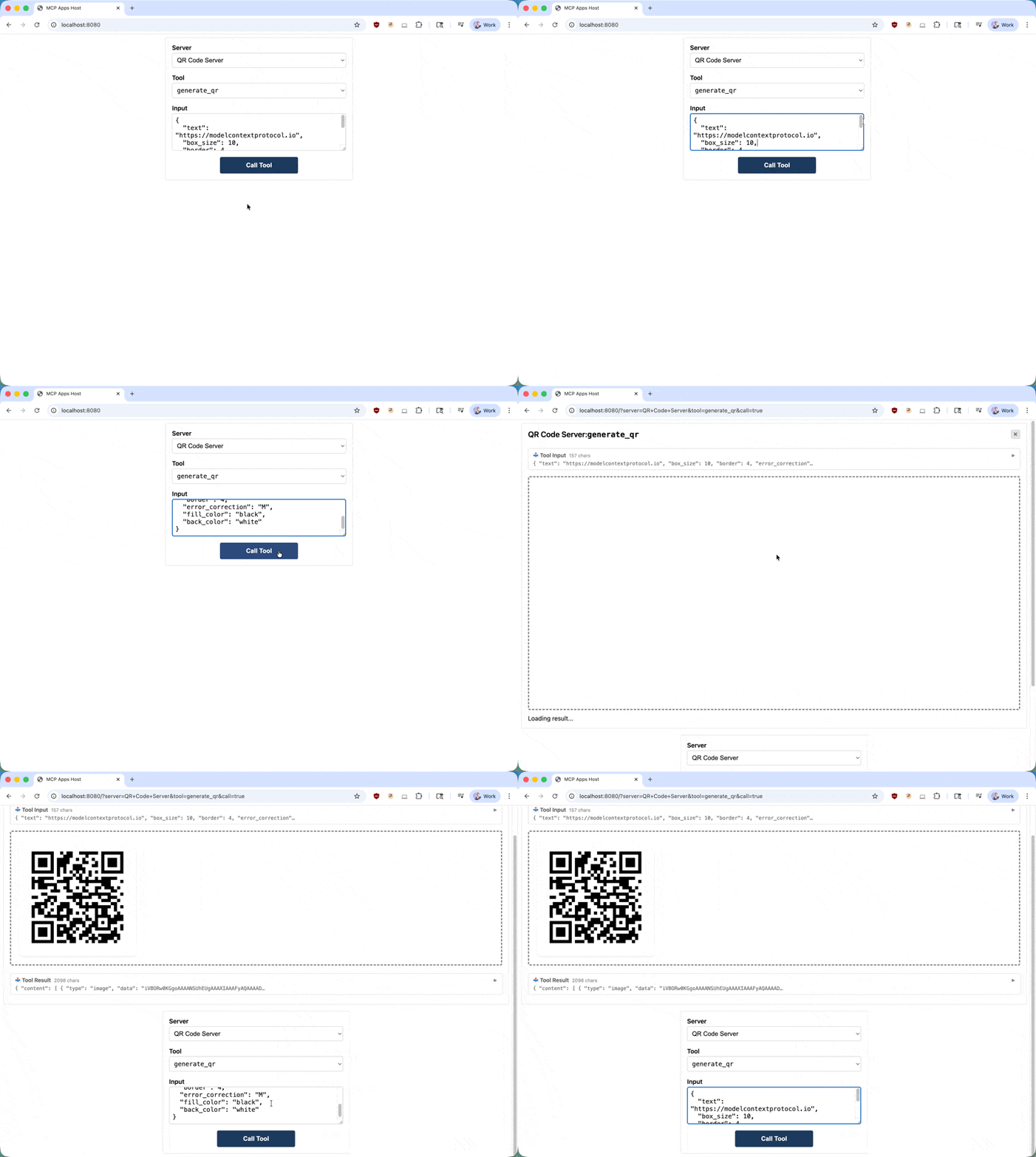
492464
493465## Learn more
494466
495<CardGroup cols={2}>
496 <Card title="API Documentation" icon="book" href="https://apps.extensions.modelcontextprotocol.io/api/">
497 Full SDK reference and API details
498 </Card>
467> **[API Documentation](https://apps.extensions.modelcontextprotocol.io/api/)**
468>
469> Full SDK reference and API details
499470
500 <Card title="GitHub Repository" icon="github" href="https://github.com/modelcontextprotocol/ext-apps">
501 Source code, examples, and issue tracker
502 </Card>
471> **[GitHub Repository](https://github.com/modelcontextprotocol/ext-apps)**
472>
473> Source code, examples, and issue tracker
503474
504 <Card title="Specification" icon="file-lines" href="https://github.com/modelcontextprotocol/ext-apps/blob/main/specification/draft/apps.mdx">
505 Technical specification for implementers
506 </Card>
507</CardGroup>
475> **[Specification](https://github.com/modelcontextprotocol/ext-apps/blob/main/specification/draft/apps.mdx)**
476>
477> Technical specification for implementers
508478
509479## Feedback
510480
No line in this hunk matches that.